
Notifications
Configure notification actions including Notify, Ask, and Open Ticket options. This task explains how to create and customize notification messages and ticket actions.
Notifications
In Notifications, select one of these:
-
Notify
-
Click Add.
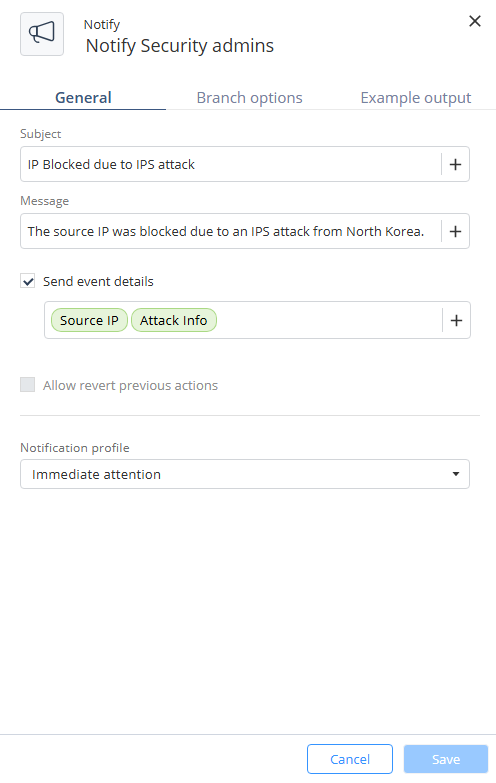
The Notify window appears.
-
Enter these:
-
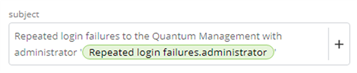
Subject - Text combined and dynamic values from previous steps or automation parameters.
-
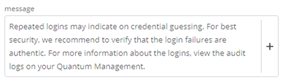
Message - Text combined and dynamic values from previous steps or automation parameters.
-
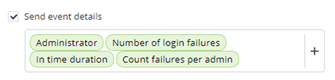
(Optional) Send event details - Include selected event data from the outputs of the current or previous steps, or from the automation parameters.
-
Notification profile - Select the notification profile of the step.

-
-
Click Add.
-
Ask
-
Click Add.
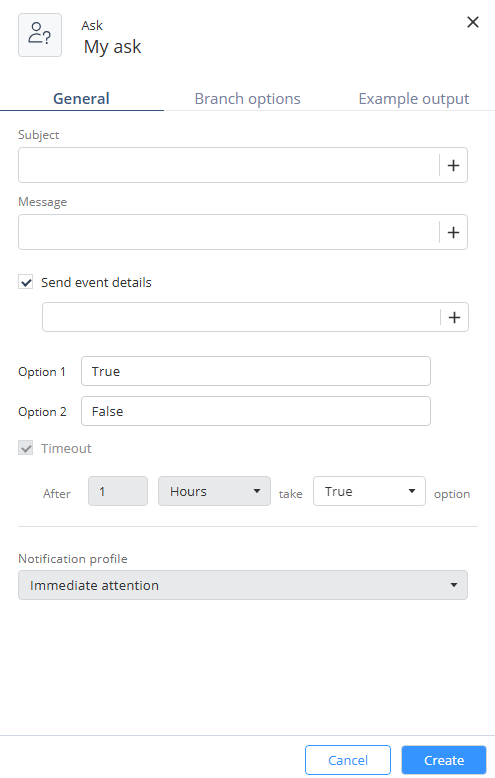
The Ask window appears.
-
Enter these:
-
Subject - Text combined and dynamic values from previous steps or automation parameters.

-
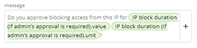
Message - Text combined and dynamic values from previous steps or automation parameters.
-
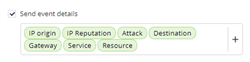
(Optional) Send event details - Include selected event data from the outputs of the current or previous steps, or from the automation parameters.
-
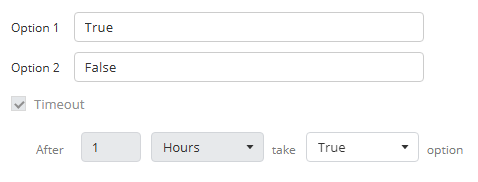
Options and Defaults - Define user response options and a default fallback in case of timeout.
-
Notification profile - Select the notification profile of the step.
-
-
Click Add.
-
Open Ticket
-
Click Add.
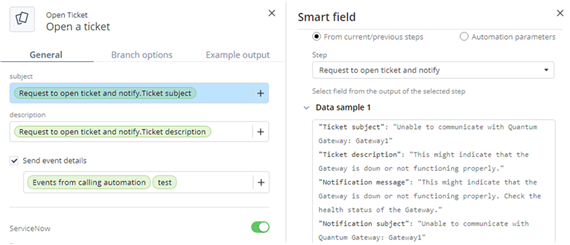
The Open Ticket window appears.
-
Click Add.