Adding a Step to the Middle of an Automation
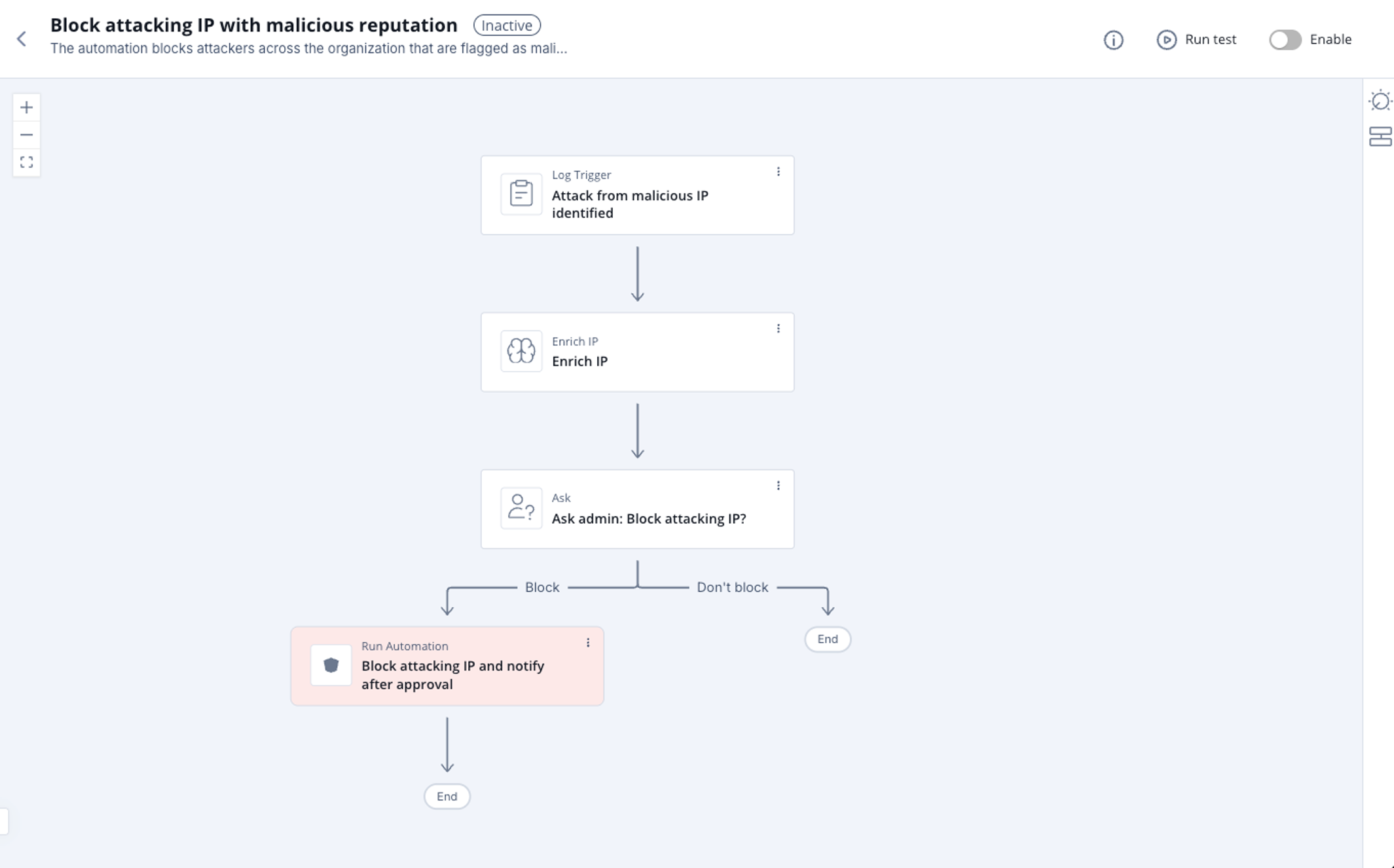
You can add new steps between existing steps in an automation to extend the flow without creating a new automation. When you add a Condition or Ask step, you must specify how the automation continues to the next step.
You can add new steps between existing steps in an automation.
When you add a Condition or Ask step between existing steps, you must specify how the automation continues to the next step.
Adding a Condition Step Between Existing Steps
When you add a Condition step between two existing steps, you must select which branch the next step follows: True or False.
To add a Condition step between existing steps:
-
Access Playblocks and open the required automation.

-
Move the cursor over the arrow between the two existing steps.
The arrow changes to a + button.

Click +.
The Select a step window appears.
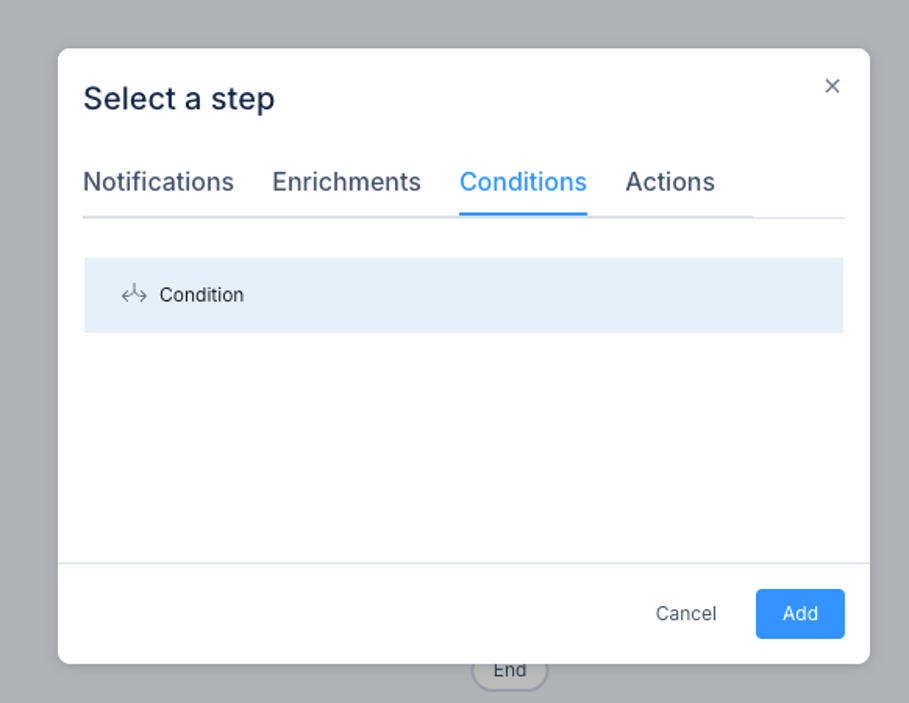
On the Conditions tab, select Condition and click Add.
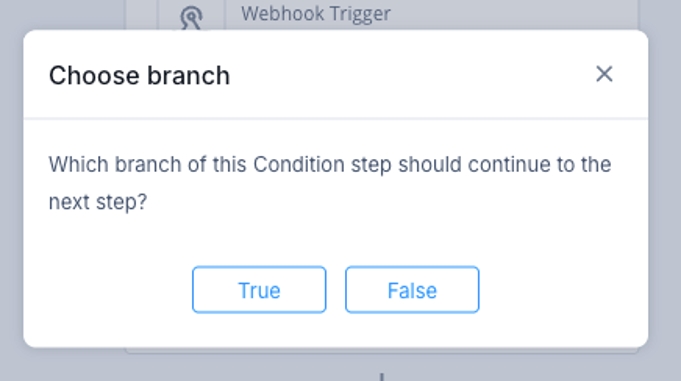
The Choose branch window appears.
-
Select the branch that continues to the next step:
True - The next step runs when the condition is met.
False - The next step runs when the condition is not met.
-
Configure the condition expressions and operator. For more information, see Conditions.
Click Create.
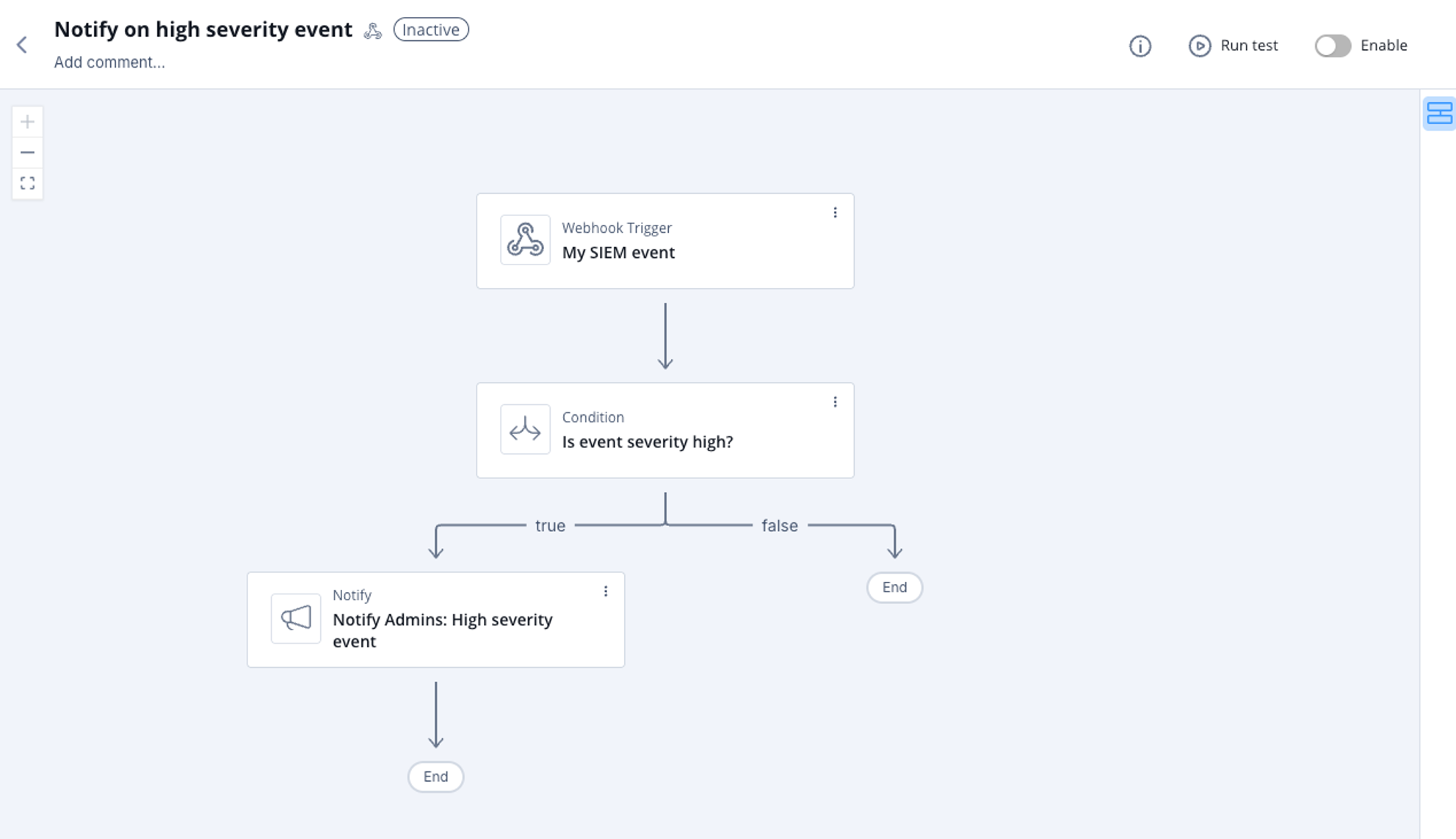
The Condition step appears between the existing steps with true and false branches.
Adding an Ask Step Between Existing Steps
When you add an Ask step between existing steps, the next step is automatically added to the path of the first Ask option.
To add an Ask step between existing steps:
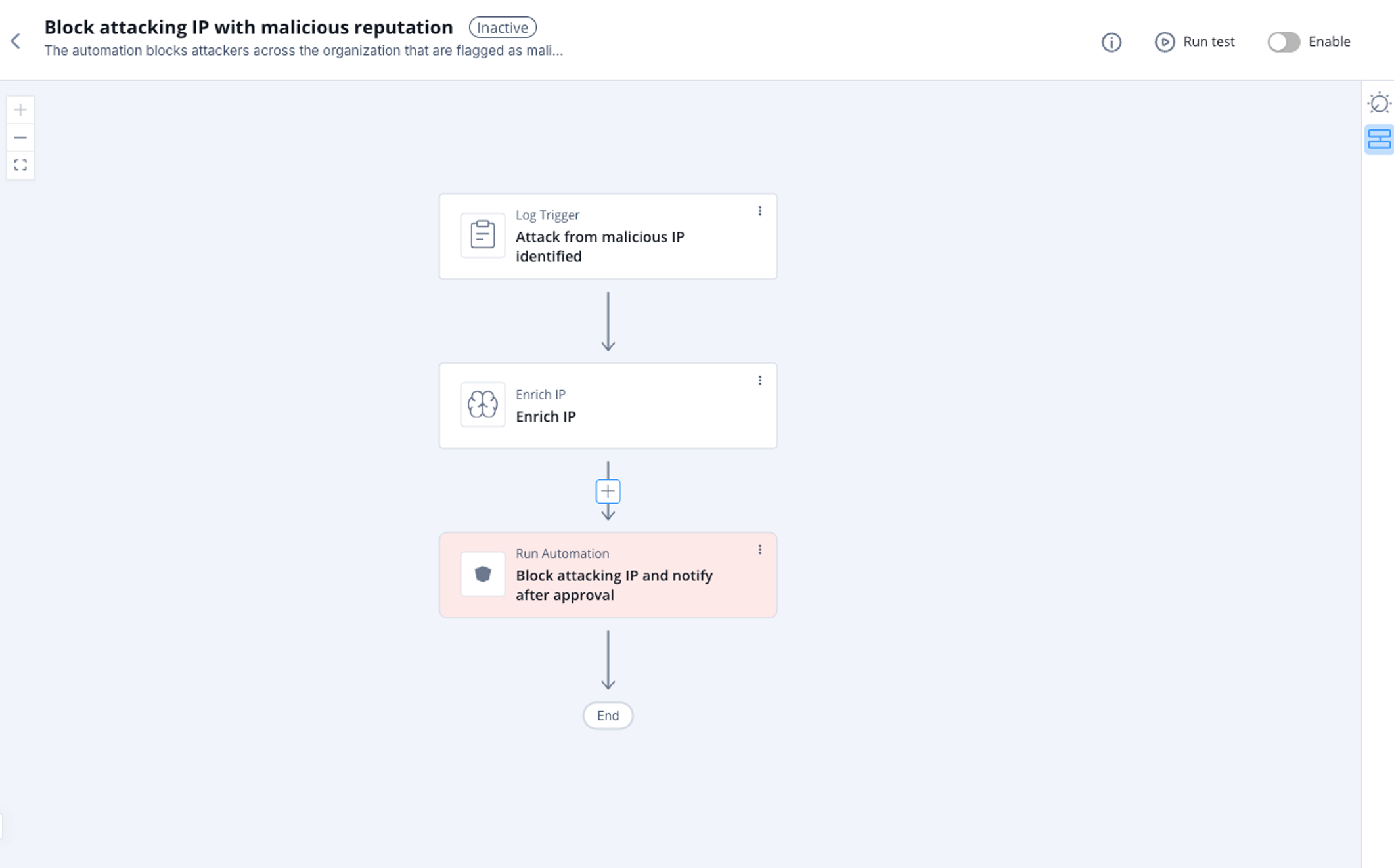
Access Playblocks and open the required automation.
-
Move the cursor over the arrow between the two existing steps.
The arrow changes to a + button.
-
Click +.
The Select a step window appears.
On the Notifications tab, select Ask and click Add.
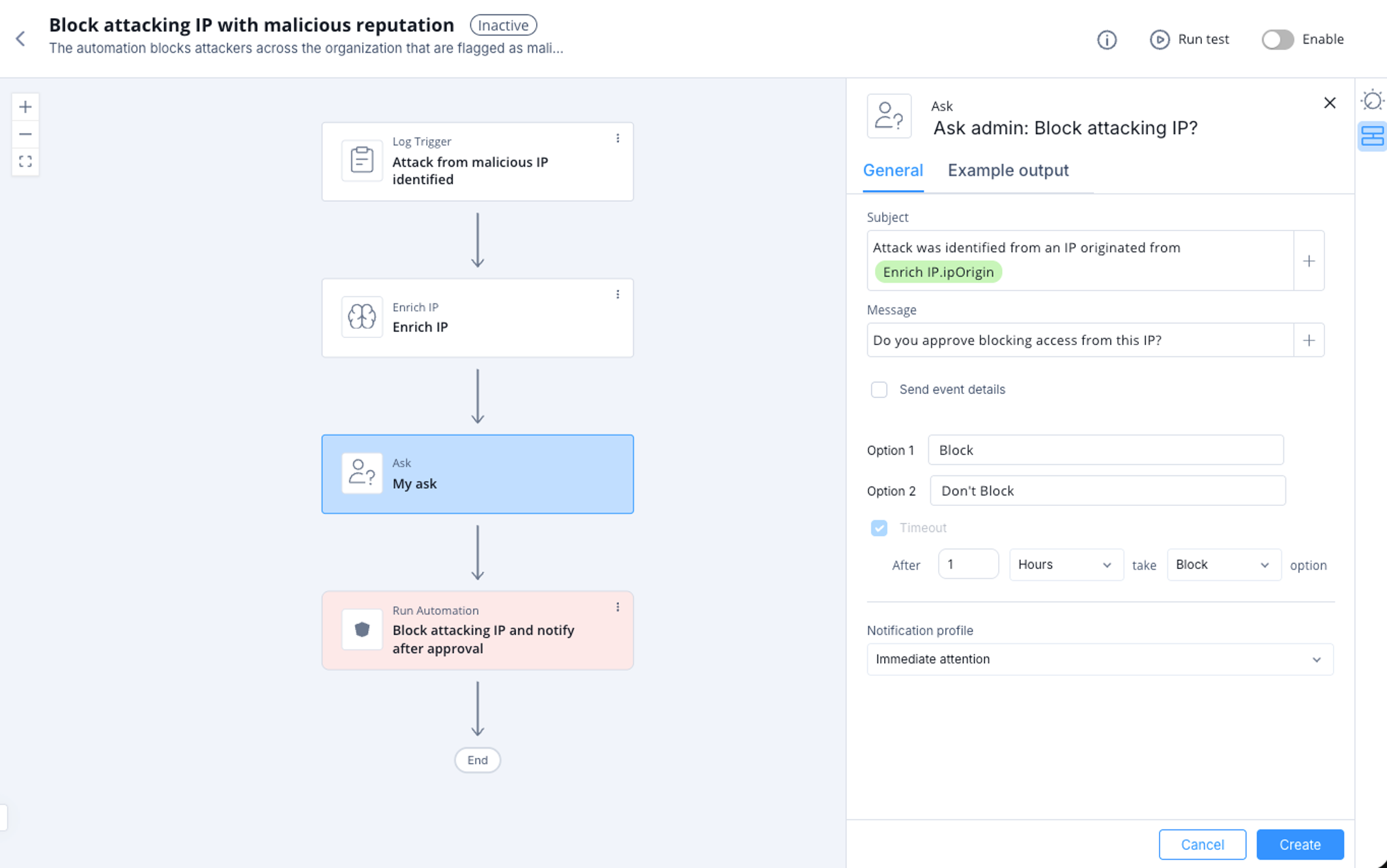
The Ask window appears.
-
Specify these fields:
In the Subject field, enter text combined with dynamic values from previous steps or automation parameters.
In the Message field, enter text combined with dynamic values from previous steps or automation parameters.
(Optional) Select Send event details to include selected event data from the outputs of the current or previous steps, or from the automation parameters.
Under Options and Defaults, define user response options and a default fallback in case of timeout.
From the Notification profile list, select the notification profile of the step.
Click Create.
The Ask step appears between the existing steps. The subsequent step automatically follows the path of the first Ask option.