Use the AI Request step to send a prompt to a connected AI provider and use the model's response in subsequent steps.
Use the AI Request step to send a prompt to a connected AI provider and use the model's response in subsequent steps.
Before you add this step, connect at least one AI provider on the Connectors page. See ../ai-connectors/ai-connectors.dita.
To add an AI Request step:
-
Access Playblocks and go to Automations.
-
Open your automation and click + to add a new step.
-
Select Actions > AI Request.
-
Click Add.
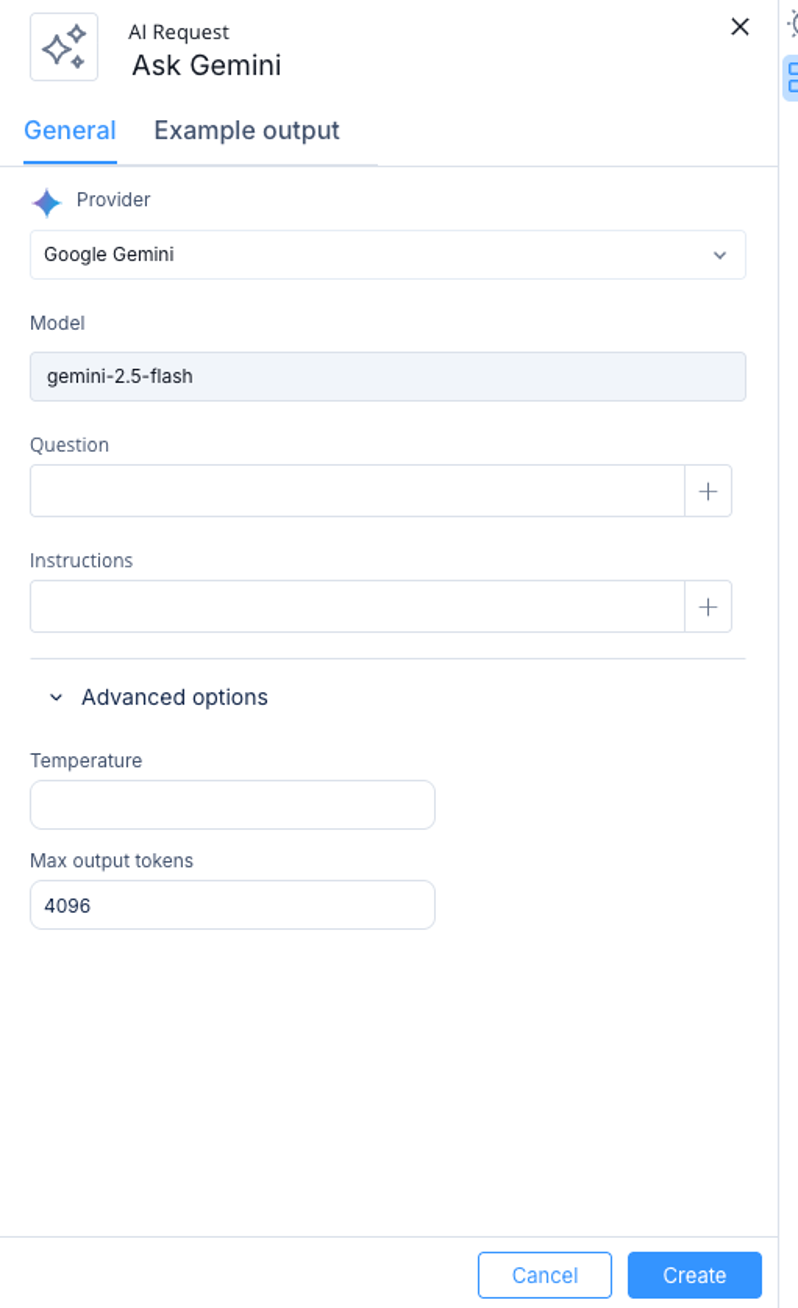
The AI Request window appears.
-
Enter these parameters:
-
Provider - The AI vendor to call. Only providers with a connected connector are selectable. Supported providers:
-
OpenAI
-
Google Gemini
-
Anthropic Claude
If you do not connect a provider, an error directs you to the Connectors page.
-
Model - Read-only. Shows the model selected on the provider's connector. To change it, open the provider on the Connectors page and update the Model selection.
-
Question - The prompt to send to the model. Supports values from the outputs of previous steps.
-
Instructions - The system prompt that tells the model how to behave (role, format, constraints). Supports values from the outputs of previous steps.
-
Advanced options (optional):
-
Click Create.
Using the Response
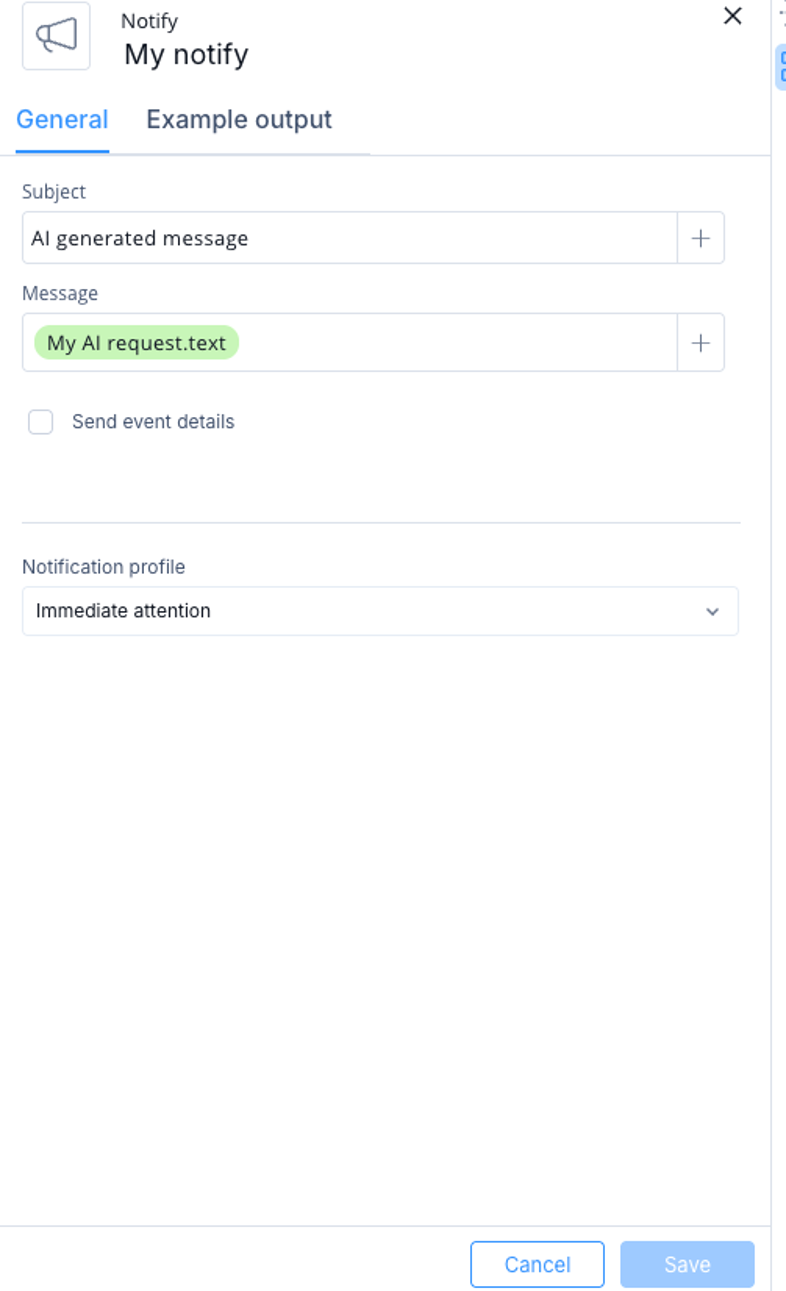
You can use the AI Request response in subsequent steps. In the smart-field selector, select the AI Request step as the source and select the output field (under text is the model response).