API Request
Configure an API Request action in an automation and define the example output structure for API responses.
API Request
-
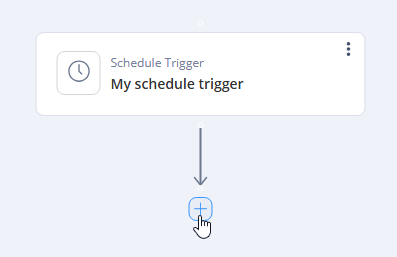
Open your Automation and click +.
-
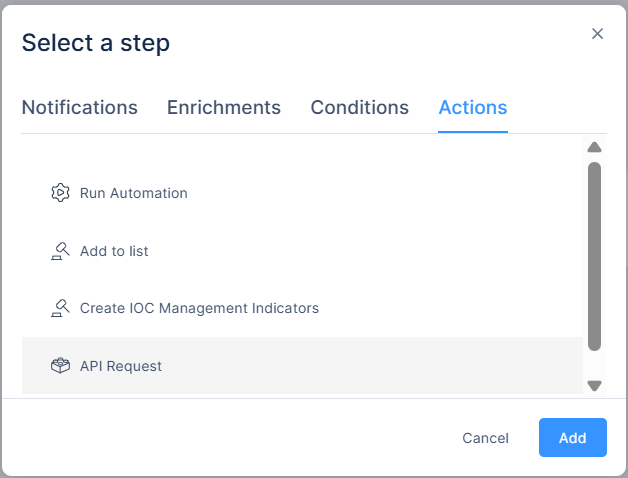
Select Actions > API Request.
-
Fill these parameters.
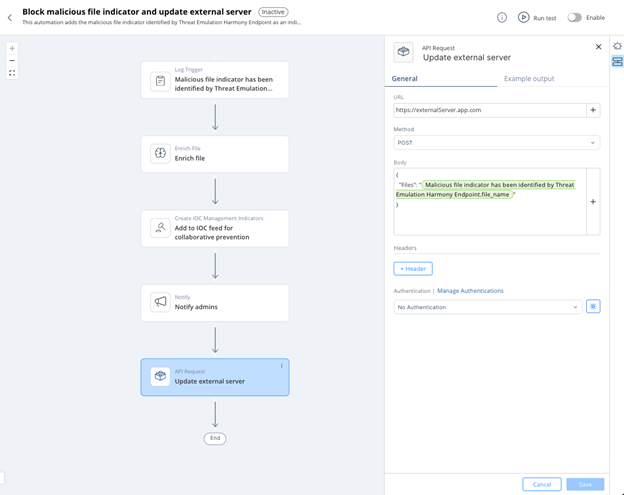
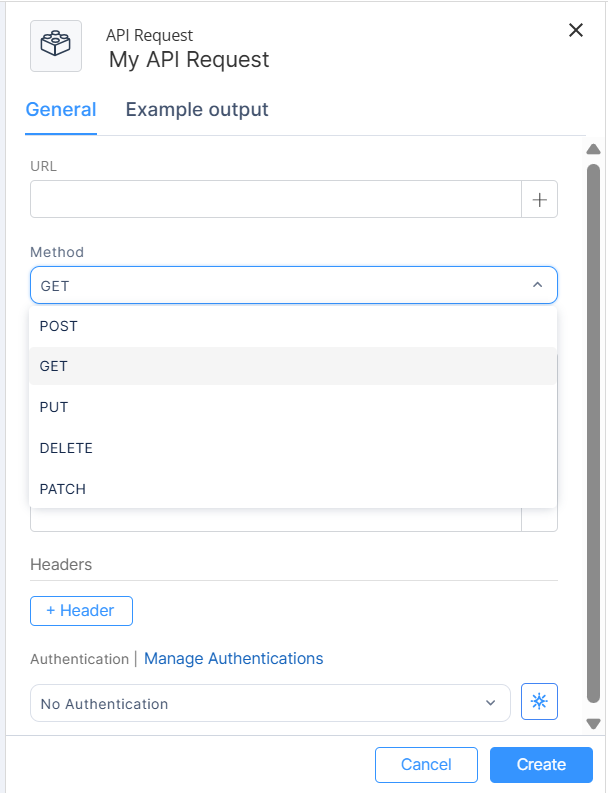
- URL: The HTTPS endpoint for the request.
- Method: The HTTP method for the request. Supported methods:
- POST
- GET
- PUT
- DELETE
-
PATCH
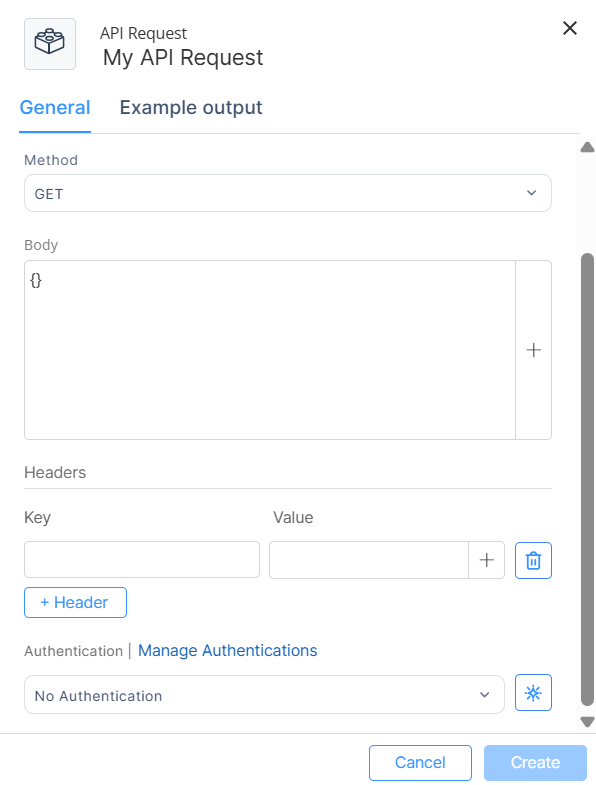
- Headers (optional): Request headers.
- These headers are automatically added by Playblocks and cannot be overridden:
- Content-Type: application/json
- X-Requested-By: Playblocks-Automation
- X-Forwarded-For: Playblocks-Internal
- To add custom headers, click +Header
-
Add key and Value.
- These headers are automatically added by Playblocks and cannot be overridden:
- Body (optional): Request body. Used only for POST, PUT, and PATCH methods.
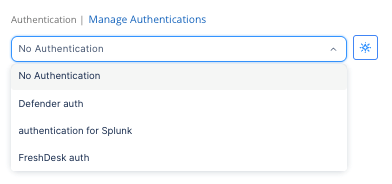
- Authentication: Supported types:
- Bearer Token
- Basic Authentication (username and password)
- Custom Authentication (custom key-value pair)
For more information, see Authentications.
-
You can select an existing authentication.
-
Click
 to create a new authentication.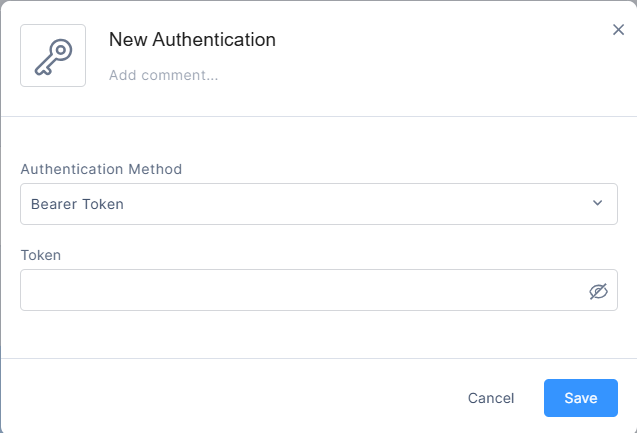
New Authentication window appears.
- Enter these details:
- Name
- Add comment
- Authentication Method
- Token
-
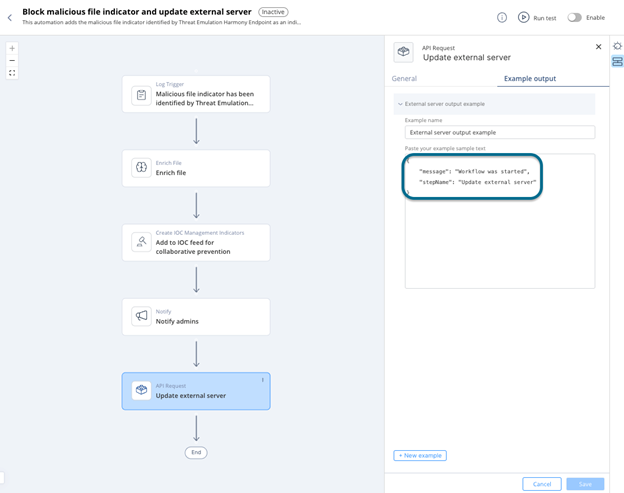
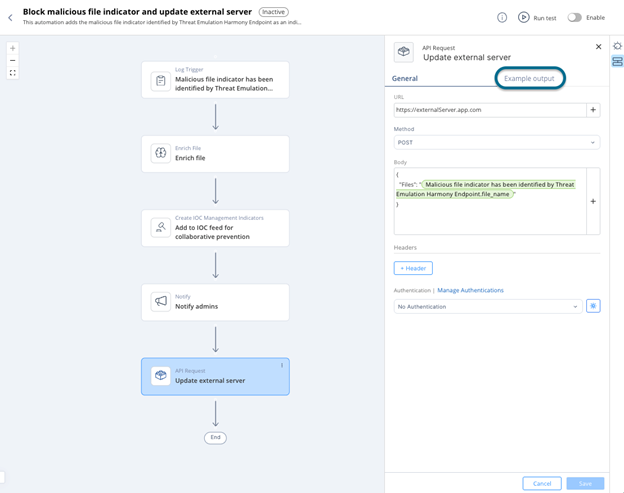
Click Example output.
-
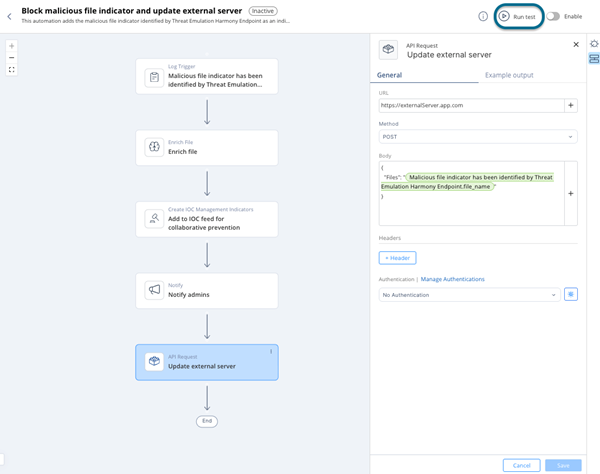
Run the automation manually using the Run Test button at the top of the automation page.
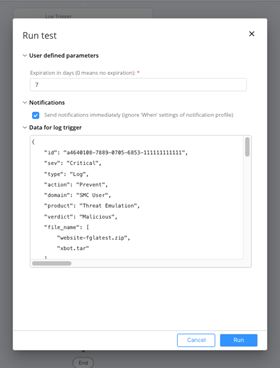
Run test popup appears
-
Copy the output of the API Request step.
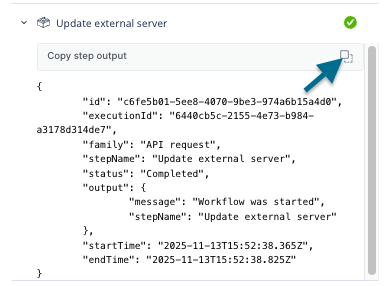 Note:You can also copy this output from the Executions page.
 -
Paste the output into the Example Output.