
Log Trigger
Configure a Log Trigger to monitor logs, define conditions, and create example outputs for automation workflows.
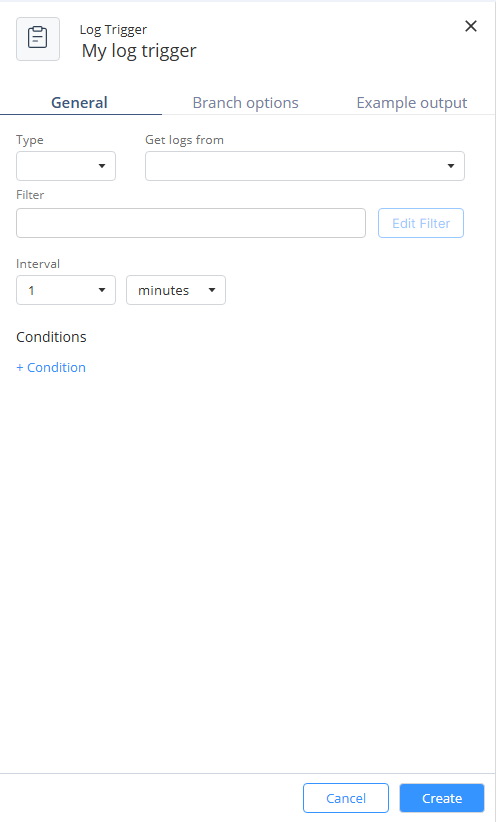
In the Log Trigger window:
-
In the General tab:
-
From the Get logs from list, select the source product for the logs.
Note:
For Quantum products, there are two options:
-
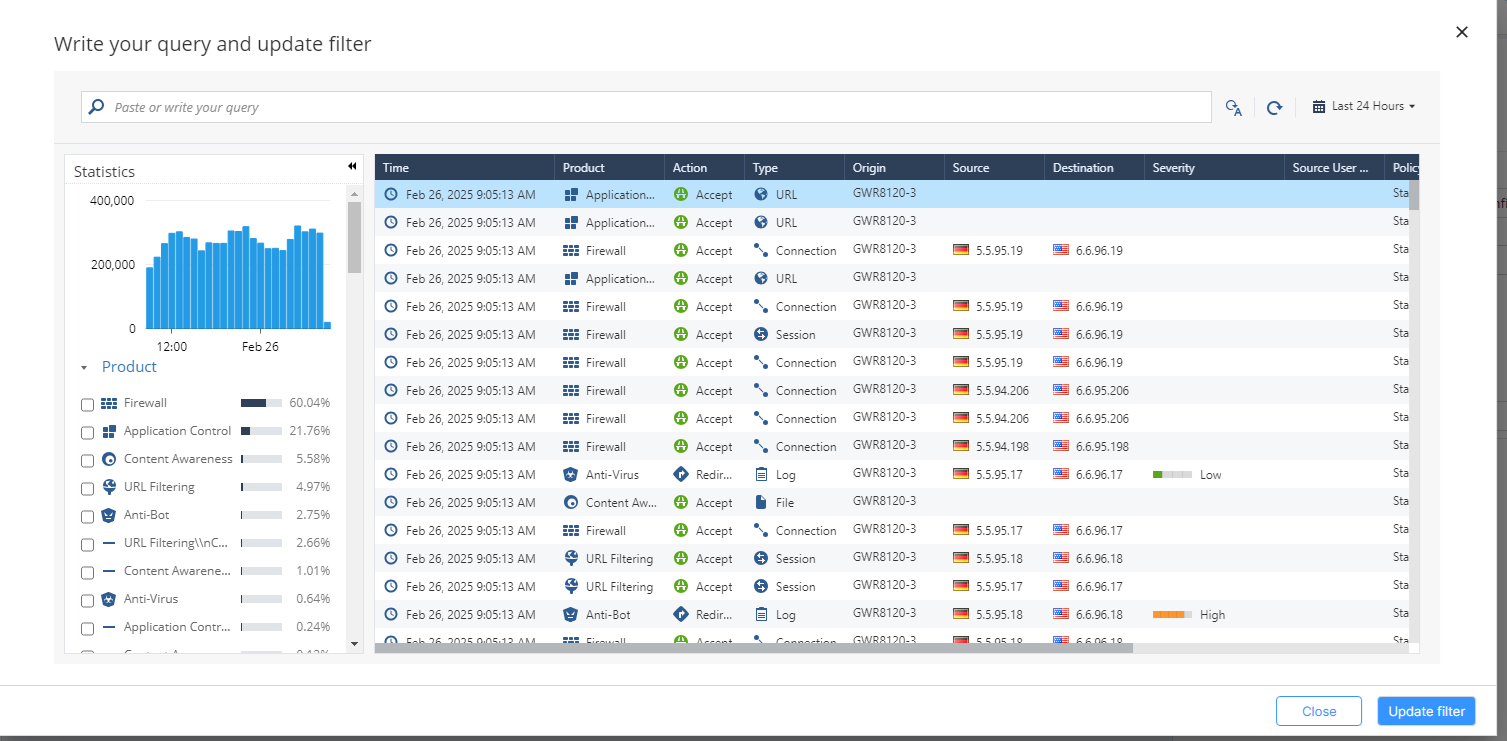
Quantum Management (Check Point Portal)
Opens the cloud logs view (requires Smart-1 Cloud or Log Sharing).
-
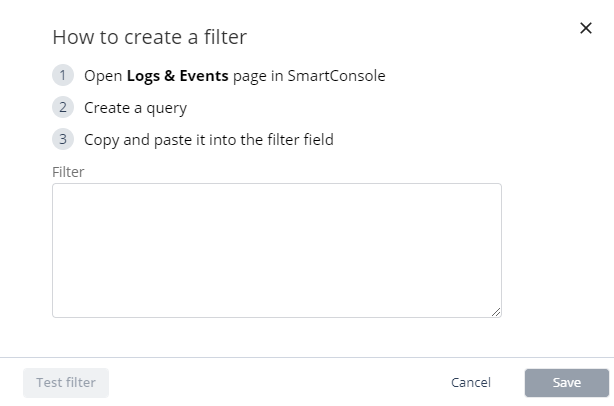
Quantum Management (Self-Hosted Log Server)
Opens a manual input for filter text.
Additional products that support filter editing via the cloud logs view are:
Endpoint Security
Email Security
SASE
SD-WAN
CloudGuard WAF Application Security
-
-
(Optional) In the Condition section, add criteria to refine when the automation is triggered.
This enables more tailored log monitoring and precise automation triggers. The automation will only be triggered when all conditions are met. The condition types available are:
-
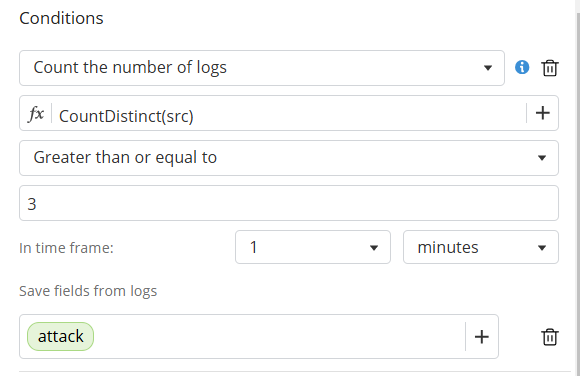
Count the Number of Logs
-
Count distinct or count occurrences within a field
For example, trigger automation if logs are found from three different sources.
Option to save values for later use
-
-
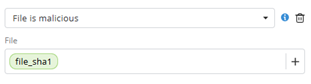
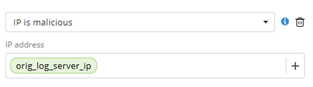
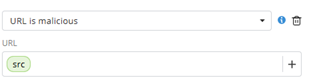
File/IP/URL is Malicious
Uses Check Point Reputation Service to verify if values are flagged as malicious.
-
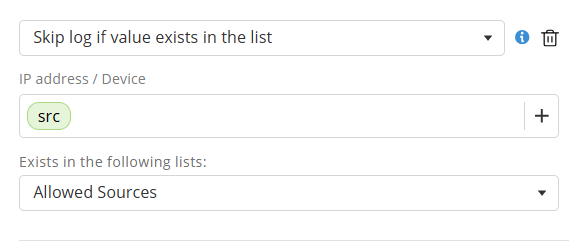
Skip log if value exists in list
Skips log if the value field (example, IP address) already exists in a predefined list.
-
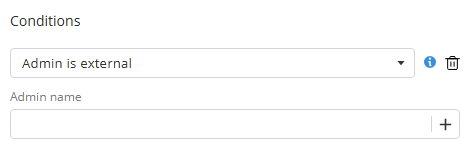
Admin is external
Checks if the admin field from log is an external user.
-
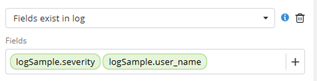
Fields exist in log
Ensures specified fields are present.
-
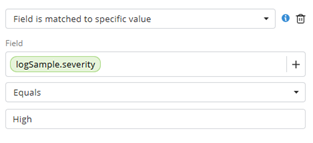
Field is matched to specific value
Checks if a field's value is equal to, not equal to, or contains a specific value.
-
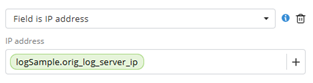
Field is IP address
Validates that a field contains a valid IP address.
-
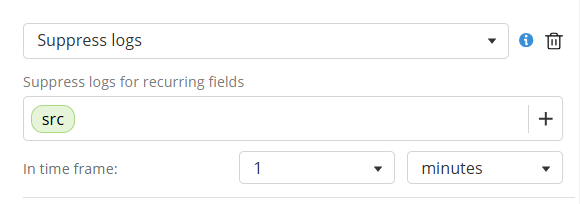
Suppress logs
Prevents triggering based on repeated matches.
-
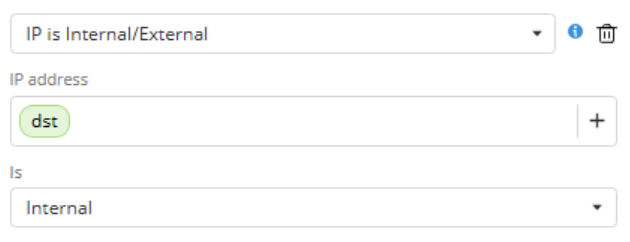
IP is Internal/External
Checks if an IP field from log is internal/external.
-
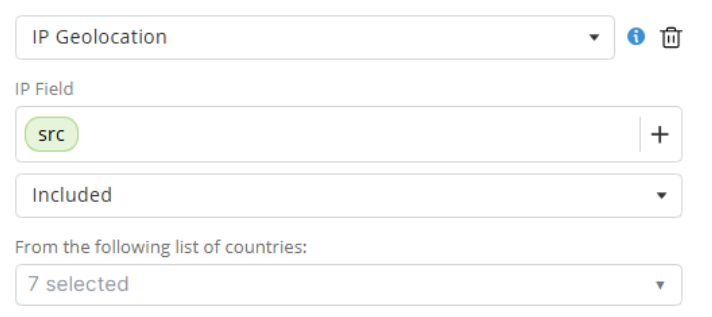
IP Geolocation
Validates whether the origin country of an IP field is included or excluded from a specified country list.
-
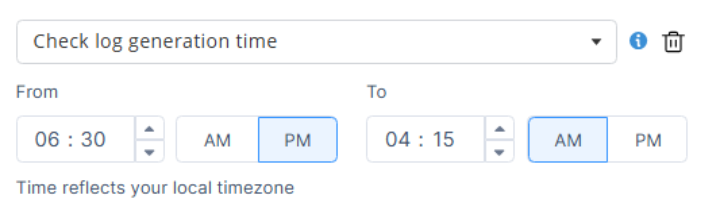
Check log generation time
Validates whether the log timestamp falls within a defined time window.
-
-
From the Get logs from list, select the source product for the logs.
-
In the Example output tab:
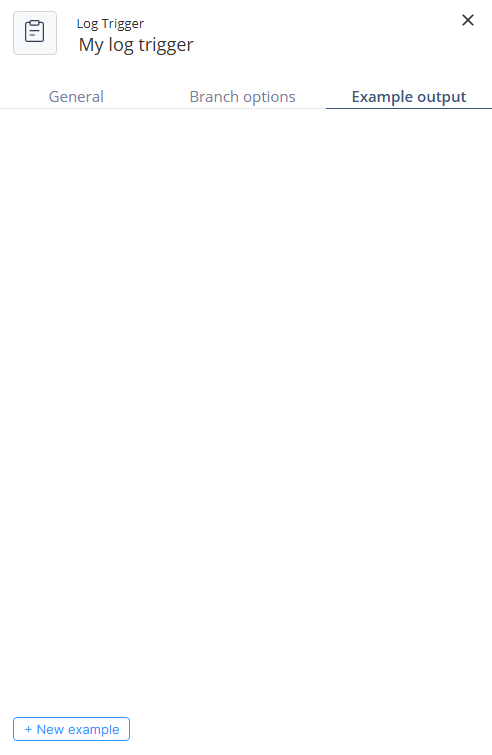
If logs matching your filter were found in the last 24 hours, the system displays an example log.
-
Otherwise, you can manually define an example to enable use of log fields:
Click New example.
-
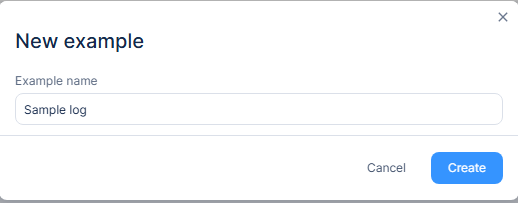
Enter a name and click Create.
-
Paste your example sample text.
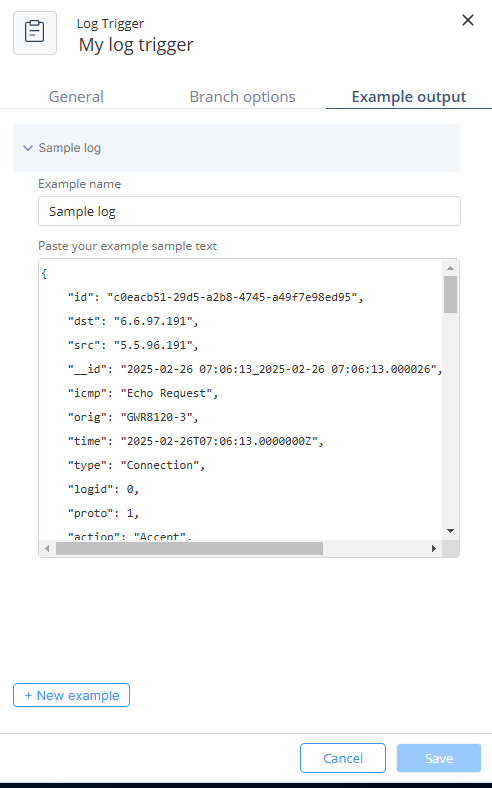
Click Save.