
HTTPS Exceptions
You can create an exception list for network locations that you want to exclude from HTTPS inspection, for specific sites or web categories for end-users' privacy.
Prerequisite
Before you add network locations to HTTPS exceptions, make sure that SSL inspection is enabled. For more information, see HTTPS Settings.
To add a network location to the HTTPS exception list:
- Go to Policy and select a policy profile.
-
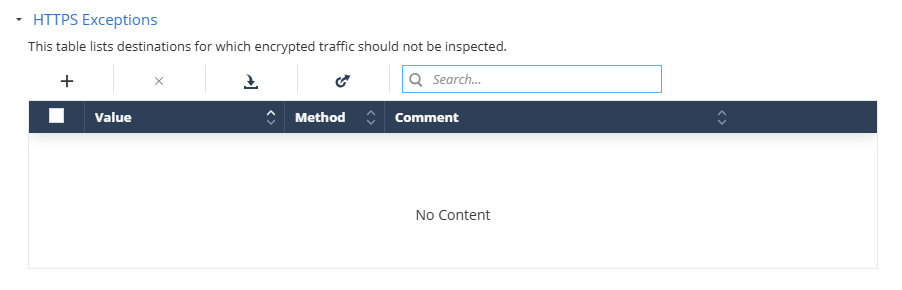
Go to Network > Content Inspection and click HTTPS Exceptions.
-
Click the + icon.
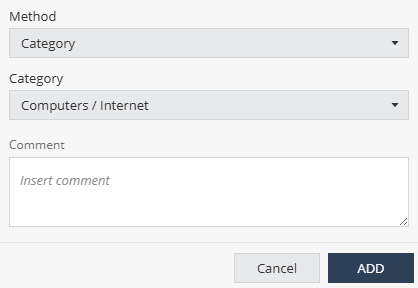
A pop-up window appears.
-
From the Method list:
-
To exclude by category, select Category and select the category from the Category list.
-
To exclude a subnet, select Subnet and enter the subnet value in the Subnet field.
-
To exclude a domain, select Domain and enter the domain name in the Domain field.
-
- (Optional) Enter your comments.
- Click Add.
-
To import a list of exceptions from a JSON file:
-
Click the
 icon.
icon.
- Click Upload and select the JSON file that contains the exception list.
-
Click Import.
The system appends the imported list to the existing list.
-
Click the
-
To export the HTTPS Exceptions list, click the
 icon and click Export.
The system exports the exception list as a JSON file and saves it on your computer. You can import this list to other policies.
- To search for an exception, enter the value in the Search box.
-
To remove an item from the list, select it and click the
 icon.
icon.
- To save the policy changes, click Save.