Networks - Allowed Locations

You can allow access to specific network locations or domains from the user device, regardless of the subject category or risk level of the device. For example, a self-service help desk site.

  1. Go to Policy and select a policy profile.
  2. Click Network > Content Inspection > Allowed Locations.
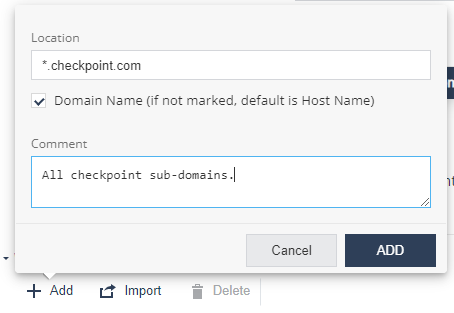
  3. Click Add.

    A pop-up window appears.

  4. In the Location field, enter a network location in one of these formats (IPv4, IPv6, Domain Name, DN/URL, +wildcards).
  5. (Optional) In the Comment field, add your comments.
  6. Click Add.
  7. To import a list of locations, click Import and upload a .CSV file with a list of locations and comments.
    Note:

    The uploaded list replaces the existing list. This allows administrators to import a list of locations from other systems such as Firewall/Gateway into Mobile Security On-device Network Protection (ONP) policy settings.

  8. To remove a network location from the list, select it and click Delete.
  9. To save the policy changes, click Save.
    Note:

    You can add up to 100 entries to the Allowed Locations list.