Allowed Applications

You can allow authorized Android applications to access the internet on the mobile device. You can configure the application list to ensure that a specific Android application can always access the internet from a user device, regardless of the device risk level.

Note:

This setting impacts the traffic generated by the listed applications while the Policy > Application > Application Exceptions setting relates to the risk of the app.

  1. Go to Policy and select a policy profile.
  2. Click Network > Content Inspection > Allowed Applications.
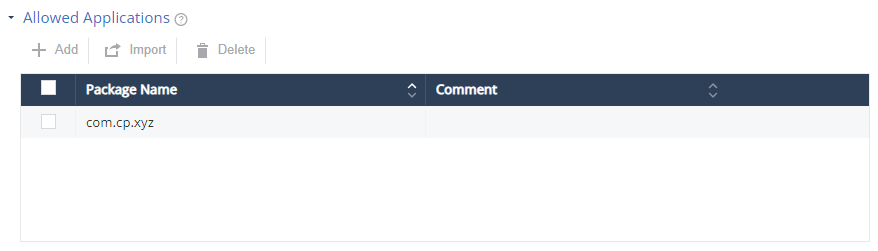
  3. Click Add.

    A pop-up window appears.

  4. In the Package Name field, enter the Android application Package Name (For example, com.cp.xyz).
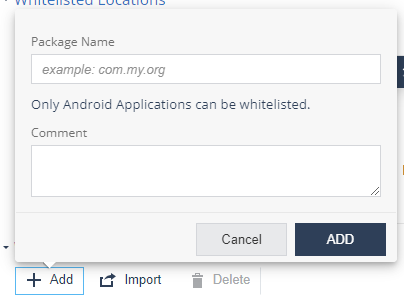
  5. (Optional) Add your comments.
  6. Click Add.
  7. To import a list of applications, click Import and upload a .CSV file with a list of applications' package names and comments.
    Note:

    The uploaded list replaces the existing list. This allows administrators to import a list of applications from other systems such as Firewall/Gateway into Mobile Security On-device Network Protection (ONP) policy settings.

  8. To remove an item from the list, select it and click Delete.
  9. To save the policy changes, click Save.

    To summarize, Mobile Security blocks:

    • Traffic from mobile apps flagged as malicious based on the BRE verdict.

    • Traffic to malicious internet resources based on ThreatCloud reputation and risk score.

    • Traffic to destinations marked as blocked locations (in Mobile Security or in Infinity IOC Management solution).

    • Traffic which is not compliant with the corporate policy, such as URLs blocked in URL Filter Categories.

    • Traffic from mobile apps in blocked categories (Android only)

    Traffic that is safe (safe domains or not posing a security risk) and compliant with the corporate policy is allowed.

    Note:

    To manage long IoC lists and feeds, use the IOC Management solution.