Configure the PagerDuty connector to enable automations to open, acknowledge, and resolve incidents in PagerDuty as part of an automated response.
The PagerDuty connector lets your automations open, acknowledge, and resolve incidents in PagerDuty as part of an automated response. PagerDuty is in the Alerting connector category — a category dedicated to incident-management platforms that own the on-call lifecycle (trigger → acknowledge → resolve) and escalation policies.
When the connector is configured, automations can use the Trigger Alert, Get Alert, Acknowledge Alert, Add Note to Alert, and Resolve Alert steps from the Alerting tab in the step picker. Each step's Provider field is set to PagerDuty.
Important:
Before you begin: You must generate a PagerDuty General Access Key (an account-wide REST API key) and have one PagerDuty user email address available to attribute incident actions to. See Appendix I - Creating a PagerDuty General Access Key.
To configure the PagerDuty connector:
In the Check Point Portal, go to Playblocks > Connectors.
In the Alerting section, click the PagerDuty card.
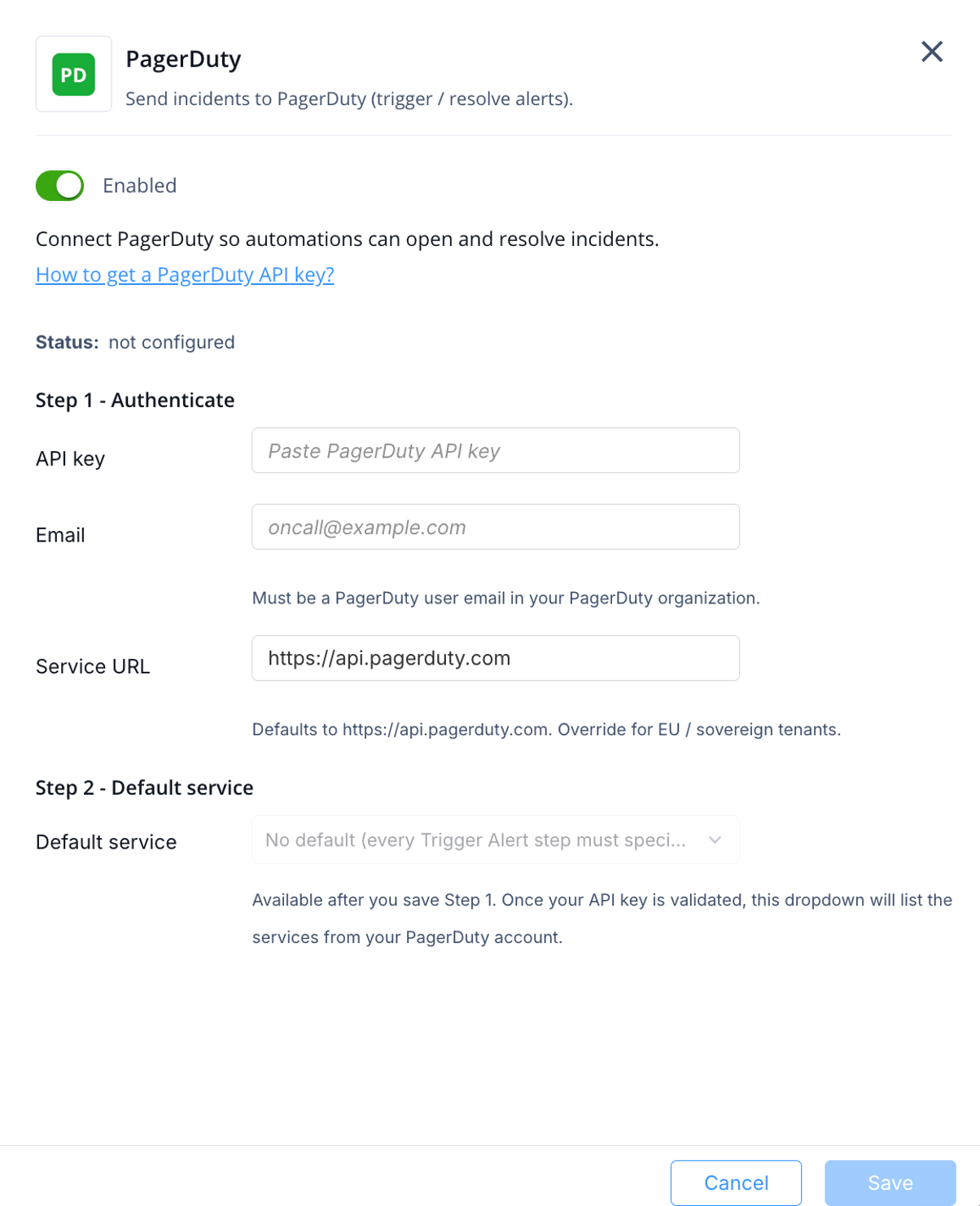
In the connector side panel, turn on the Enable toggle.
Under Step 1 - Authenticate, fill in these fields:
Email - The email address of a real user in your PagerDuty organization. PagerDuty requires a "From" email header on every REST API request that creates or modifies an incident. Playblocks sends this address as the "From" header on every incident action. The email controls only the attribution that shows up in PagerDuty's audit log; it is unrelated to the authentication itself, which is handled entirely by the General Access Key.
Service URL - The PagerDuty REST API base URL. Defaults to https://api.pagerduty.com. EU tenants should override to https://api.eu.pagerduty.com. No other values are accepted.
Click Save.
Playblocks validates the API key.
On success, the connector is marked Connected.
On failure, the side panel shows the error and the connector is left in an Error state. Fix the credentials and save again.
Under Step 2 - Default service, select the PagerDuty service that new incidents should be created in by default.
The dropdown lists every active service in your PagerDuty account.
Note:
The default service is used by the Trigger Alert step unless a specific service is chosen on the step itself.