
Microsoft Teams
This topic describes how to configure a Microsoft Teams connector to receive notifications. It provides step-by-step instructions for adding and managing Teams channels.
You can receive Microsoft Teams notifications of the incident and responsive action taken.
Note:
Before you configure the Microsoft Teams connector, create a workflow for Microsoft Teams Notification. For more information, see Appendix C - Creating Workflow for Microsoft Teams Notification
To configure a Microsoft Teams connector:
-
Select Microsoft Teams.
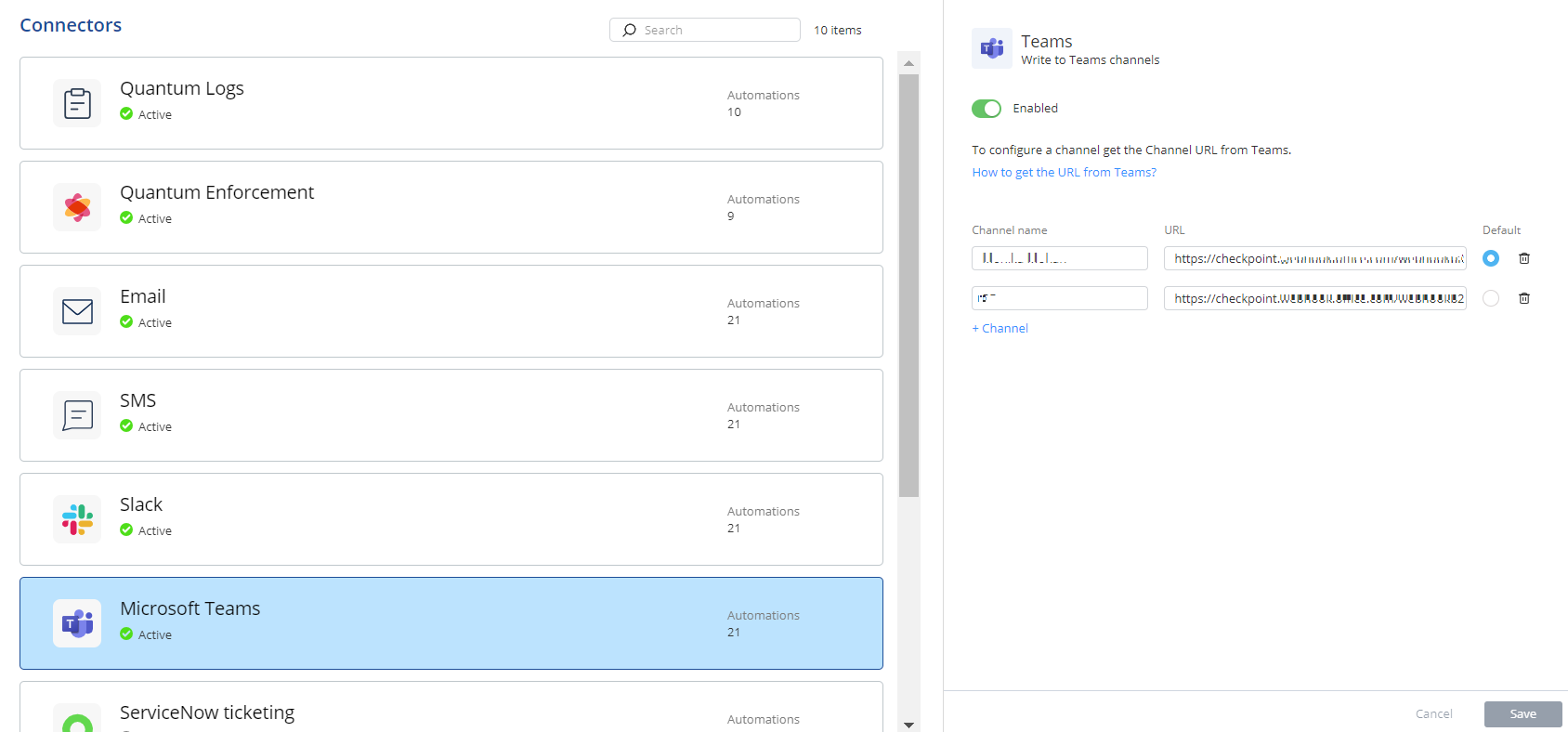
-
To delete a channel, click
 .
Note:
.
Note:Deleted channels are also removed from the Notification profile.