AI Connectors
This topic describes how to connect an AI provider to Playblocks and how to use the AI Request step in custom automations.
Overview
Playblocks supports three AI providers:
-
OpenAI - ChatGPT models
-
Google Gemini
-
Anthropic Claude
Configure each provider on the Connectors page. After you connect a provider connector, custom automations can use it through the AI Request step to send prompts and receive AI-generated responses.
Connecting an AI Provider
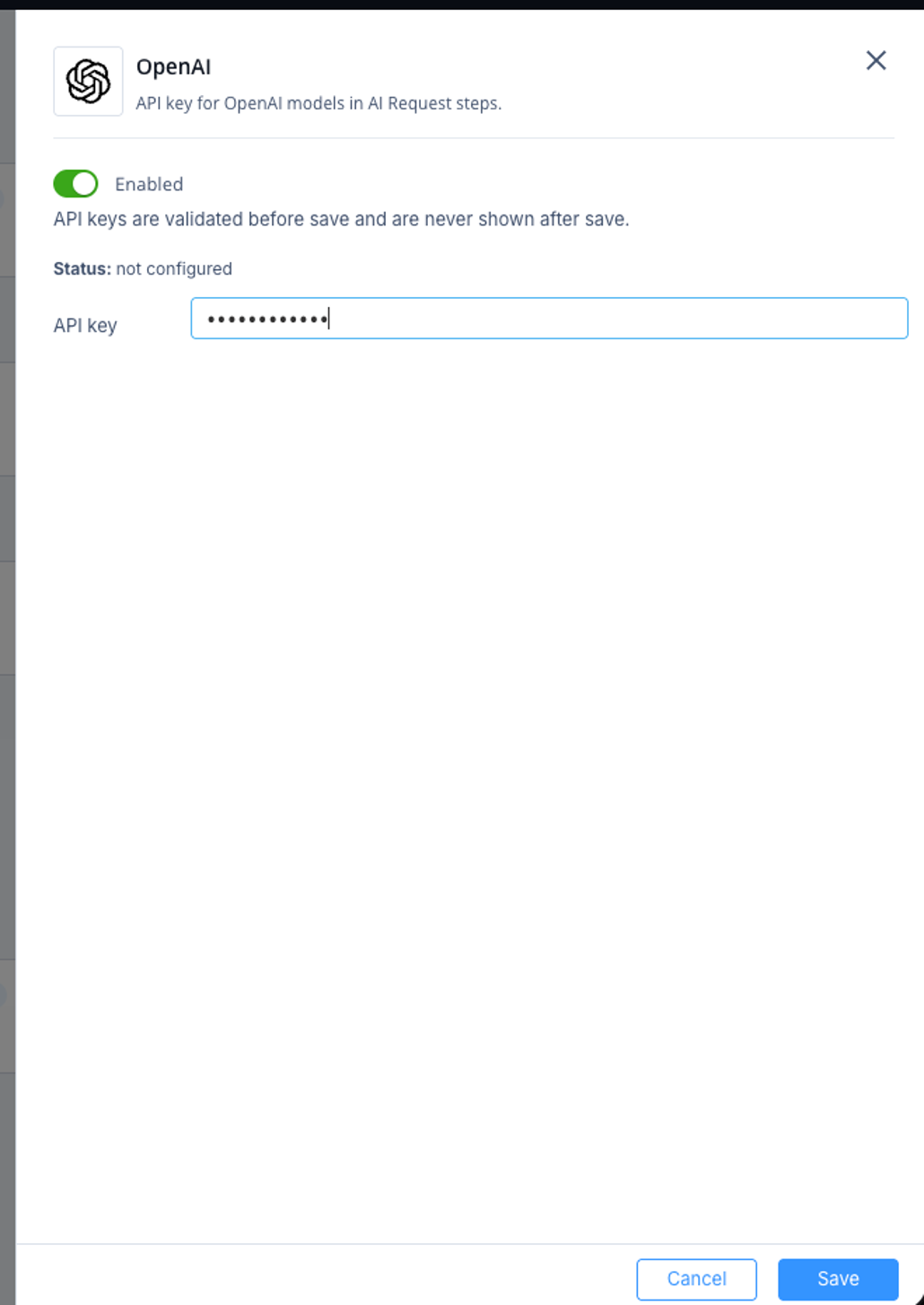
You need an API key from the AI vendor (OpenAI, Google AI Studio, or Anthropic). Playblocks validates the key against the vendor's live API at save time and stores it encrypted.
To connect an AI provider:
-
Click Save.
Playblocks validates the key.
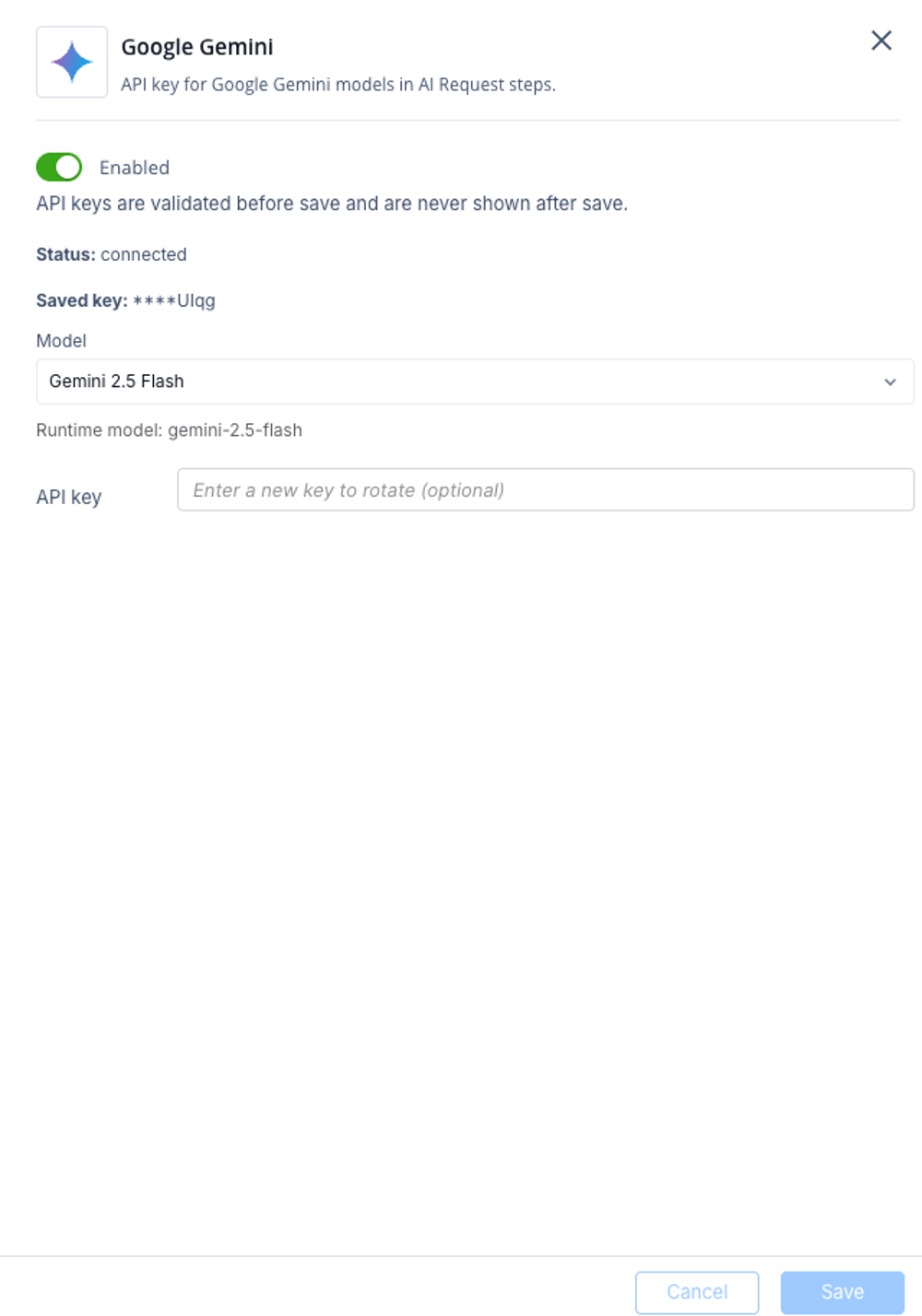
On success, the connector status changes to connected. You can choose a model to use in Playblocks steps from the list of models the provider allows.
-
Click Save to persist the model selection.