
Slack
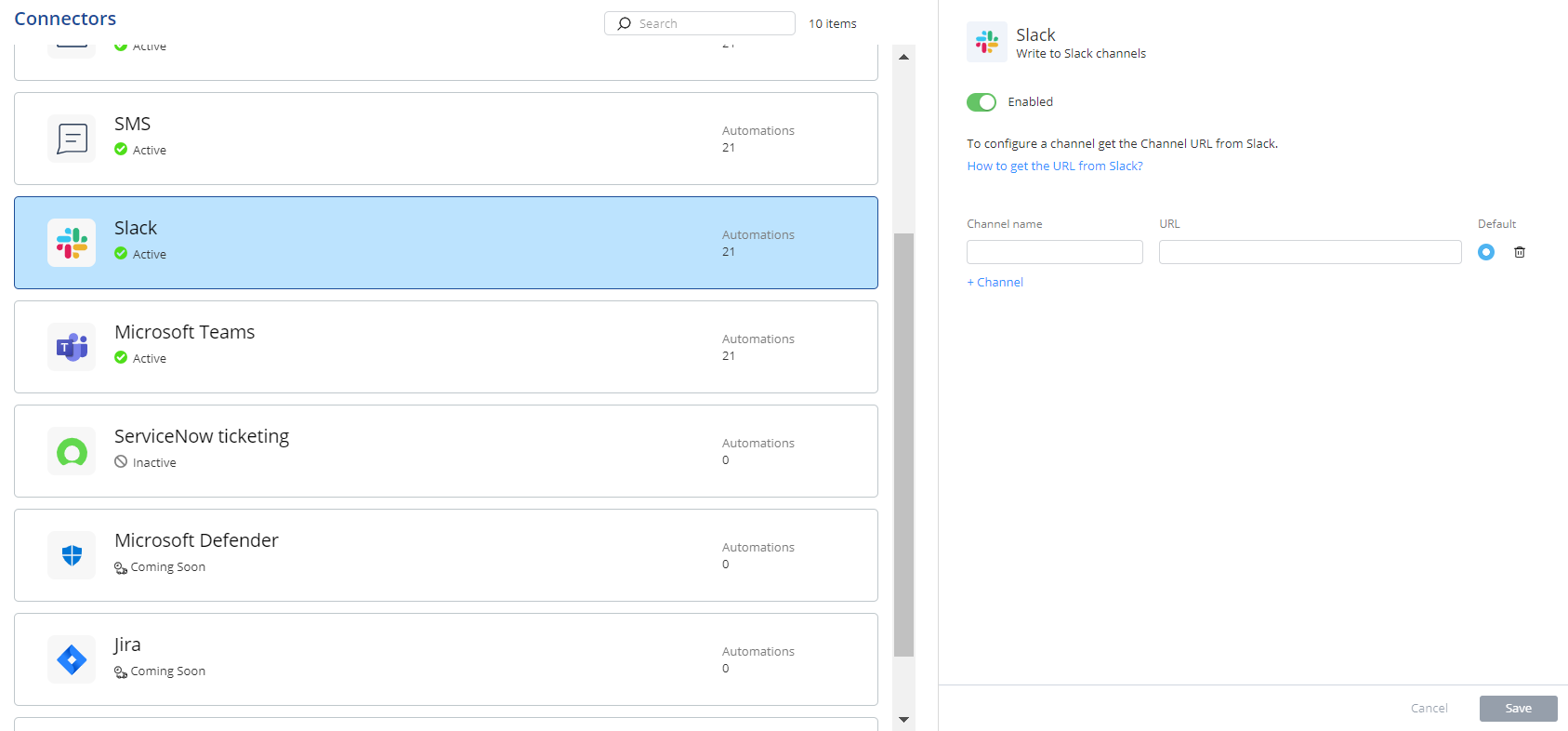
This topic describes how to configure a Slack connector to receive incident details and responsive actions. It guides you through adding and managing Slack channels.
You can receive details of the incident and responsive action taken through Slack.
Note:
Before you configure the Slack connector, create an incoming Webhook in your Slack channel. For more information, see Appendix B - Creating an Incoming Webhook in the Slack Channel.
-
Select Slack.
-
To delete a channel, click
 .
Note:
.
Note:Deleted channels are also removed from the Notification profile.