
File Exceptions
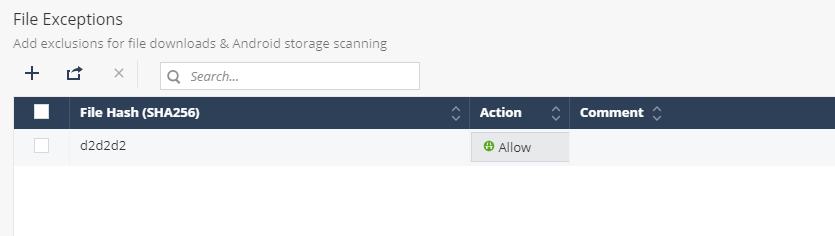
You can create an exception to allow or block a hash or a file that was analyzed with a specific risk level.
-
You can create a file exception to allow only if the file is known to the organization and you want to remove it from the dashboard alerts.
-
You can create a file exception to block if you consider the file is malicious or banned by your organization even though it was determined as Low Risk by the ThreatCloud.
-
You can add up to 100 entries to the File Exceptions list.
To add a file exception:
- Go to Policy and select a policy profile.
- Click File > File Protection > File Exceptions.
- Click Add.
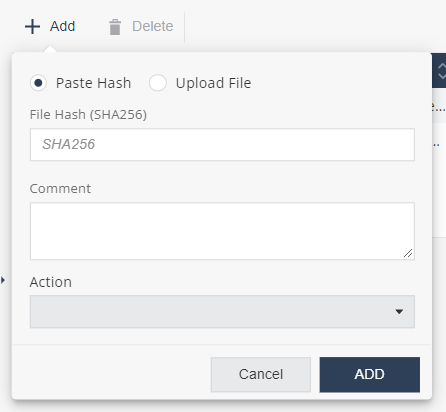
A pop-up window appears.
- Do one of these:
- To add a file hash exception:
- Click Paste Hash.
- In the File Hash field, enter the file hash name. For example, SHA256.
- To add a file exception:
- Click Upload File.
- Click Upload to upload the file.
- To add a file hash exception:
- (Optional) In the Comment field, add your comments.
- From the Action list, select one of these:
-
Block - To block the file or file hash.
-
Allow - To allow the file or file hash.
-
- To save the policy changes, click Save.
You can also allow or block a file from the Forensics > Events & Alerts page.
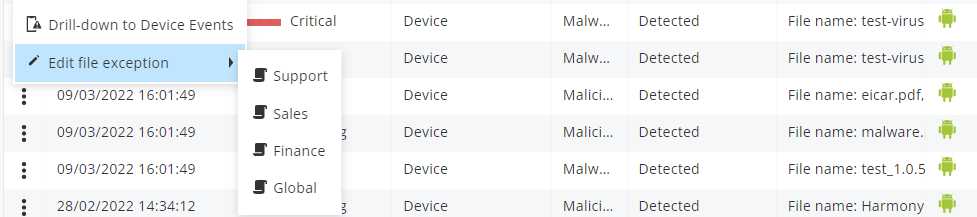
Select any one of these:
-
Allowed List - The risk level of the file changes to No Risk.
-
Blocked List - The risk level of the file changes to High Risk. A blocked file triggers on-device mitigation and user event notification.