
Application Data
| Item | Description |
|---|---|
| Application |
Name of the application. |
| Package Info |
|
| OS |
Application platform:
|
| Update Time |
Indicates the last time the application was updated. |
| Install Base |
The install base tells the administrators the current count of this app version that is currently installed within their environment. |
| Global risk level |
Risk level of the application in the Global policy. |
| Risk level by policy |
Risk level of the application in all other policies. |
| Severity |
Highest risk level specified for the application in Application Exceptions across all the policies. For example, if the risk level of an application is High in policy 1, Medium in policy 2 and Low in policy 3, then the Severity is High.
|
| Global Policy |
The Global policy of the application:
Click on the policy will direct to Application Policy section with the chosen application details. |
-
You can filter every column in the table:
-
Click Filter
 above the table.
 -
On the Filters pane on the right side of the window, adjust information you want to view.
Note:If you filter for a Severity Level, the Severity column may not match the specified filtered risk level. This is because the Severity column always shows the highest risk level specified for the application in Application Exceptions across all policies and at least one policy has the filtered risk level for the application.
For example, if you filter for None and if the Severity column shows High for some applications, then it indicates that these applications' risk level is set to None in at least one of the policies.
-
-
Click
 .
.-
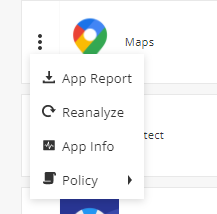
App Report: Generates application report
-
Reanalyze: Send application to reanalyzed
-
App view: Opens an extended application details view
-
Policy: Directs to the application policy section.
-