Creating a Custom Phishing Simulation Template

To create a custom phishing simulation template:

  1. Go to Security Training > Custom Templates.
  2. Click Create New Template.

    The Select Phishing Simulation Templates pop-up appears.

  3. Customize the Template Details section:
    1. In the Template Name field, enter a name for the template.
    2. From the Attack Type dropdown, select the attack type that best matches your phishing simulation template.
      • Social Engineering

      • Phishing Link

    3. From the Category dropdown, select an existing category or create a new one. You can create multiple categories as needed.

      You can use this field to categorize different templates. It helps you organize custom templates and easily select specific groups when assigning them within a policy. See Assigning Custom Phishing Simulation Templates to Users.

    4. From the Difficulty dropdown, select the required difficulty level.
      Note:

      The system currently uses this field for display purposes only. In future releases, the system will use difficulty levels to assign templates. Avanan recommends you to assign an appropriate difficulty level to each template.

      • Easy

      • Medium

      • Hard

      • Expert

    5. (Optional) In the Description field, enter the required description for the template.
  4. In the Email Details section, define how the simulation email appears to users:
    1. In the Subject Line field, enter the email subject line.
    2. In the Sender Name field, enter the required user name.
    3. In the Sender Email field, enter the sender's email address. The simulation emails are injected into the user's mailbox and won't be blocked for spoofing.
      Note:
      • If you select an internal email address that exists in Microsoft Entra, Microsoft may replace the configured Sender Name with the name attached to this address from Microsoft Entra.

      • The system automatically sets the Reply-to address to prevent replies from being sent accidentally to the impersonated user.

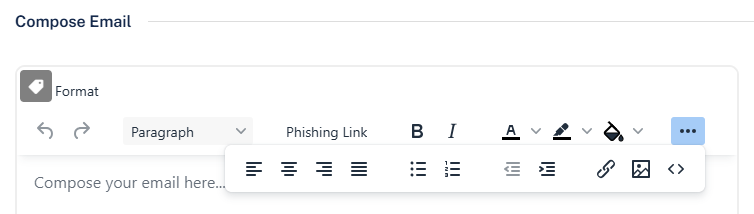
  5. In the Compose Email section, create the email body. Notable capabilities when composing the email:
    Note:

    The system does not currently support adding attachments to custom phishing simulation templates.

    • Placeholders – Insert dynamic placeholders that the system populates per user or template. Click the tag icon in the top-left corner of the editor to add placeholders. To learn more about placeholders for custom templates, see Custom Phishing Simulation Templates – Placeholders.

    • Embed Images – Click the three-dots icon and select an image to embed it in the email.

    • Custom HTML Design – Click the three-dots icon and select the source code <> icon to replace the body with custom HTML code.

    • Phishing Link – To add a phishing link, enter the bait text (for example, Click here) in the editor. Select the text and click Phishing Link.