Customizing Security Awareness Training Policy

To customize the security awareness training policy:

  1. Click on the security awareness training policy you want to customize.
  2. In the Users and groups section, select the users and/or group of users for whom the policy is applicable:
    • To apply the policy to all users and groups in your organization, select All Office 365 users or All Google users.

      Note:

      Group selection is currently not supported for Gmail.

    • To apply the policy to specific users or groups, select the users/groups and click Add to Selected.

  3. Select a Phishing Simulation Strategy:
    • AI Adaptive Simulations - Sends phishing simulation emails that reflect recent attack types faced by the users in your organization.

      • (Optional) To view the phishing email templates used to send simulation emails to users, click Generated Phishing Simulations (samples). To view generated phishing simulation samples based on a user's recent communication patterns, enter the user's email address and click Generate.

    • Use Custom Templates - Sends phishing simulation emails based on the selected template.

      1. To select the specific phishing simulation template, click Select Phishing Simulation Templates.

      2. In the Select Phishing Simulation pop-up, select the specific templates or entire categories.
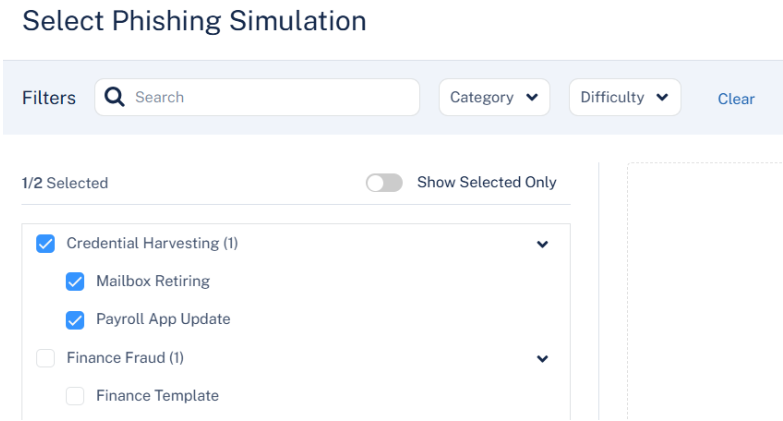
        You can use the filters to refine the list by template Category and Difficulty level.

      3. Click Apply.

    • Do not perform simulation - No simulation emails are sent to the users.

  4. To exclude simulated phishing scenarios that impersonate internal users, such as executives, managers, or colleagues, select the Include phishing simulations impersonating internal users checkbox in the Simulation Types section.
  5. Configure the Simulation Scheduling section.
    1. In the Frequency section, select the required frequency of the simulation emails.
      Note:

      By default, the frequency of the simulation emails is set to Biweekly.

    2. In the Send randomly on section, select the days to randomly send simulation emails to users.
      • Monday

      • Tuesday

      • Wednesday

      • Thursday

      • Friday

      • Saturday

      • Sunday

    3. In the Time Range section, select the start time to send emails, end time to stop sending emails, and the required time zone on the selected days.
      Note:

      By default, the time range is set to 9:00 AM to 18:00 PM and the time zone is set to (UTC +00:00) UTC.

  6. Configure the Action on Failure section.
    1. In the Automatically enroll users in follow-up training if they fail consecutive phishing simulations section, select one of the following options: Yes or No.
    2. From the Consecutive failures dropdown, select the number of consecutive phishing simulation failures that will trigger automatic enrollment for users in follow-up training.
      Note:

      If the Automatically enroll users in follow-up training if they fail consecutive phishing simulations option is enabled, the system automatically enrolls users who fail the specified number of consecutive phishing simulations in follow-up training.

    3. In the Due in (days) field, select the number of days to complete the assigned follow-up training.
      Note:

      By default, the due is set to 7 days. After the due date, Avanan no longer sends any training reminders or notifications to end users.

  7. Select the Training Modules.

    1. Click Select training modules.

      The Select Training Module pop-up displays the available training modules, see Available Training Modules.

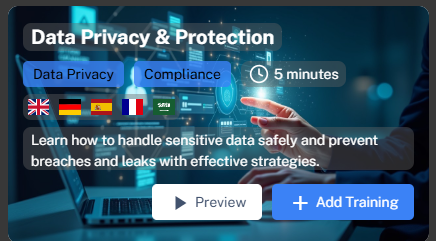
      Each module provides the following details:

      • The training module name and key concepts in the module.

      • The time duration shows the time required to complete the module.

      • The flags represent the languages available for the training module.

      • (Optional) To view a preview of the training module, click Preview. After adding a training module to the policy, you must authorize access for the entire organization by granting the necessary permissions. See Authorizing Training Module Access for the Organization.

    2. Click Add Training for the required modules.
    3. Click Save.
      Note:

      The deadline for completing each training is 14 days.

  8. The Selected training modules section shows the order of the modules assigned to the user.
    • To arrange the training modules in the required order:

      1. Click the drag icon.

      2. Move the module to the desired position in the order and drop it.

    • To remove a selected training module, click the delete icon.

  9. To configure settings for the training and reminders for the email notifications, click Advanced settings and do these:
    1. In the Training max frequency (days) field, enter the number of days after which the system initiates a new training session.
    2. In the Training reminder interval field, enter the number of days after which the system sends a reminder. For example, if you enter 2, the system sends reminder after every 2 days.
    3. To configure email notifications for the training and reminders:

      To view the supported placeholders, see Training and Reminder Emails - Supported Placeholders.

      • In the Training invitation subject field, enter the subject for the training invitation email.

      • In the Training invitation body template field, enter the body for the training invitation email.

      • In the Training remind subject field, enter the subject for the training reminder email.

      • In the Training remind body template field, enter the body for the training reminder email.

      • (Optional) In the Phishing simulation banners section, select the Add banner to phishing simulation emails checkbox.

        Note:

        If the Add banner to phishing simulation emails checkbox is enabled, the system adds a banner to every phishing email sent to the user's inbox.

    4. Click Save.
  10. Click Save.
    Note:
    • Now that the security awareness training policy is configured, the end users receive an email with a link to access the training modules. To allow users to access the training modules, the administrator must authenticate by granting the necessary permissions.

    • When new users are added to an existing Security Awareness Training policy, each user's completion period starts from the date they are enrolled. Each new user gets the full duration specified in the policy (for example, 90 days) to complete the assigned training course, regardless of when the policy was originally created or when other users were enrolled.