
Monitoring User Awareness Training Progress
To view the progress of a specific training module, click on the training module name in the Awareness Training column of the Users table.
Avanan redirects you to the relevant awareness training module progress dashboard.
To select a time frame, select an option from the drop-down next to the awareness training module name.
Last 24h
Last 7 days
Last 30 days
Last 12 months
Custom
To export the details to a PDF, click Export to PDF.
Overall Training Progress
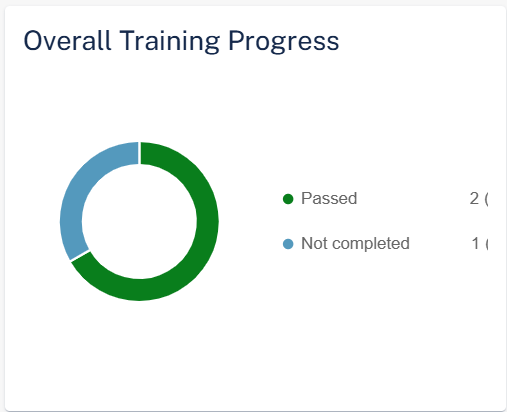
The Overall Training Progress widget shows the number of training modules and their status for the selected training module.
Passed
Failed
Not Completed
Top Departments Assigned

The Top Departments Assigned widget shows the top ten departments assigned to the selected training module and their status.
Top Departments Unpassed

The Top Departments unpassed widget shows the top ten departments that did not pass the selected training module.
Failed
Not Completed
Training Compliance Level Over Time (Entire Organization)
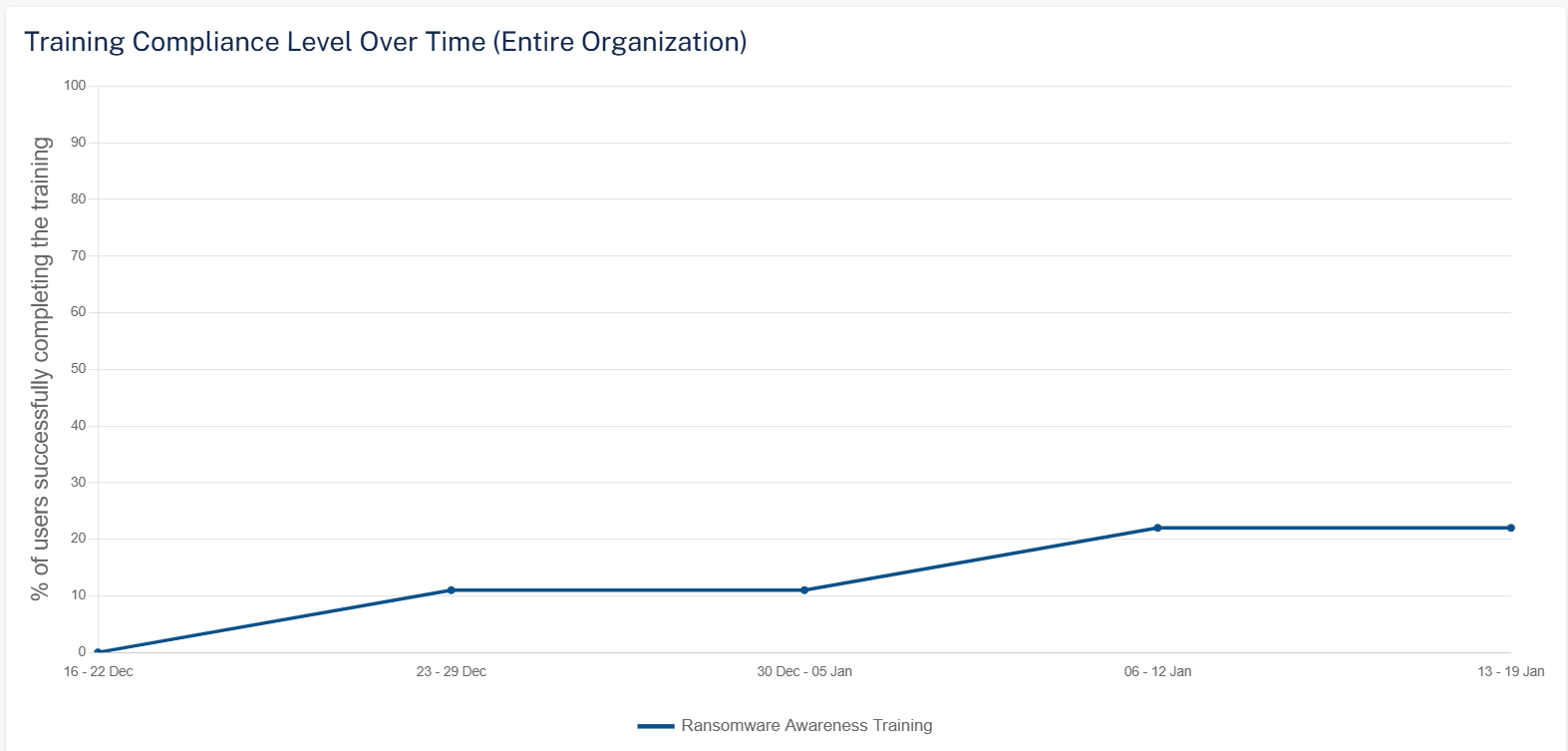
The Training Compliance Level Over Time (Entire Organization) widget shows the percentage of users who completed the training for the selected training module.
Training Progress Over Time
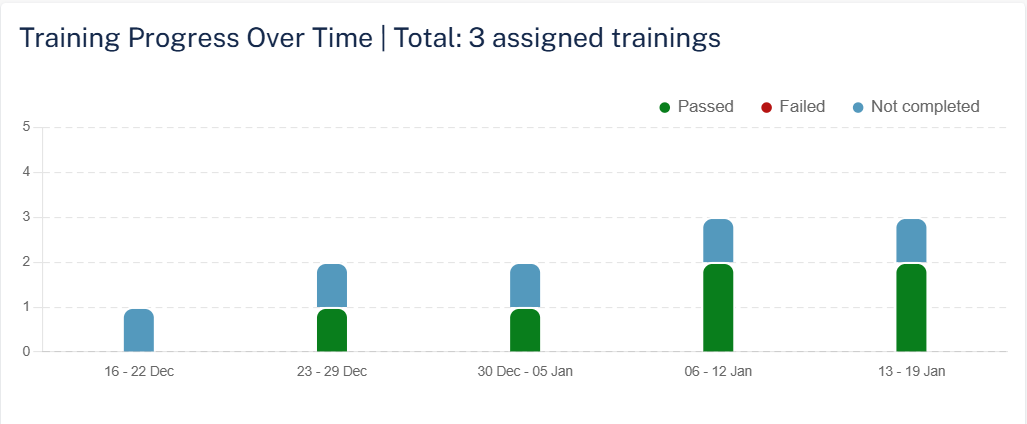
The Training Progress Over Time widget shows the number of trainings assigned and their status for the selected training module.
User Progress
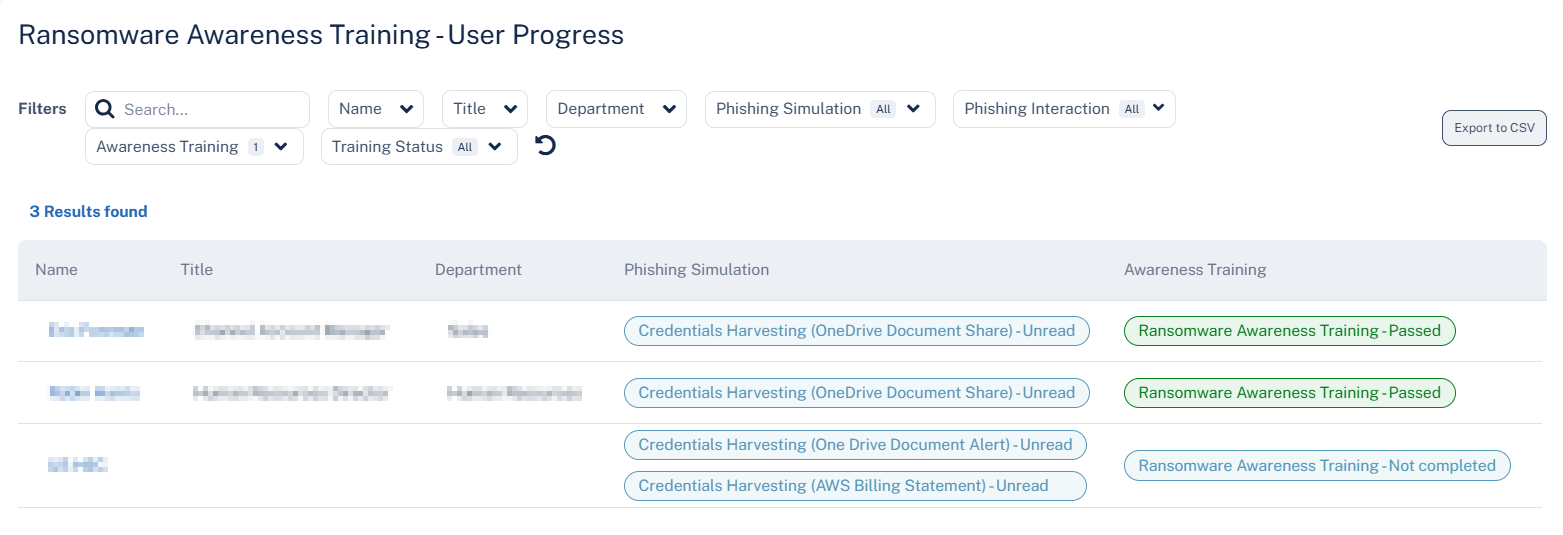
The User Progress table shows the phishing simulation emails sent to the users and their training status.
Column |
Description |
|---|---|
Name |
Name of the user in the organization. |
Title |
Job title of the user in the organization. |
Department |
Department the user belongs to within the organization. |
Phishing Simulation |
Type of simulation email sent to the user and their status. |
Awareness Training |
Training module name and their status. |
Training Log
The Training Log table shows the users and their training status.
Column |
Description |
|---|---|
Name |
Name of the user in the organization. |
Title |
Job title of the user in the organization. |
Department |
Department the user belongs to within the organization. |
Days Left |
Number of days left to complete the training module. |
Training |
Name of the training module. |
Status |
Status of the training module: Invited, In progress, Passed, Failed |
Status Details |
Detailed information about the status. |
Time |
Date and Time of the training started. |
Phishing Simulations Live Activity Log
The Phishing Simulations Live Activity Log table shows the simulation emails sent to the users and their status.
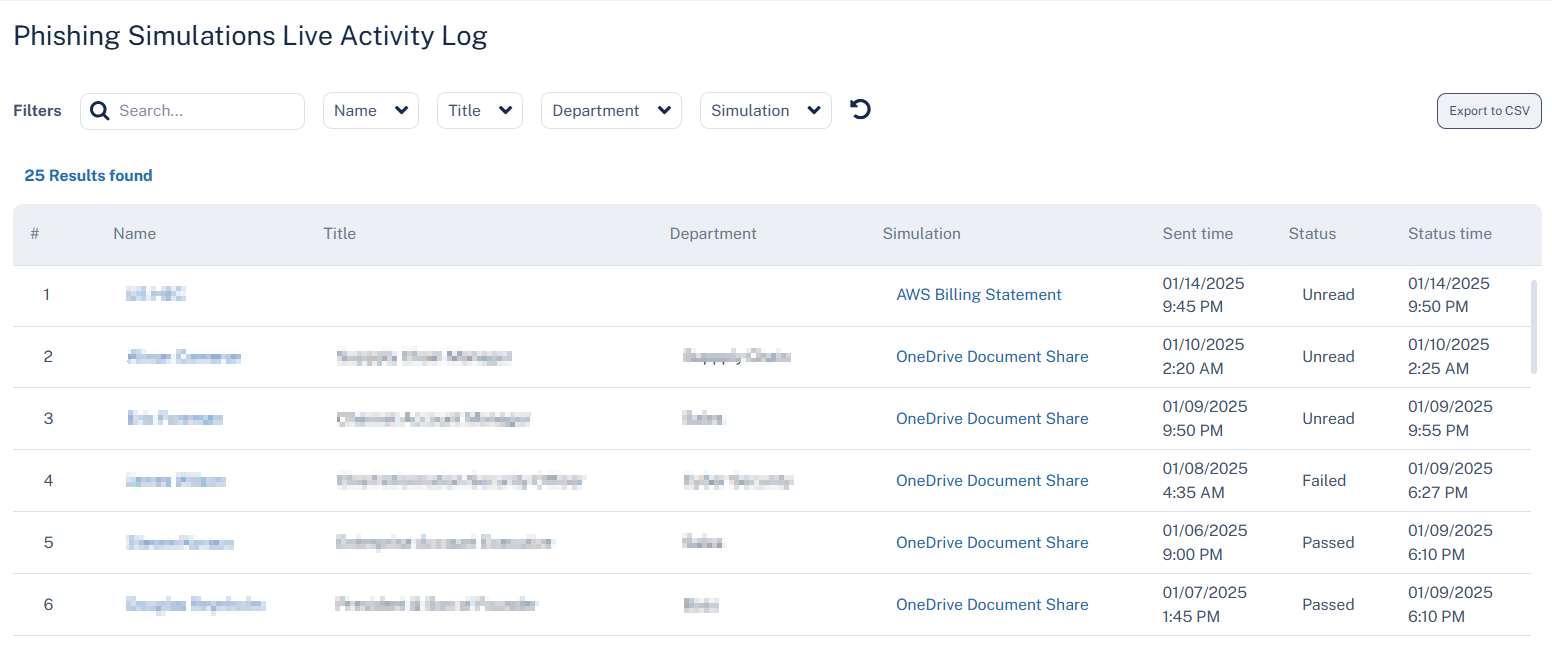
Column |
Description |
|---|---|
Name |
Name of the user in the organization. |
Title |
Job title of the user in the organization. |
Department |
Department the user belongs to within the organization. |
Simulation |
Type of simulation email sent to the user. |
Sent time |
Date and time at which the simulation email is sent. |
Status |
Status of the simulation email: Unread, Passed, Failed |
Status time |
Time at which the status is received. |