
Authorizing Training Module Access for the Organization
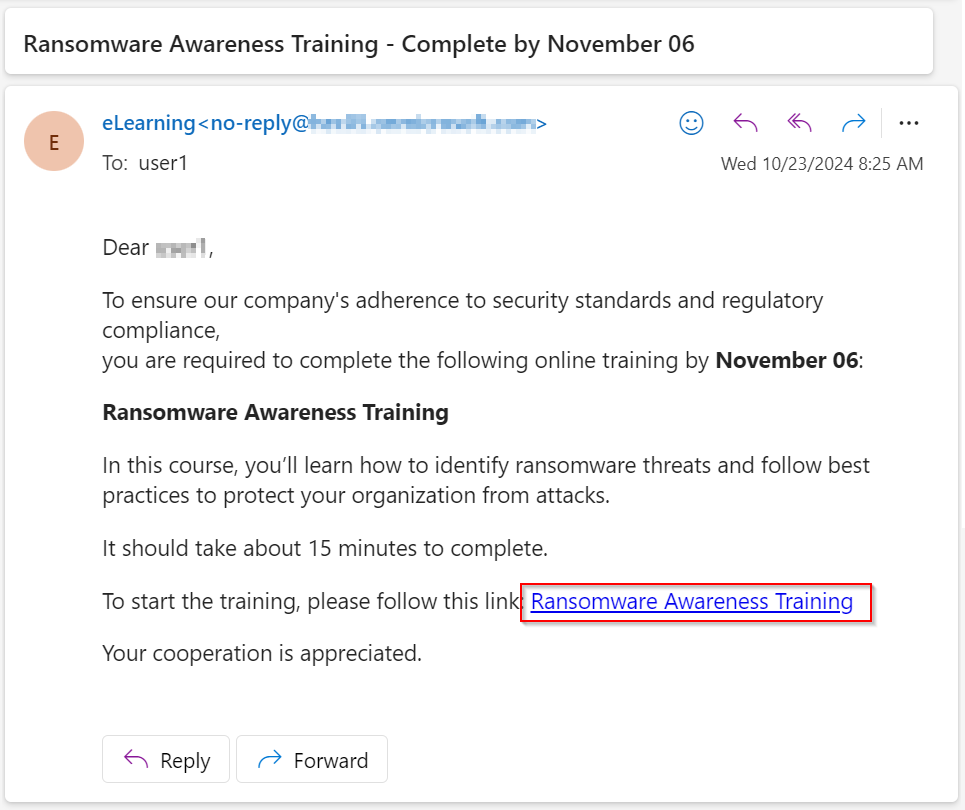
Avanan allows users to access the training modules using the link provided in the email notification.
The administrator must authorize access for the entire organization by granting the necessary permissions.
To authorize the Microsoft login permissions for training modules:
-
Click on the link provided in the email.
or
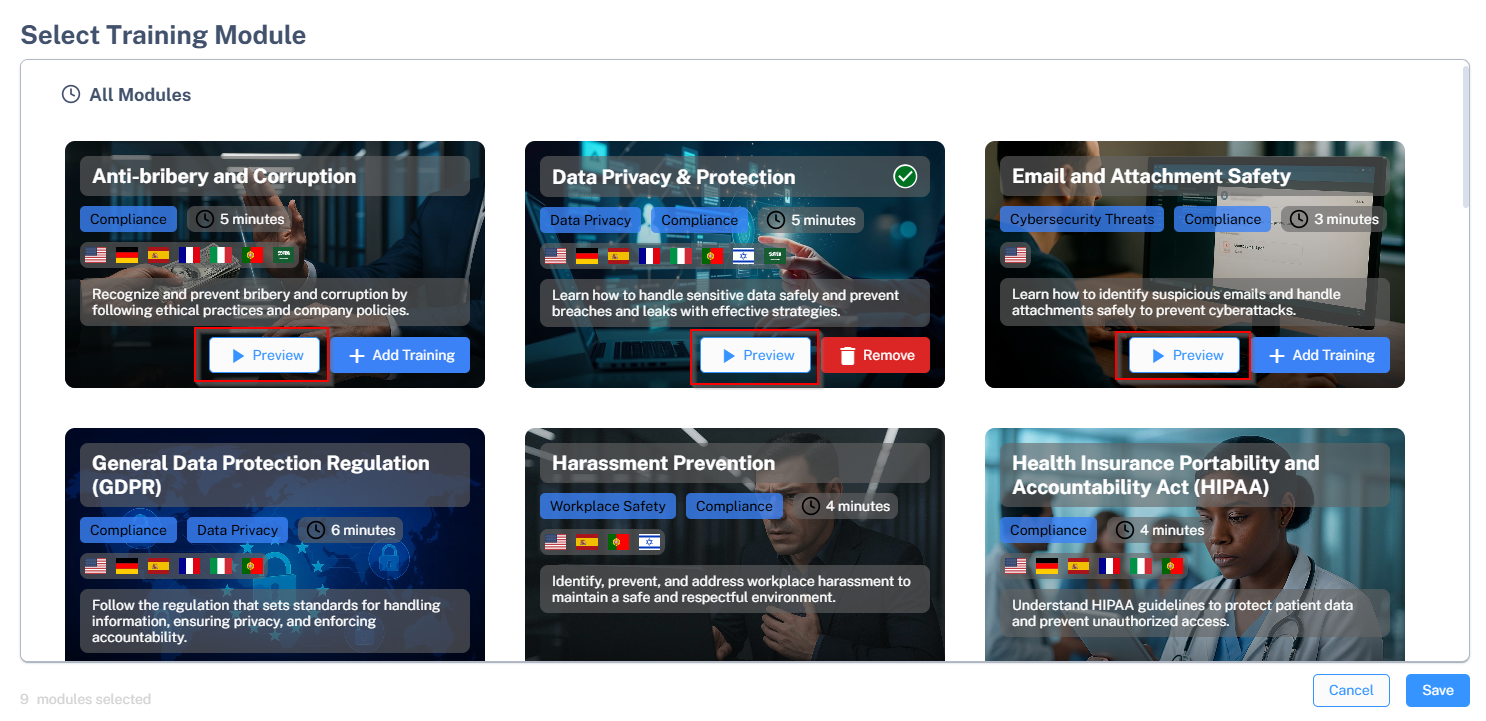
You can authorize from the Preview page while configuring the security awareness training policy. See Customizing Security Awareness Training Policy. Click Preview.
-
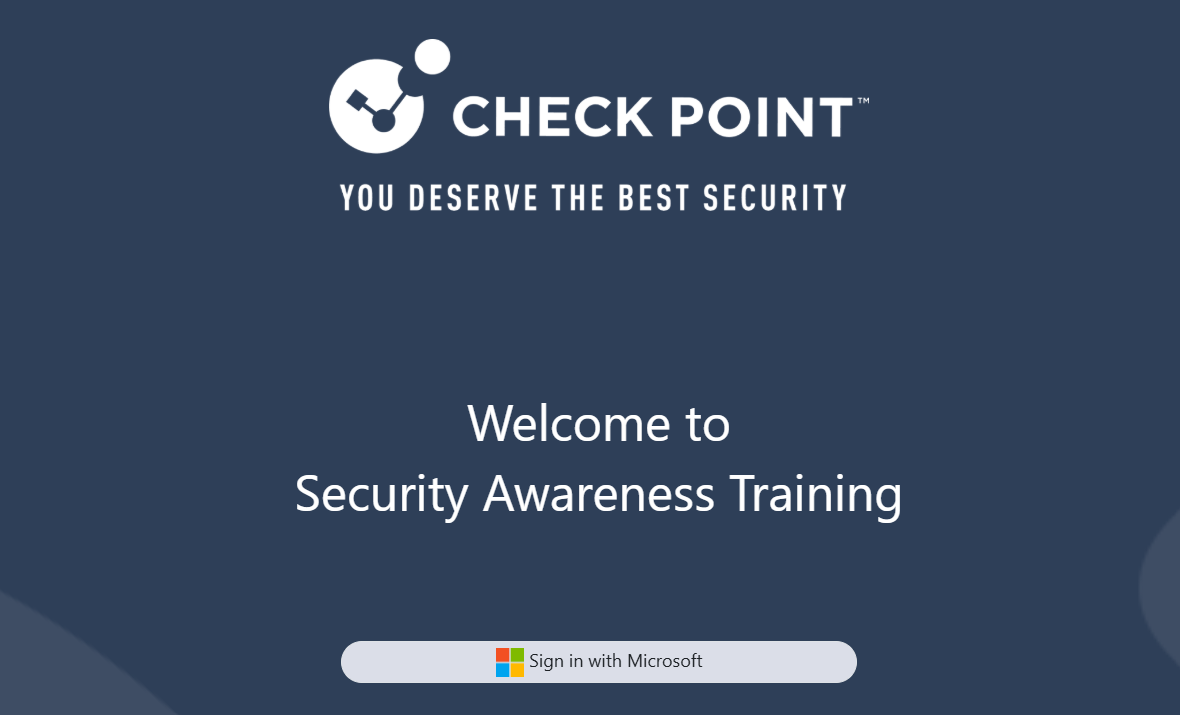
In the sign in page, click Sign in with Microsoft.
-
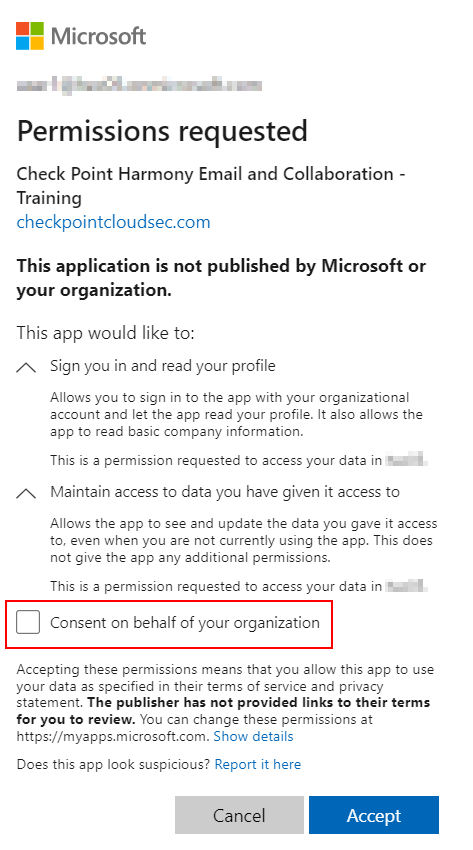
To allow end users to sign in using Microsoft credentials, select the Consent on behalf of your organization checkbox.
 Note:
Note:To grant permission by selecting the Consent on behalf of your organization checkbox, allowing users to sign in with Microsoft, the administrator must have one of the following roles:
-
Global Administrator
-
Privileged Role Administrator
-
Cloud Application Administrator
-
Application Administrator
-
A custom directory role that includes the permission to grant consent on behalf of all users
-