
Trusted Senders
Administrators can allow end users to trust senders and domains, so that spam emails sent from these senders are delivered directly to the users' mailbox.
If the emails are classified as phishing or contain malware, they will still be quarantined.
To allow end users to trust senders:
-
Access the Avanan Administrator Portal and click Policy.
-
Open an existing Threat Detection policy or create a new one. See Threat Detection Policy for Incoming Emails.
-
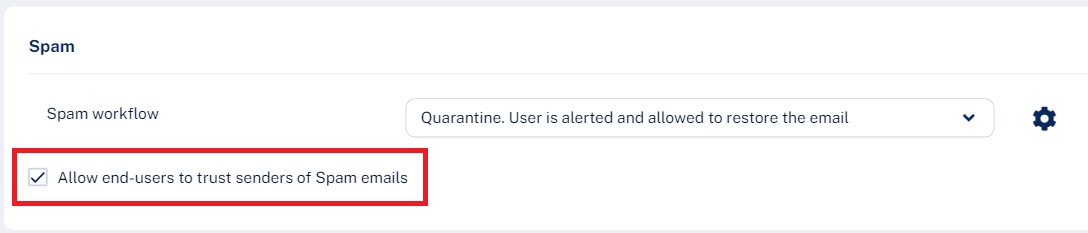
Scroll down to the Spam section and select the Allow end-users to trust senders of Spam emails checkbox.
-
Click Save and Apply.
For information about how to manage senders trusted by end users, see Trusted Senders - End-User Allow-List.
Automatic Trusted Sender Management
Avanan enhances trusted sender management by automatically learning from end-user mailbox activity.
When a user moves an email from the Promotions or Junk folder to the Inbox, Avanan interprets the action as confirmation that the sender is legitimate for that specific user. The system automatically adds the sender to the user's Trusted Senders list.
-
This capability works only when the Allow end-users to trust senders of Spam emails checkbox is enabled. See Trusted Senders.
-
For newly added users, the automatically trust senders action is not applied immediately. It may take up to 48 hours to become effective after the user is added to the User Directory.
-
This feature is not supported if mailbox Move operations do not generate audit logs in Microsoft 365. For more information, see Managing Mailbox auditing in Microsoft 365.
-
This capability is enabled by default. To disable it, contact Avanan Support.
Automatic End User Block-List Management
Avanan enhances sender blocking capabilities by automatically learning from end-user mailbox activity.
When a user moves an email from the Inbox to the Junk folder, future emails from that sender to the same user are marked as Spam.
Similarly, when a user moves an email to the dedicated Graymail folder created by Avanan, future emails from that sender to the same user are marked as Graymail.
-
At this stage, the list of block-listed senders per user is not visible in the Avanan Portal.
-
For newly added users, the automatically block-list senders action is not applied immediately. It may take up to 48 hours to become effective after the user is added to the User Directory.
- When a user moves an email between folders (for example, from the Inbox to the Junk folder), the change can take from a few seconds to a few minutes to take effect, because it depends on Microsoft (Exchange Online) events.
Trusting Senders - End User Experience
When the administrator has configured the policy such that the user is allowed to trust senders, the user will get an option in the End-User Daily Quarantine Report (Digest) to trust senders and their domains.
To allow users to trust senders, configure the policy in the Avanan Administrator Portal. See Trusted Senders.
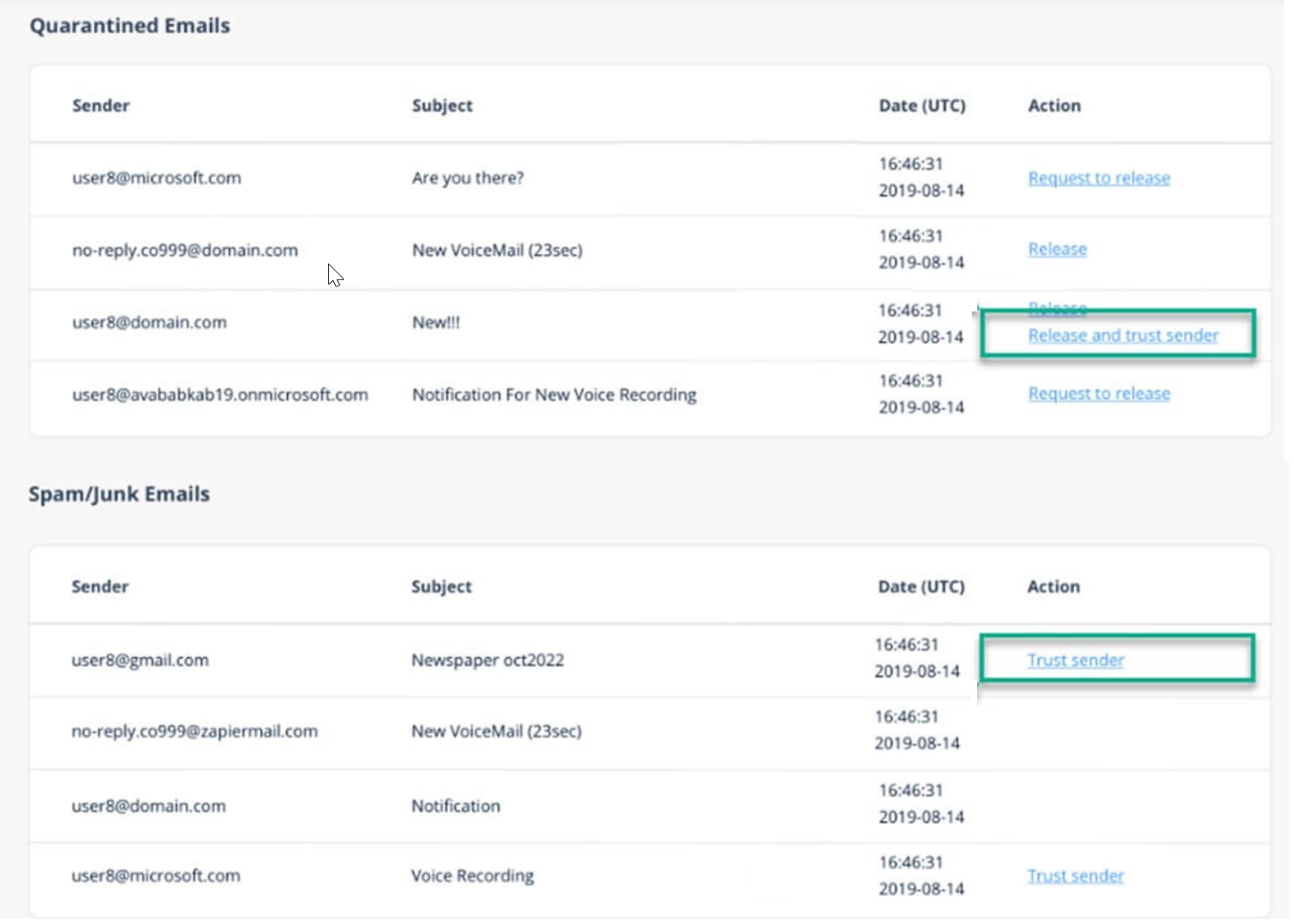
To trust a sender or domain:
-
Click Trust sender in the End-User Daily Quarantine Report (Digest).
-
Enter your email address and click Submit.
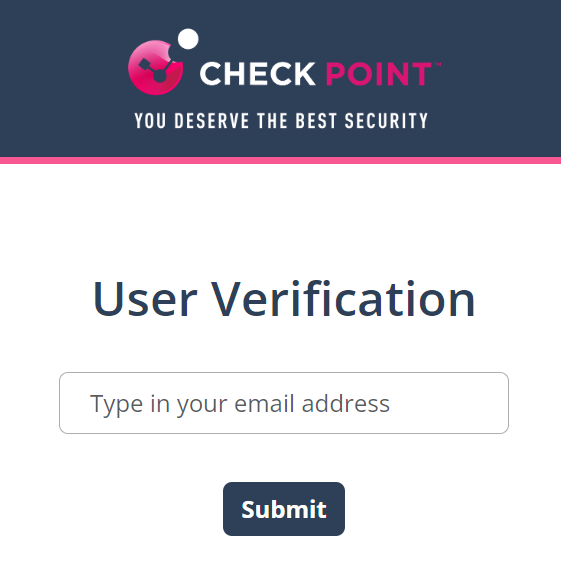
The system sends an email notification with a verification code.
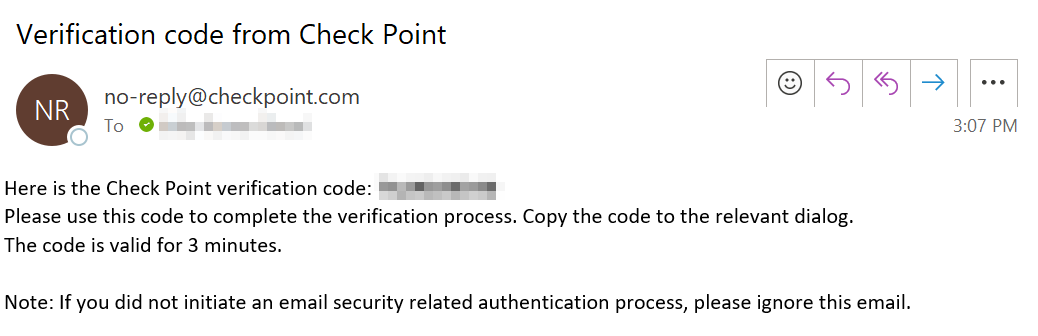
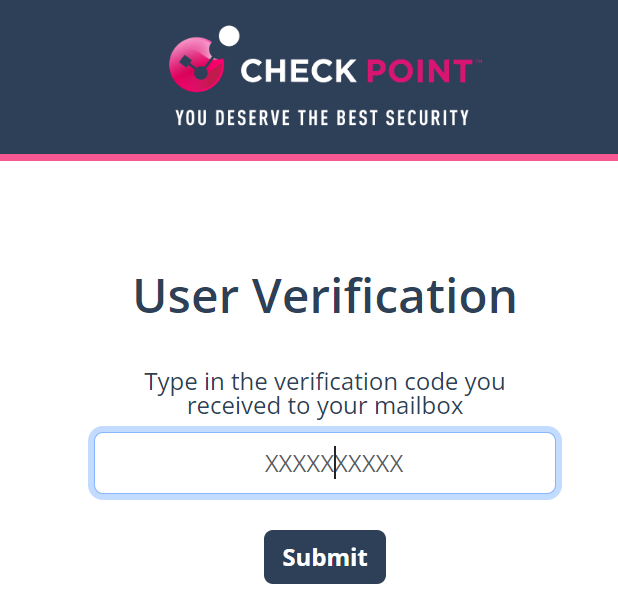
Enter the verification code received from the email and click Submit.
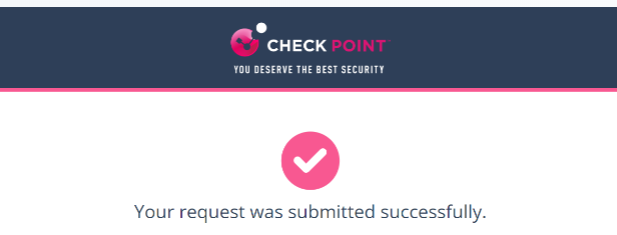
After successful verification, the system shows the status.
Once an administrator approves the request, the system adds the sender to the trusted senders list.