
Graymail Workflows
Graymails are legitimate but often unwanted emails, such as newsletters and promotional emails, which many users find unnecessary, making it harder to find important messages.
The Graymail workflow moves these unwanted emails to a dedicated folder in the user's mailbox, ensuring a well-maintained inbox and enhancing productivity.
This workflow is supported for Office 365 Mail and Google Gmail.
To configure the graymail workflow and customize the dedicated folder name:
-
Access the Avanan Administrator Portal and click Policy.
-
Open an existing Threat Detection policy for Office 365 Mail or create a new one.
See Threat Detection Policy for Incoming Emails.
The Edit Policy Rule page appears.
-
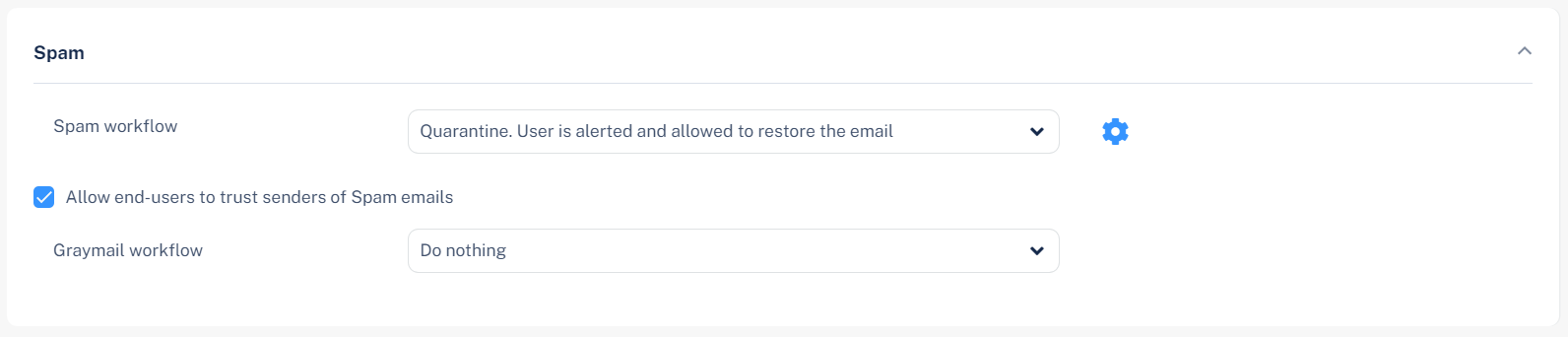
Go to the Spam section.
-
From the Graymail workflow list, select the workflow.
-
Do nothing
-
Same as Spam workflow
For more information, see Spam Protection.
-
Email is allowed. Deliver to Promotions folder.
-
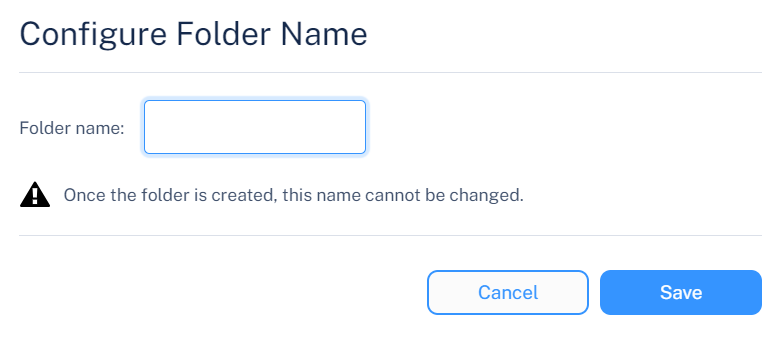
In the Folder Name field, enter the folder name. The default folder name is Promotions.
 Note:
Note:-
This workflow is supported only for Office 365 Mail.
-
To deliver graymail emails to a dedicated folder in Google Gmail, see Delivering Graymail Emails to the Dedicated Folder for Google Gmail.
-
-
-
-
Click Save.
The system creates a dedicated folder in the user's mailbox.
Graymail Dedicated Folder
When the Email is allowed. Deliver to Promotions folder workflow is selected, the system creates a folder with the specified name in each user's inbox assigned to the policy.
If a user deletes the folder, the system recreates it within 24-48 hours. During this period, graymail emails are delivered to the user's inbox.
For new users added to the group associated with the policy, the system creates the folder within 24-48 hours. During this period, graymail emails are delivered to their mailbox.
-
This option is available only for the Protect (Inline) policy mode.
-
After the initial configuration, you cannot change the folder name. To modify it, contact Avanan Support.
Delivering Graymail Emails to the Dedicated Folder for Google Gmail
Avanan doesn't provide a built-in workflow for Google Gmail to deliver graymail emails to the dedicated folder, but you can still direct graymail emails to a dedicated folder.
-
Access the Avanan Administrator Portal and click Policy.
-
Open an existing Threat Detection policy for Google Gmail or create a new policy. See Threat Detection Policy for Incoming Emails.
-
In the Edit Policy Rule page that appears, scroll-down to the Spam section.
-
From the Graymail workflow drop-down list, select the Add [Promotional] to subject workflow and click Save and Apply.

-
Create a rule in the Google Admin Console to move emails with Promotional in the subject line to the dedicated folder for all users.
Deliver to Dedicated Folder - End User Footprint
When the Email is allowed. Deliver to Promotions folder workflow is enabled. The following changes apply to the end user:
-
The system creates a dedicated folder under the user's mailbox.
-
The system adds X-CLOUD-SEC-CP-GRAYMAIL header to all the graymails.
-
The system applies a mailbox rule to each protected user, routing emails with the X-CLOUD-SEC-CP-GRAYMAIL header to the new folder.