
Threat Detection Policy for Outgoing Emails
Administrators can enable threat detection to prevent malware, phishing, and spam emails from being sent by their organization's users to external parties.
This feature is supported only for Office 365 Mail.
To configure a Threat Detection policy rule for outgoing emails:
-
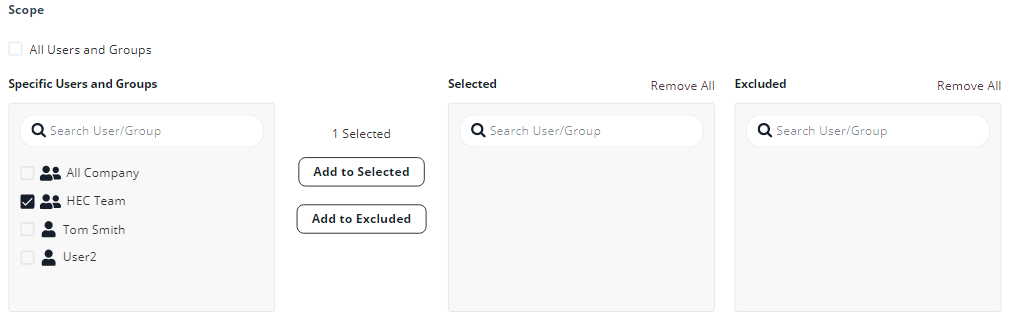
Under Scope, select the users and groups to which the policy is applicable and click Add to Selected.
-
To apply the policy to all users and groups in your organization, select All Users and Groups checkbox.
-
To apply the policy only to specific users or groups, select the users/groups and click Add to Selected.
-
To exclude some of the users or groups from the policy, select the users/groups and click Add to Excluded.
For more information about excluded users, see Excluding Members of Microsoft 365 Groups from a Prevent (Inline) Policy.
-
-
Select the workflows required for the policy.
Note:
If you select Detect and Remediate or Detect mode, you may not see some of these additional configuration options that allows you to customize the end user email notifications.
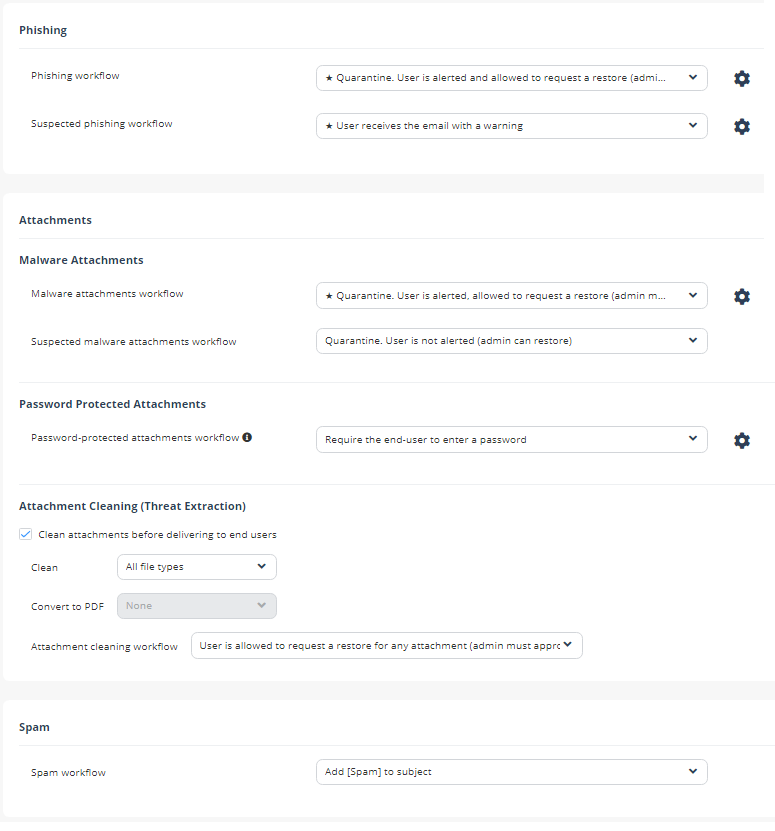
For more information on workflows, see Phishing Protection, Malware Protection, and Password Protected Attachments Protection.