
Quarantined Emails - End-User Experience
After the administrator approves an end-user request to restore an email from quarantine, Avanan performs these actions:
-
Removes the quarantine/clean email notifications received for the quarantined email from the end-user mailbox.
-
Adds the original email to the end-user mailbox, where the email received time is the restore time of the email from quarantine, but not the original email sent time.
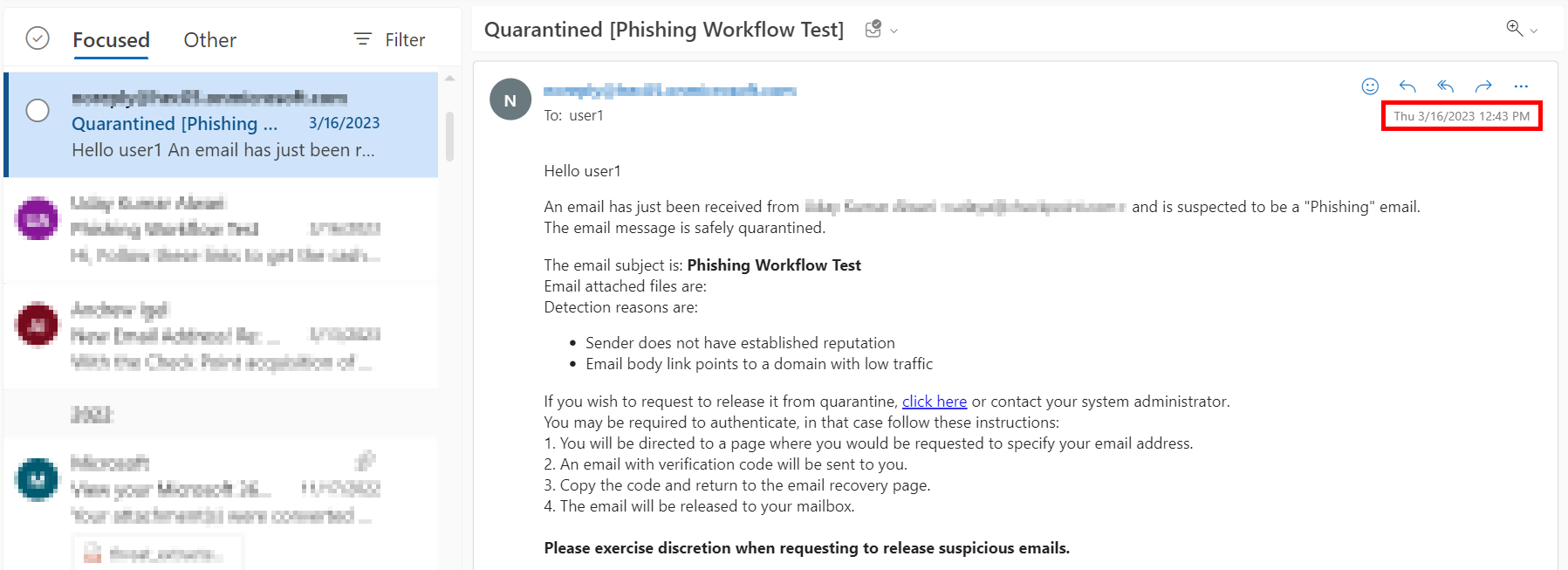
This example shows the initial email received by the end-user.
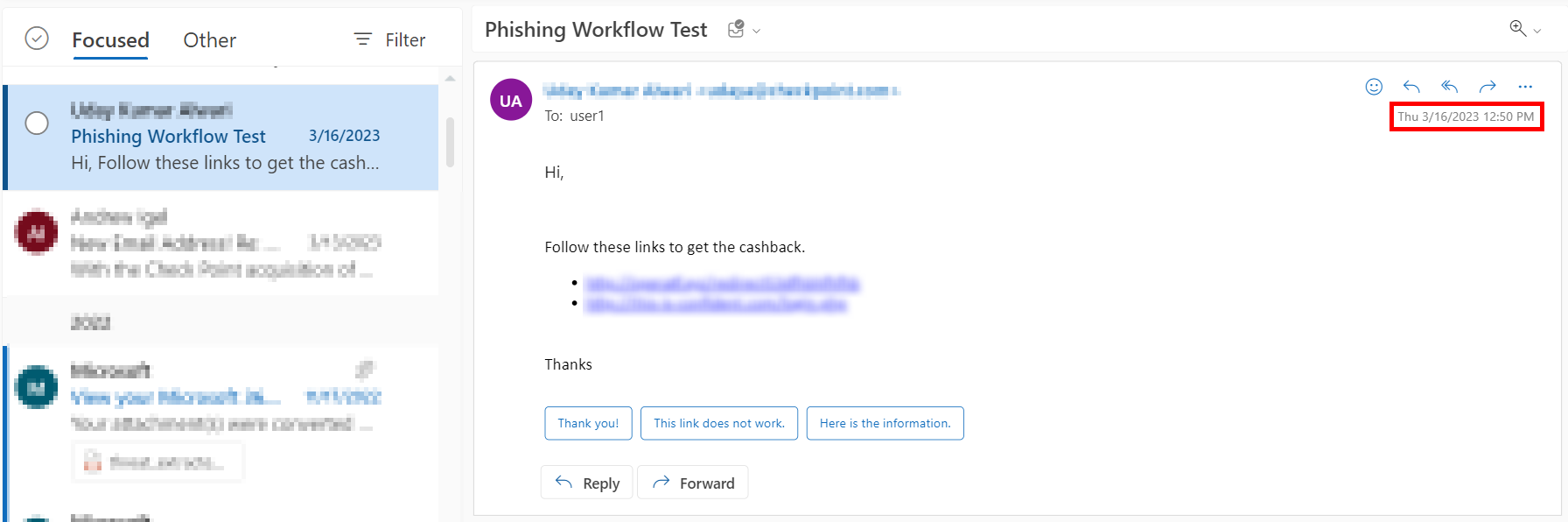
This example shows the same email received by the end-user after the administrator approved the restore request.
The initial email received by the end-user is removed and the restored email gets delivered as a new email to the end-user mailbox. The email received time is the restore time of the email by the administrator, but not the original email sent time.
Customizing Attachment Cleaning ( Threat Extraction ) Attachment Name
-
Navigate to Security Settings > SaaS Applications.
-
Click Configure for Office 365 Mail or Gmail.
-
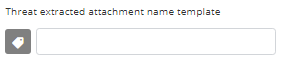
Click Advanced and scroll-down to Threat extracted attachment name template.
-
Enter the desired attachment name.
 Note:
Note:By default, threat_extracted_{original_name} is the configured name.
-
Click Save.
Customizing Attachment Cleaning (Threat Extraction) Message
-
Navigate to Security Settings > SaaS Applications.
-
Click Configure for Office 365 Mail or Gmail.
-
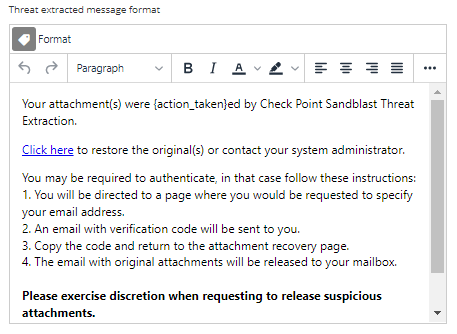
Click Advanced and scroll-down to Threat extracted message format.
-
Configure the desired format for the threat extracted message.
-
Click Save.