
Trusted Senders - End-User Allow-List
When an end user adds a sender / domain to trusted senders for spam emails from the End-User Daily Quarantine Report (Digest), Avanan shows the details in the Trusted Senders (Spam Exceptions) page.
To manage the list of senders trusted by end users, click Security Settings > Exceptions > Anti-Spam.
For the procedure to allow end users to trust senders, see Trusted Senders - End-User Allow-List.

Adding Trusted Senders
To add trusted senders manually:
-
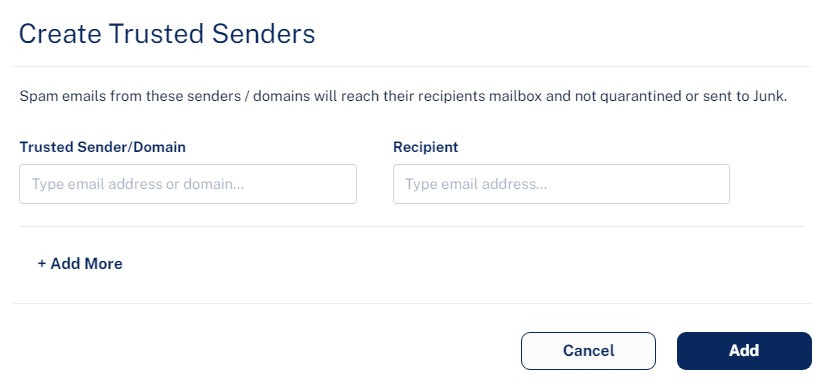
Click Trusted Sender.
-
In the Trusted Sender/Domain field, enter the sender email address or domain.
-
In the Recipient field, enter the recipient email address.
-
To add more senders or domains, click +Add More and repeat steps 2 to 3.
-
Click Add.
Importing a Trusted Senders
To upload a CSV file with trusted senders:
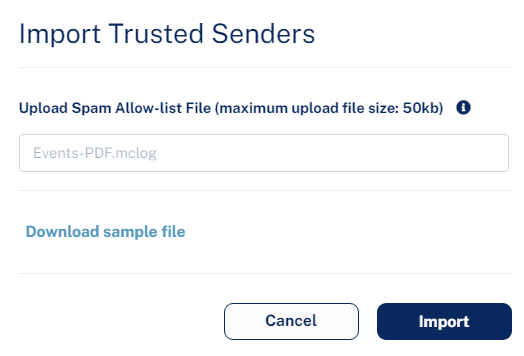
You can upload a CSV file only up to 50 KB.
-
Click Import.
-
In the Upload Spam Allow-list File field, click Choose a file and select the CSV file.
-
Click Import.
Editing and Deleting a Trusted Senders
-
Click the
 icon from the last column of the trusted sender.
 -
To edit a trusted sender.
Click Edit and make the necessary changes.
-
Click Edit.
-
To delete a trusted sender, click Delete.
-
To delete multiple trusted senders at a time, select the trusted senders and click Delete from the top right corner of the page.