Configure a notification profile for an automation
This task describes how to configure a notification profile for an automation. It guides you through selecting automations, modifying profiles, and adjusting notification settings.
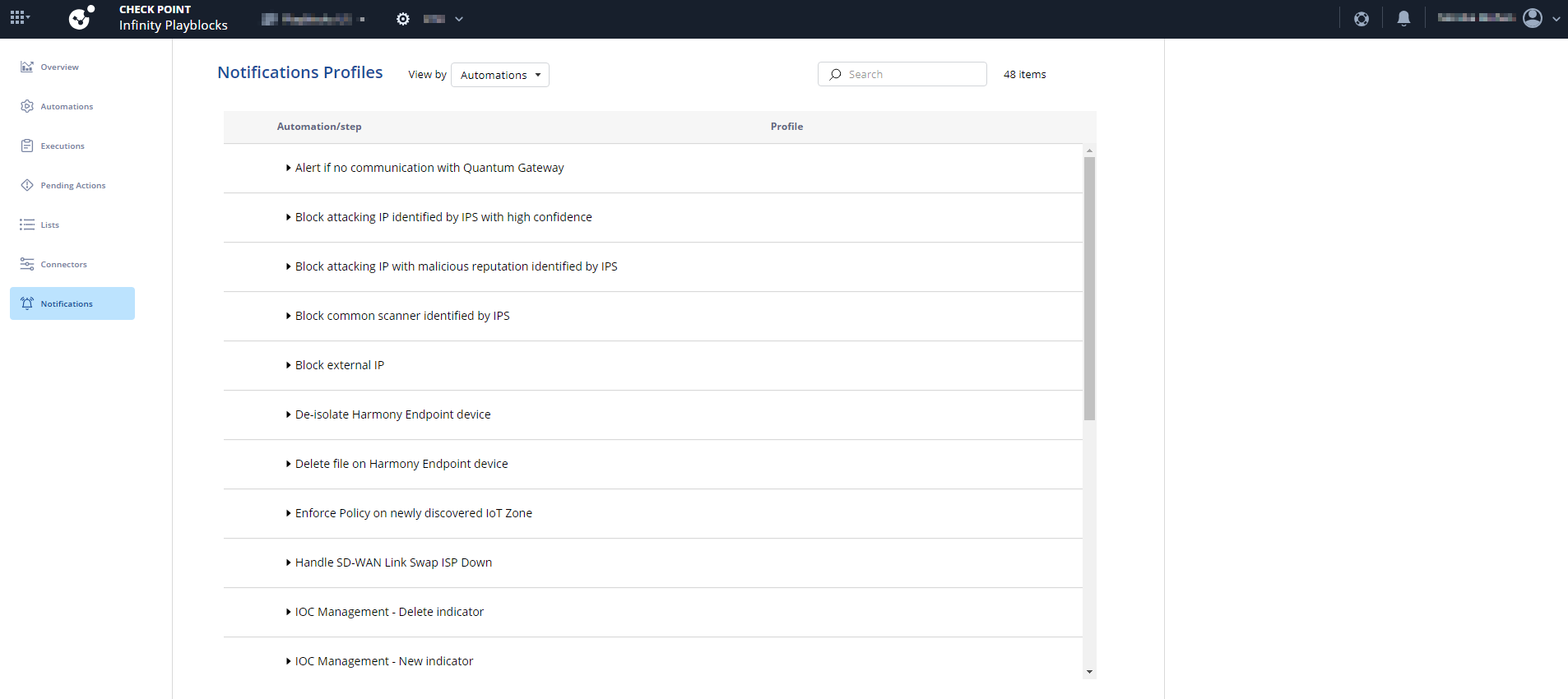
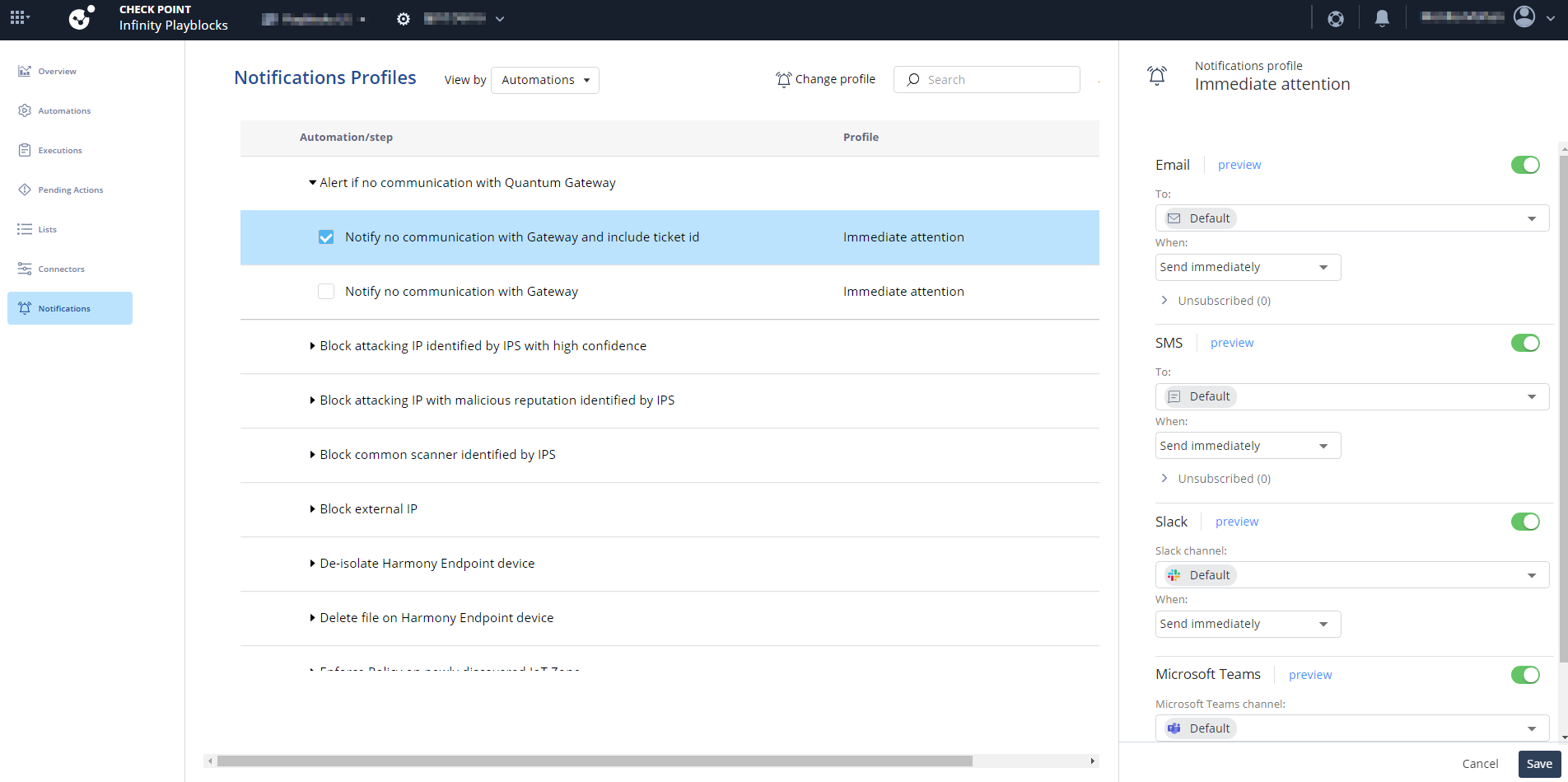
Access Playblocks and click Notifications.
In View by list, select Automations.
The system displays the list of automations.
Expand the automation and select the checkbox for the automation step(s).
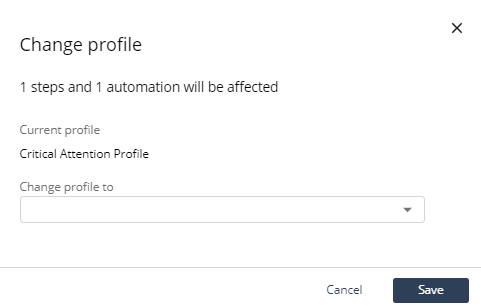
To change the profile, click Change profile.
The Change profile window appears.
From the Change profile to list, select the profile.
Click Save.
To edit the notification profile for the automation step, select the automation step(s).
In the Notifications profile tab:
Turn on the toggle button for the connector you want to enable.
From the To list, select the user or user groups to send the notification.
To add or manage users and user groups, see these connectors pages:
From the When list, select the frequency to send the notification.
Note:
You cannot change Send immediately to any other frequency in the Immediate attention profile.
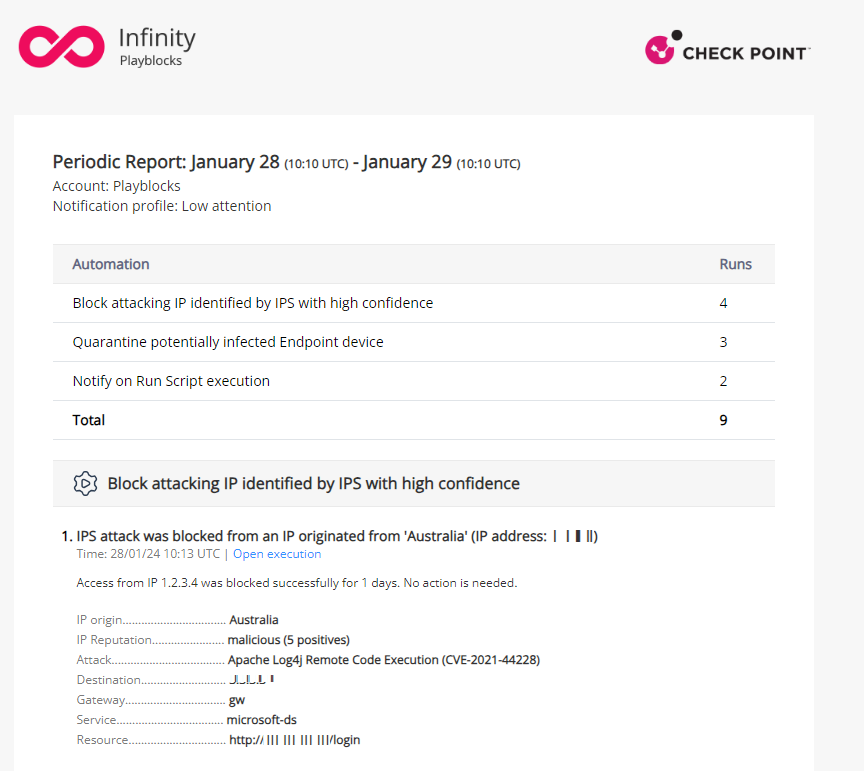
To preview the notification, click Preview.
The Report Preview window appears.
To remove a user from the group, expand the Unsubscribe section.
Click .
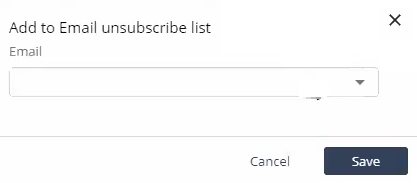
The Add to unsubscribe list window appears.
From the list, select recipients to unsubscribe.
Click Save.
Note:
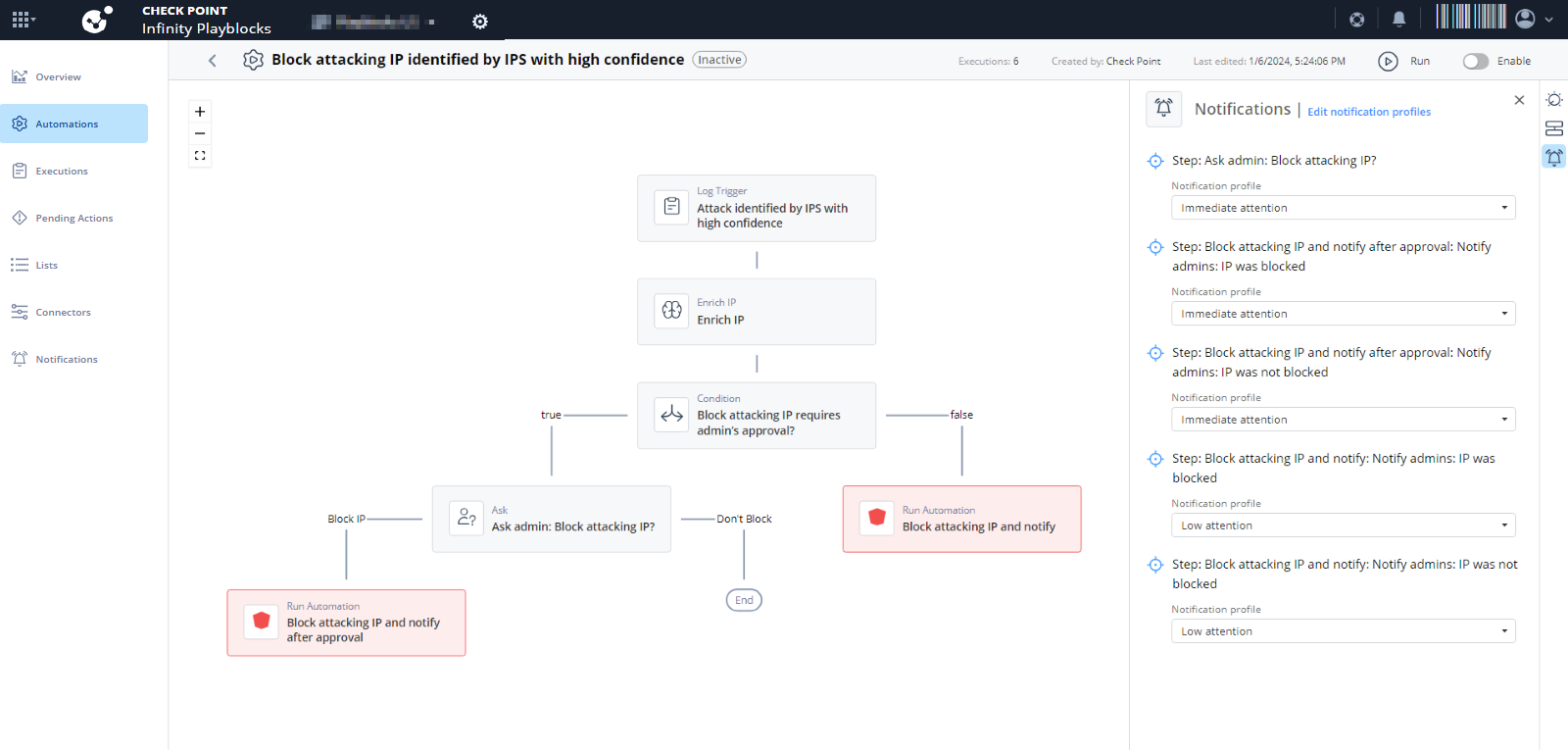
You can also edit the notifications profile for each automation step in the Automations page. For more information, see Automation Parameters and Flowchart.

 .
.