
Datadog
You can use the Datadog connector to page on-call responders and to open, acknowledge, and resolve alerts from Datadog as part of an automated response.
Datadog belongs to the Alerting connector category. This category covers incident management platforms that own the on-call lifecycle (trigger, acknowledge, and resolve) and the escalation policies.
Once you configure the connector, you can use the Trigger Alert, Acknowledge Alert, Add Note to Alert, and Resolve Alert steps from the
Alerting tab in the step picker. For each step, the
Provider field is set to Datadog.
Note:
Before you configure the Datadog connector, generate a Datadog API key and an
Application key with on-call scopes, and Datadog on-call must already be
configured with a team, an escalation policy, and routing rules. For more
information, see Appendix K - Creating Datadog API and Application Keys.
To configure a Datadog connector:
- Access Playblocks and click Connectors.
- In the Alerting section, select
Datadog.
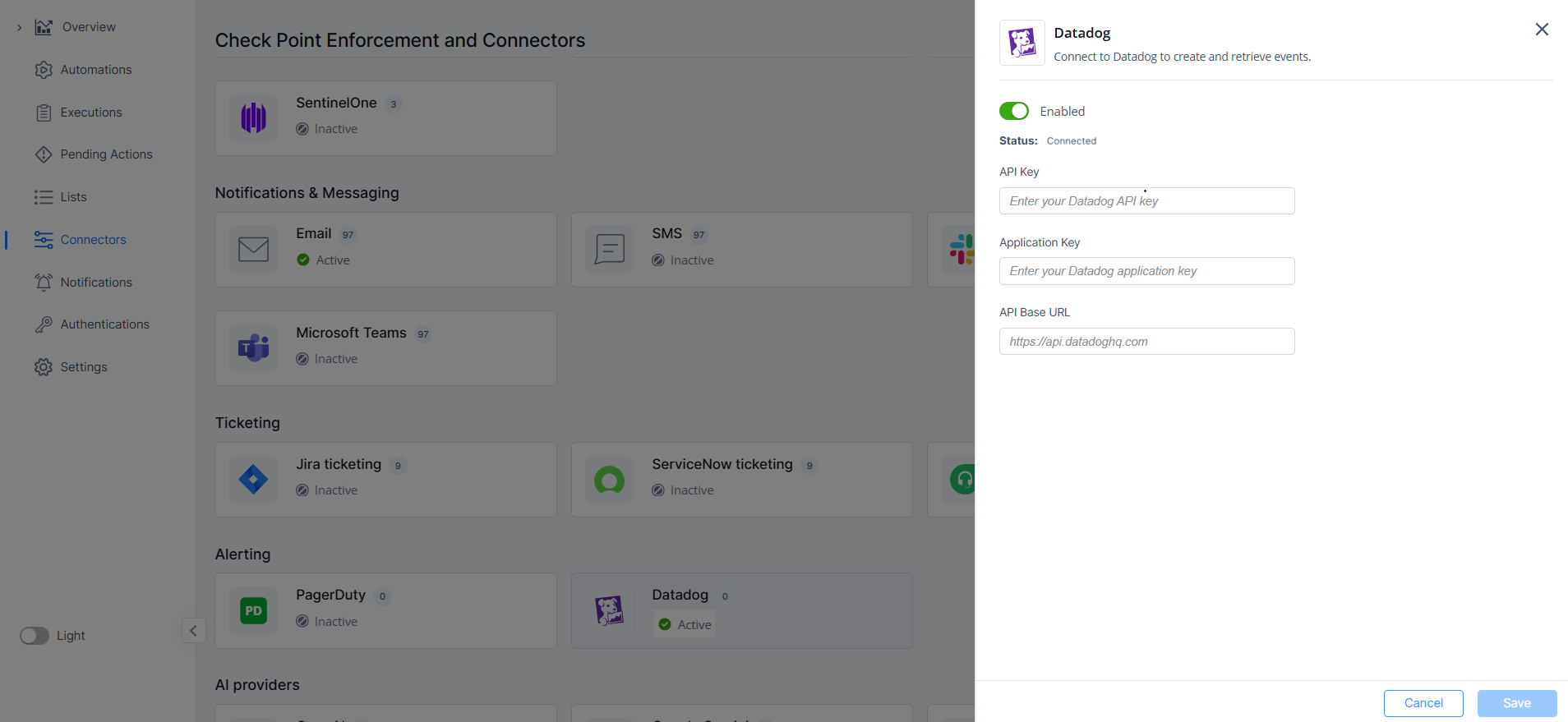
- Turn on the Enabled toggle button.
- Enter these:
- API Key - The Datadog API key you created in your Datadog account.
- Application Key - The Datadog Application key
you created in your Datadog account. Note:
- Datadog requires both keys on every request:
- API key identifies the organization.
- Application key carries the permissions.
- The application key must have the On-Call scopes.
- Datadog requires both keys on every request:
- API Base URL - The Datadog API base URL for
your site. The default value is
https://api.datadoghq.com(US1).
- Click Save.
Playblocks validates the API key:
- On success, the connector is marked Connected.
- On failure, the side panel shows the error and the connector is left
in an Error state. Fix the credentials and save again. Note:Datadog has no connector level default target. Each Trigger Alert step specifies its own Target Type and Target ID, so the connector has no second configuration step.