Microsoft Entra ID

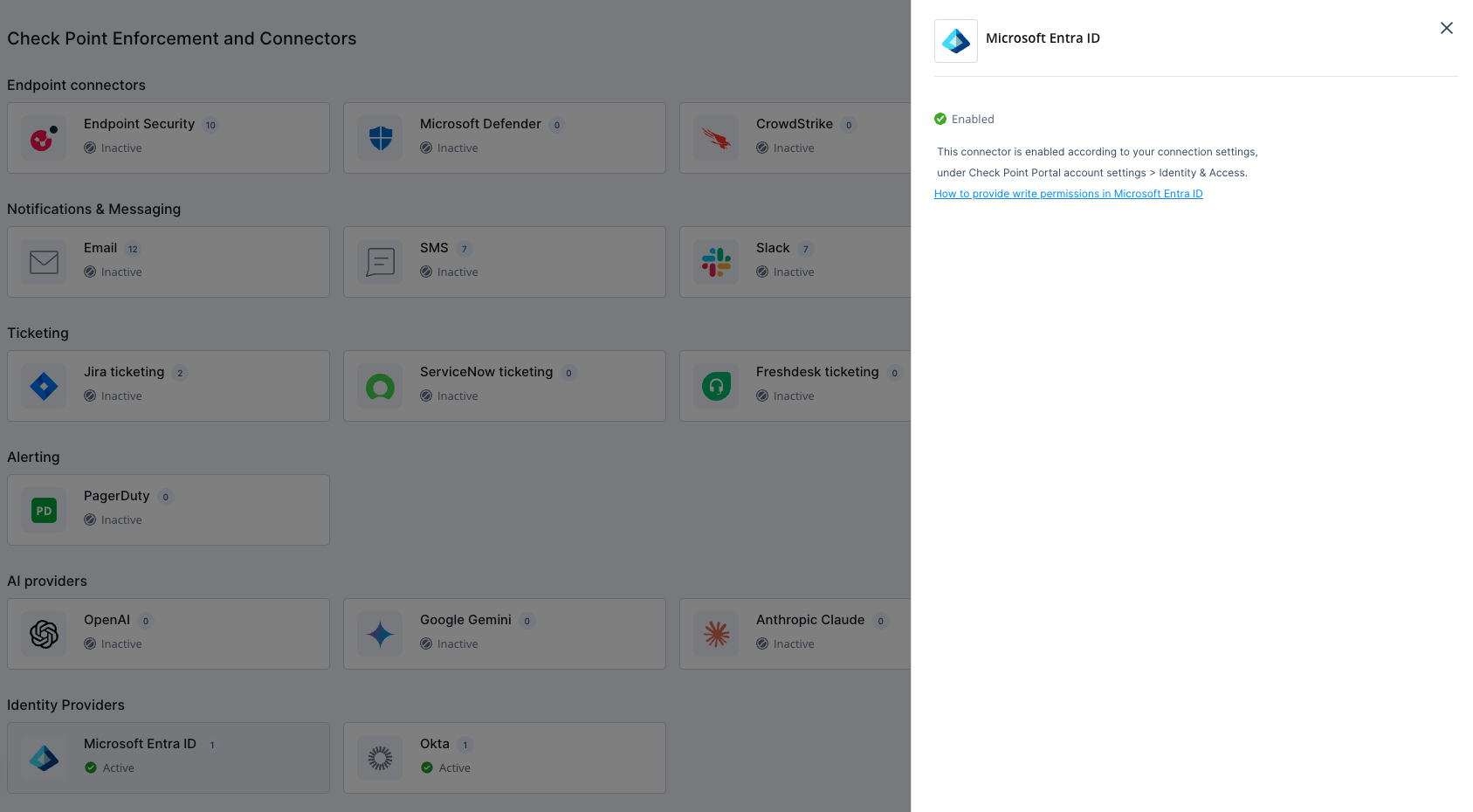
To connect Microsoft Entra ID with your Check Point Portal account:
  1. Sign in to Check Point Portal.
  2. Go to Account Settings > Identity & Access.
  3. Follow the instructions in the Check Point Portal Administration Guide.

Once connected, the Microsoft Entra ID connector is automatically enabled.
Reset user password permissions

To reset user password, you need to provide write permissions in Microsoft Entra ID. To do that:

  1. Open the Microsoft Entra ID portal.
  2. Go to the Roles and administrators tab.
  3. Search for User Administrator.
  4. Click Add assignments.
  5. Search for the application created for Check Point and click Add.
  6. Add the desired role to Check Point application.

    For information on the available roles, see Microsoft Entra ID documentation.