
Appendix K - Creating Datadog API and Application Keys
-
API key - An organization-level key that you generate under Organization Settings > API Keys. It identifies your Datadog organization on every request.
-
Application key - A key that you generate under Organization Settings > Application Keys, scoped to the On-Call permissions.
Datadog sends both keys together on every request:
-
API key identifies the organization.
-
Application key carries the permissions that authorize the action.
-
-
API base URL - The regional Datadog endpoint that hosts your organization.
- Generate an API key:
- Sign in to Datadog as an account administrator.
- Go to Organization Settings > Access > API Keys.
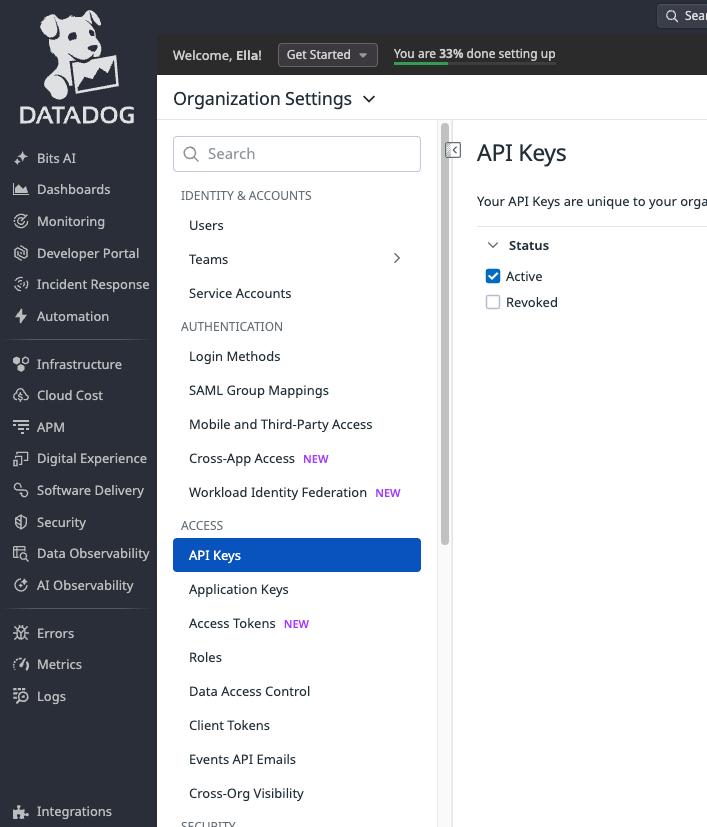
- Click New Key.
The New API Key window appears.
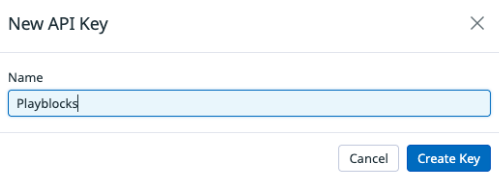
- In the Name field, enter a name, for example Playblocks.
This helps you identify the key if you need to rotate or revoke it.
- Click Create Key.
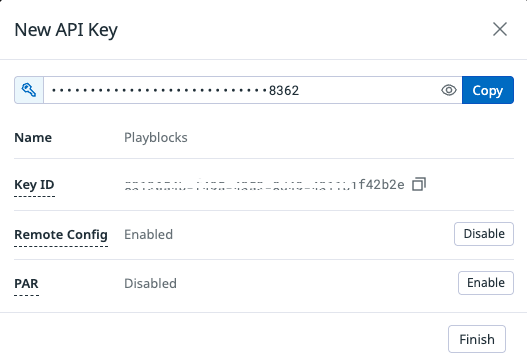
- Click Copy to copy the key. Important:The key appears only once. Copy and save it immediately. You cannot retrieve it later.
- Click Finish.
- Generate an application key with On-Call scopes:
- Go to Organization Settings > Access > Application Keys.
- Click New Key.
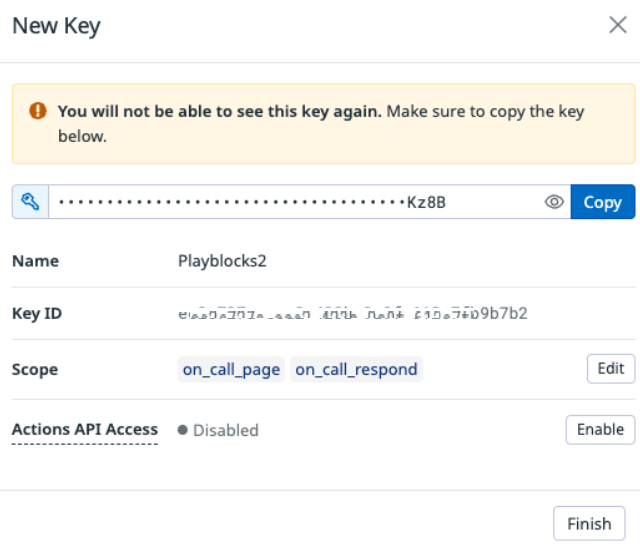
The New Key window appears.
- In the Name field, enter a name. For example,
Playblocks.
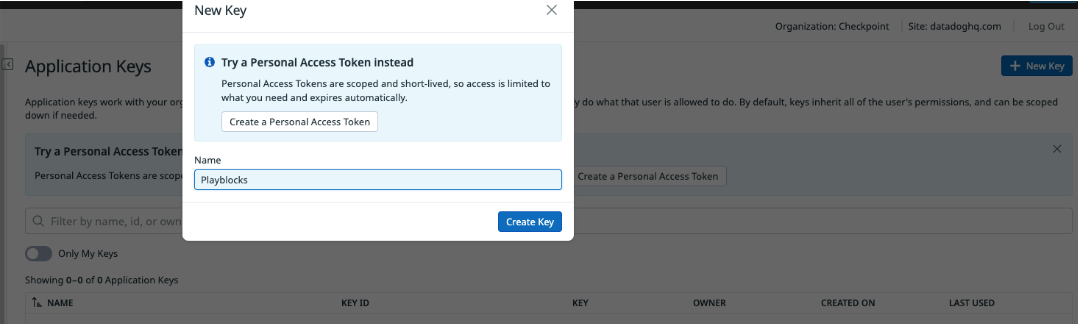
- Click Create Key.
- In the Scope section, click
Edit.
The Edit Key Scope window appears.
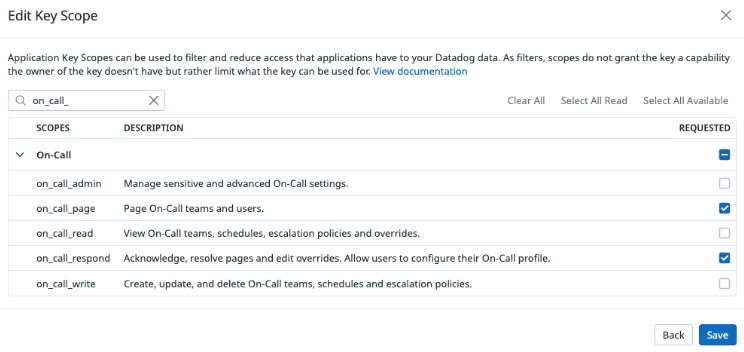
- In the search field, search and select these scopes:
- on_call_page - Authorizes Playblocks to open a page.
- on_call_respond - Authorizes Playblocks to acknowledge and resolve a
pageNote:To support Datadog paging requests, Playblocks requires both scopes. Requests fail if either scope is missing, even when the API key is valid.
- Click Save.
- Click Copy to copy the key.Important:The key appears only once. Copy and save it immediately. You cannot retrieve it later.
- Click Finish.
- Identify the correct API base URL.
- Datadog operates a separate endpoint per region:
- US1 (default): https://api.datadoghq.com
- US3: https://api.us3.datadoghq.com
- US5: https://api.us5.datadoghq.com
- EU1: https://api.datadoghq.eu
- AP1: https://api.ap1.datadoghq.com
- AP2: https://api.ap2.datadoghq.com
- UK1: https://api.uk1.datadoghq.com
Note:
- No other values are accepted. Playblocks rejects an API base URL that is not in this list.
- If you are not sure which region hosts your
Datadog organization, sign in to Datadog and check
the URL in your browser's address bar. It matches
the site you are on, for example
app.datadoghq.eufor EU1.
- Datadog operates a separate endpoint per region:
- Verify that Datadog On-Call is configured:
- Playblocks pages a Datadog On-Call team or user.
Before you configure the connector, confirm that your Datadog
account has an On-Call team with an escalation policy and routing
rules.
To create an escalation policy:
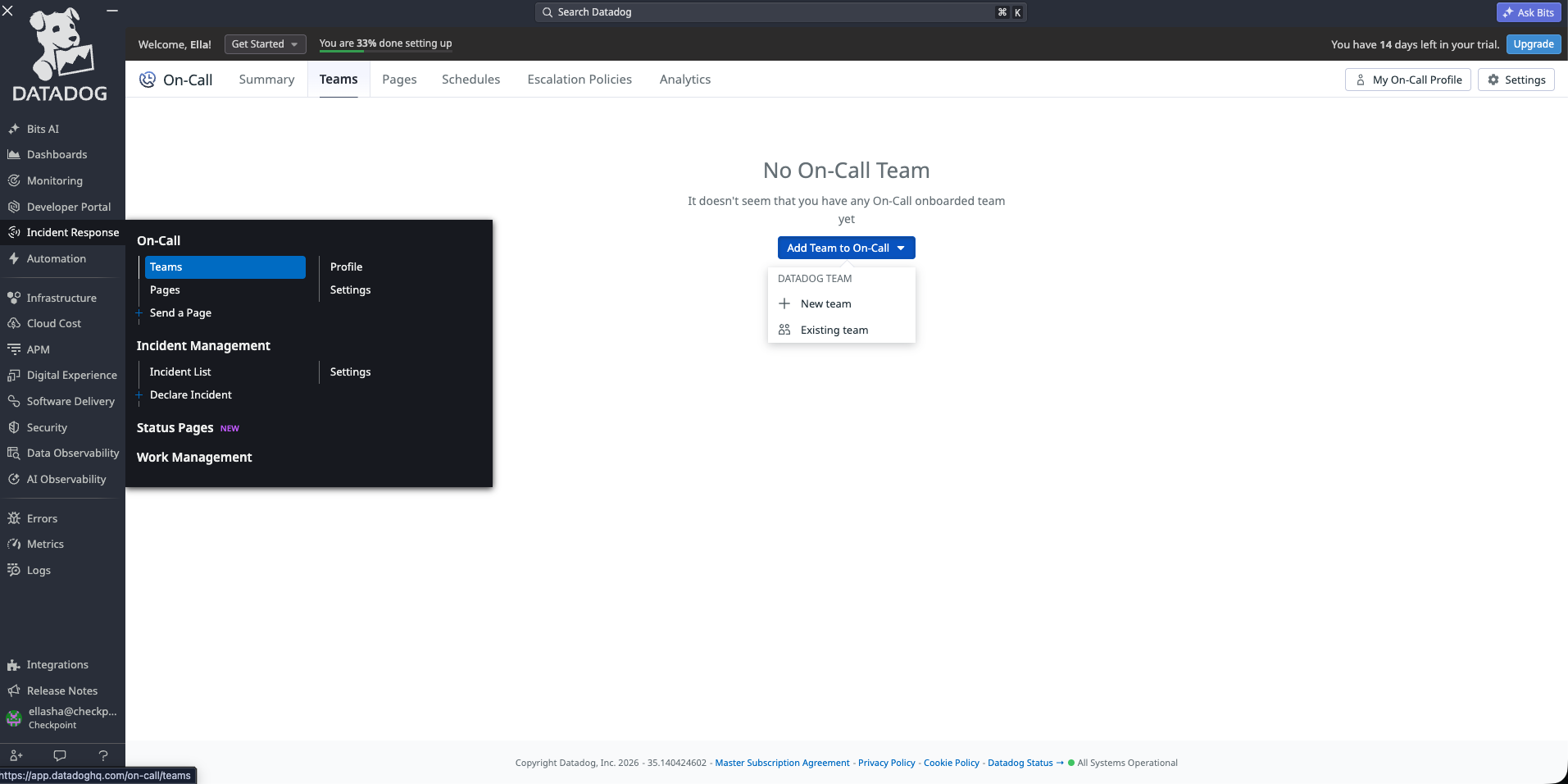
- Go to Incident Response > Teams.
- From the Add Team to On-Call list,
select New team.
- In the Team Name field, enter a name
for the team.
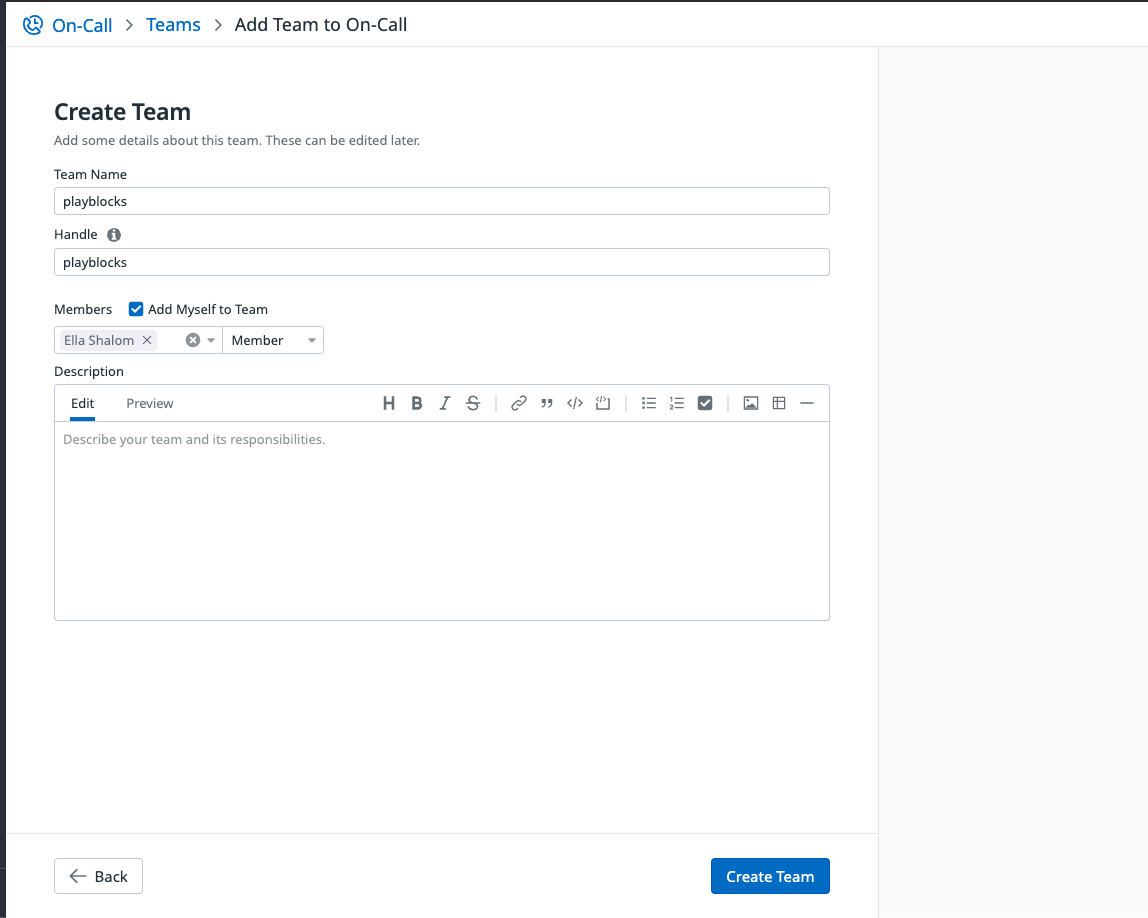
- Click Create Team.
- In the How do you want to manage Incoming
alerts section, select All alerts
to escalation policy.
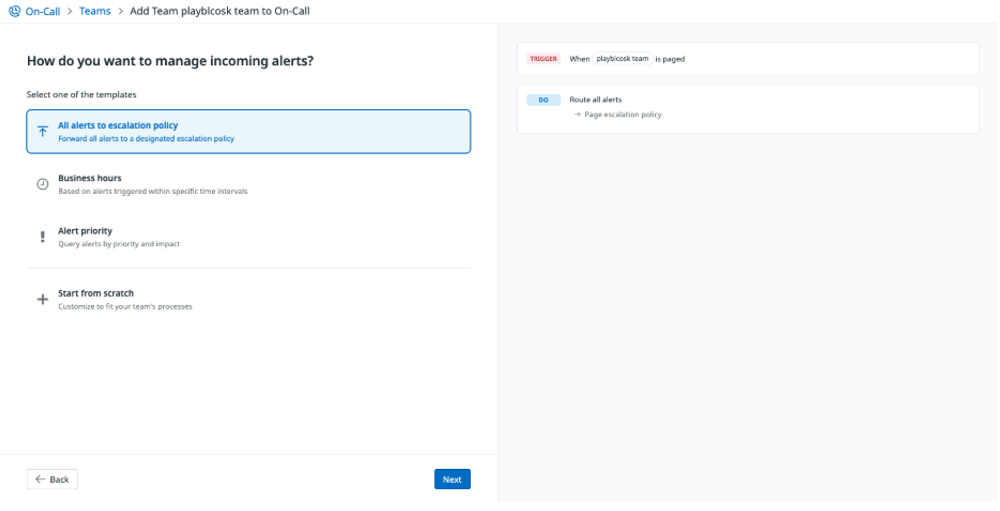
- Click Next.
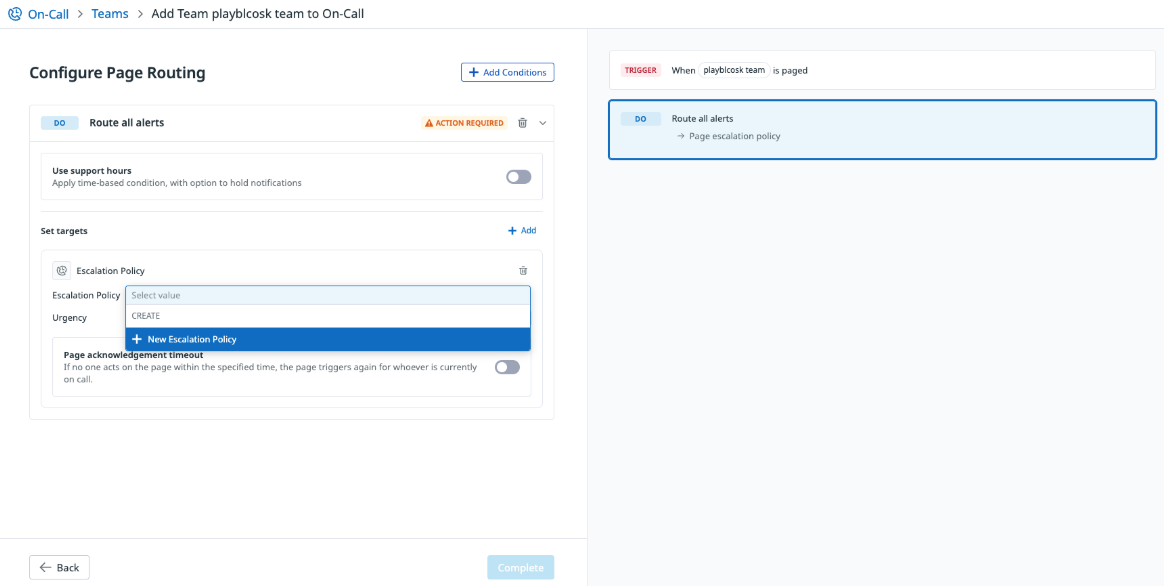
- In the Set targets section, from the
Escalation Policy list, select
New Escalation Policy.
- In the Name field, enter a name for
the policy.
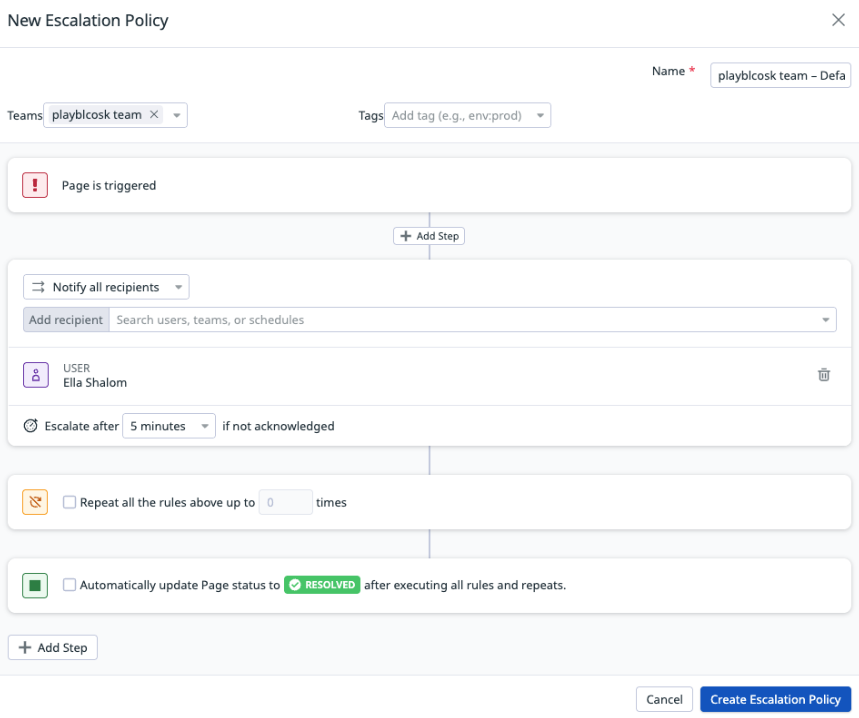
- Click Create Escalation Policy.
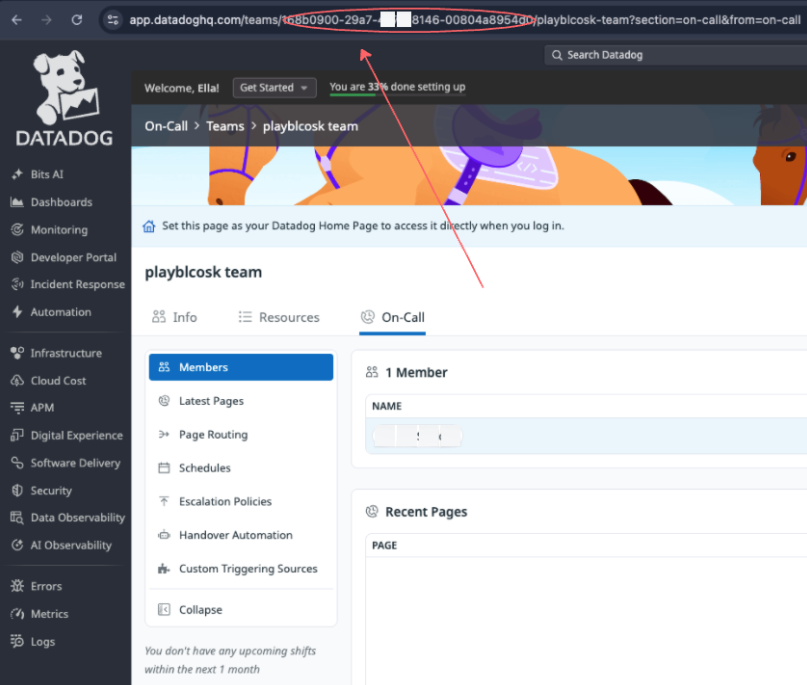
- Check the URL of the Datadog team page in your browser’s address bar
and note the team ID for the team you want Playblocks to page.
 Note:
Note:If On-Call is not configured, the connector still connects, but the Trigger Alert step cannot deliver a page.
- Playblocks pages a Datadog On-Call team or user.
Before you configure the connector, confirm that your Datadog
account has an On-Call team with an escalation policy and routing
rules.