
Appendix F - Creating a SentinelOne Service User
You must have access to the SentinelOne web portal with permissions to create roles and service users.
-
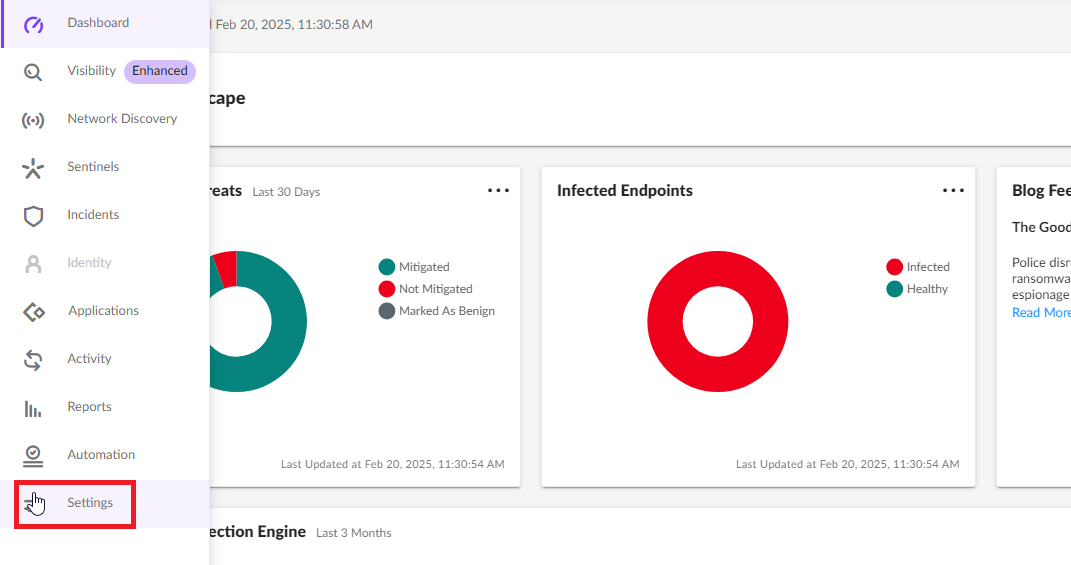
Click Settings.
-
Go to the Users tab and click Roles.

-
From the Actions list, select New Role.
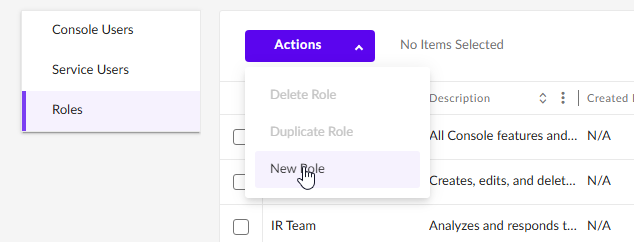
The New Role window appears.
-
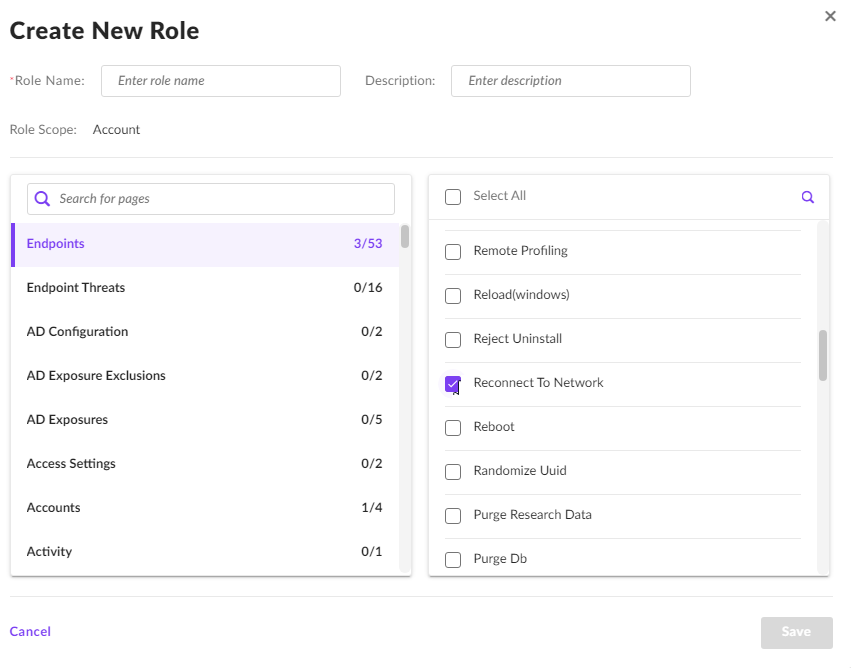
In the search field, search and select these permissions and click Save.
Permissions:
Page
Permission
Endpoints Reconnect To Network Endpoints Disconnect From Network Endpoint Threat View Threat Intelligence Manage Service Users Create For example:
-
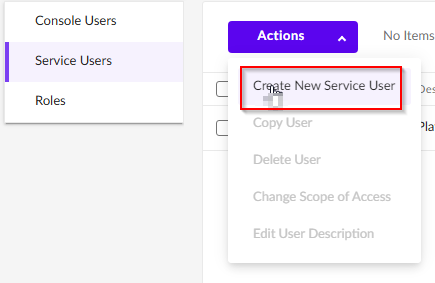
Click Service Users.

-
From the Actions list, select Create New Service User.
-
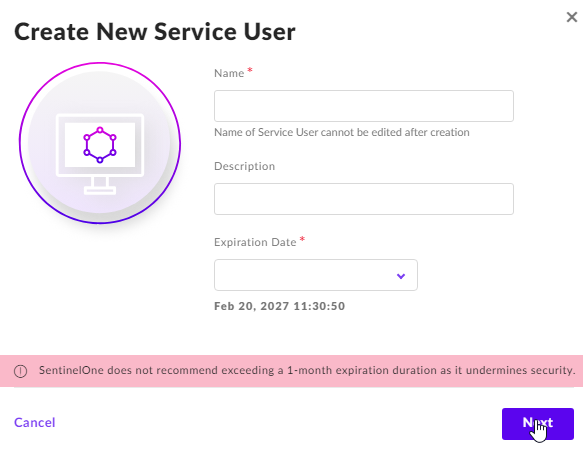
Specify these:
Name
Description
Expiration Date
-
Click Next.
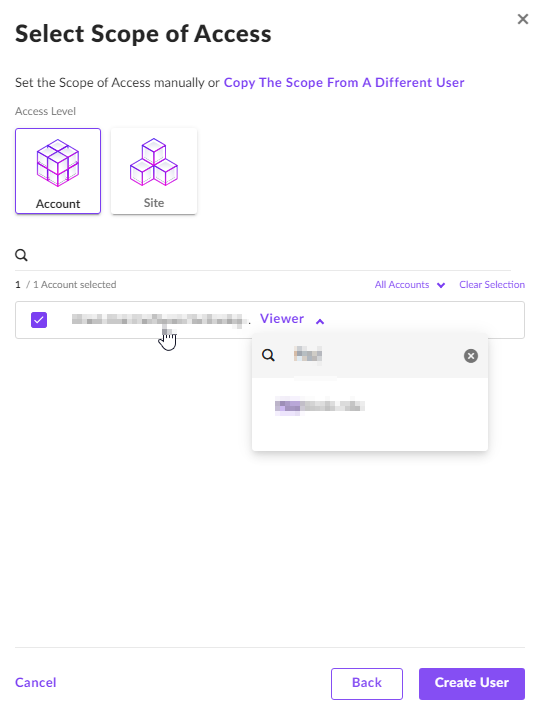
The Select Scope of Access window appears.
-
Click Create User.
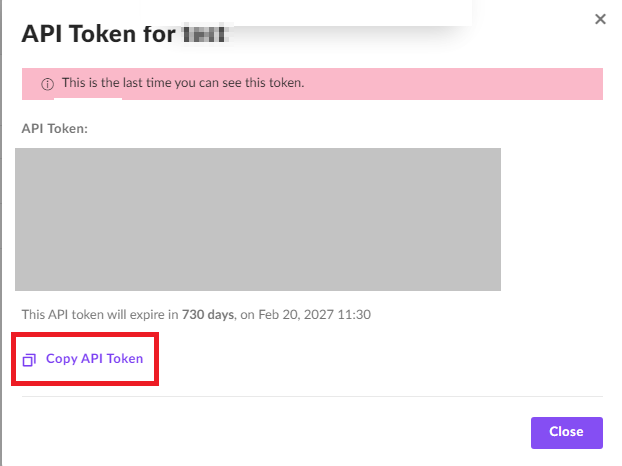
The API Token window appears.
-
To copy the API Token, click Copy API Token.

Notes:
After this step, you cannot retrieve the token.
This API Token is required to Configure the SentinelOne connector.