Use the AI Request step to send a prompt to a connected AI
provider and use the model's response in subsequent steps.
Before you add this step, connect at least one AI provider on the
Connectors page. See AI Connectors.
To add an AI Request step:
-
Access Playblocks and go to Automations.
-
Open your automation and click + to add a new step.
-
Select Actions > AI Request.
-
Click Add.
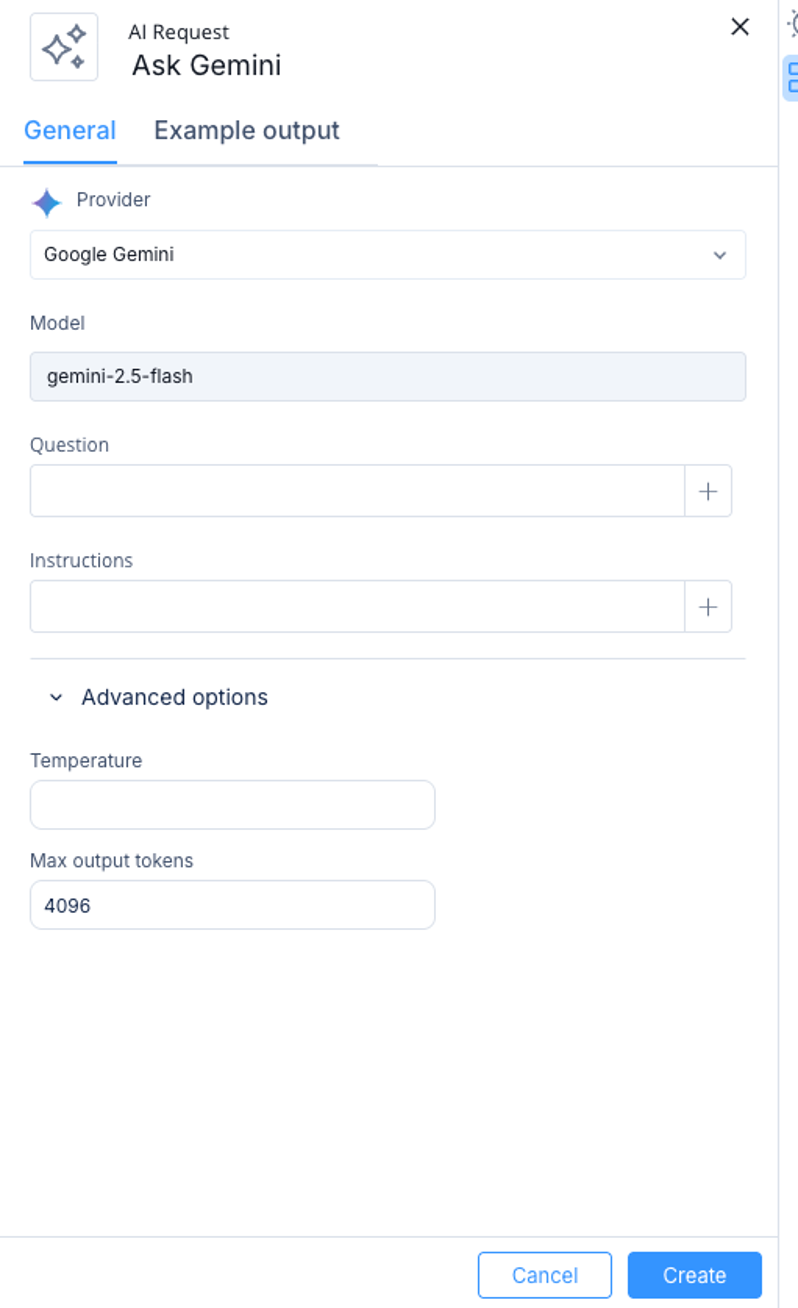
The AI Request window appears.
-
Enter these parameters:
-
Provider - The AI vendor to call. Only providers with a connected connector are selectable. Supported providers:
-
OpenAI
-
Google Gemini
-
Anthropic Claude
If you do not connect a provider, an error directs you to the Connectors page.
-
Model - Read-only. Shows the model selected on the provider's connector. To change it, open the provider on the Connectors page and update the Model selection.
-
Question - The prompt to send to the model. Supports values from the outputs of previous steps.
-
Instructions - The system prompt that tells the model how to behave (role, format, constraints). Supports values from the outputs of previous steps.
-
Advanced options (optional):
-
Click Create.
Using the Response
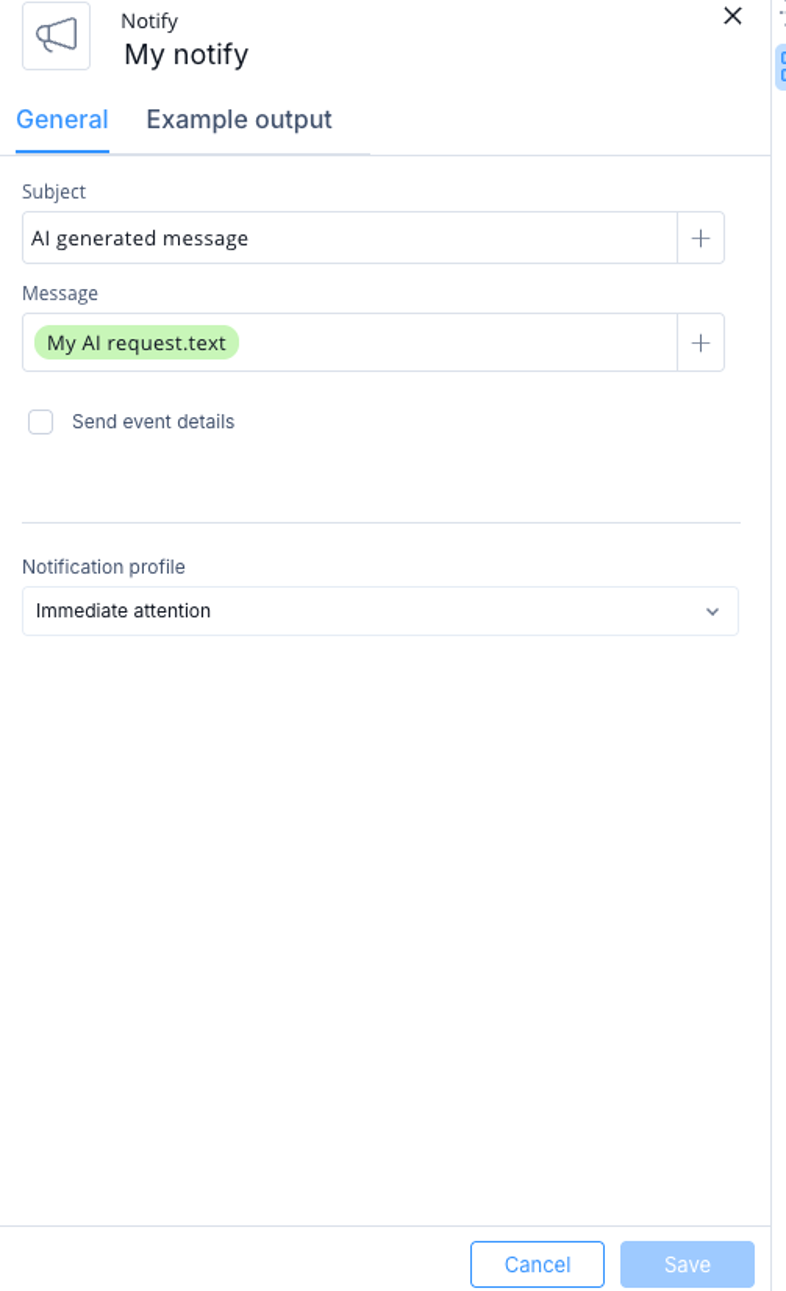
You can use the AI Request response in subsequent steps. In the smart-field selector, select the AI Request step as the source and select the output field (under text is the model response).