Step 8 - Connectors (Protect (Inline) Mode)

To configure the Avanan DLP Outbound connector:

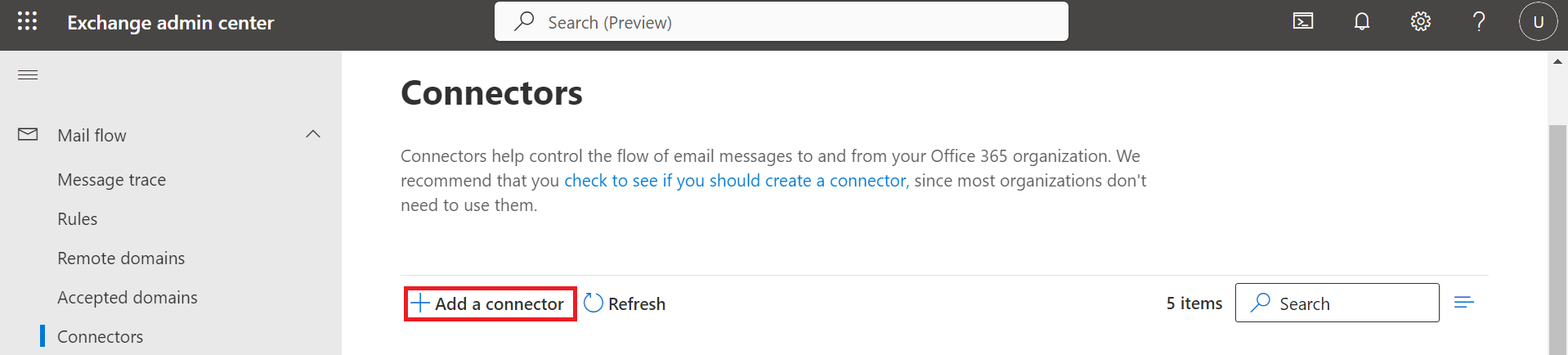
  1. In the Exchange admin center, from the left navigation pane, click Mail flow > Connectors.
  2. To create a new connector, click Add a connector.
  3. For From, enter:

    Office 365

  4. For To, enter the your organization.
  5. Click Next.
  6. For Name, enter:

    Avanan DLP Outbound

  7. For Description (Optional), enter:

    Avanan DLP Outbound Connector

  8. For What do you want to do after connector is saved?, select Turn it on and click Next.

    To enable Inline protection for Microsoft 365 Mail, you must select the Retain internal Exchange email headers checkbox in the Avanan DLP Outbound Connector.

  9. For Specify when do you want to use this connector?, select Only when I have a transport rule to set up that redirects messages to this connector and then click Next.
  10. For How do you want to route email messages?, select Route email through these smart hosts.
  11. Add a smart host: {portal}@{portal}-host.avanan.net (replace "{portal}" with your portal name) and then click +.
  12. Click Next.
  13. For How should Office 365 connect to your organization's email server?, select Always use Transport Layer Security (TLS) to secure the connection.
  14. For Connect only if the recipient's email server certificate matches this criteria, select Any digital certificate, including self-signed certificates and click Next.
  15. Confirm your settings before validation and click Next.
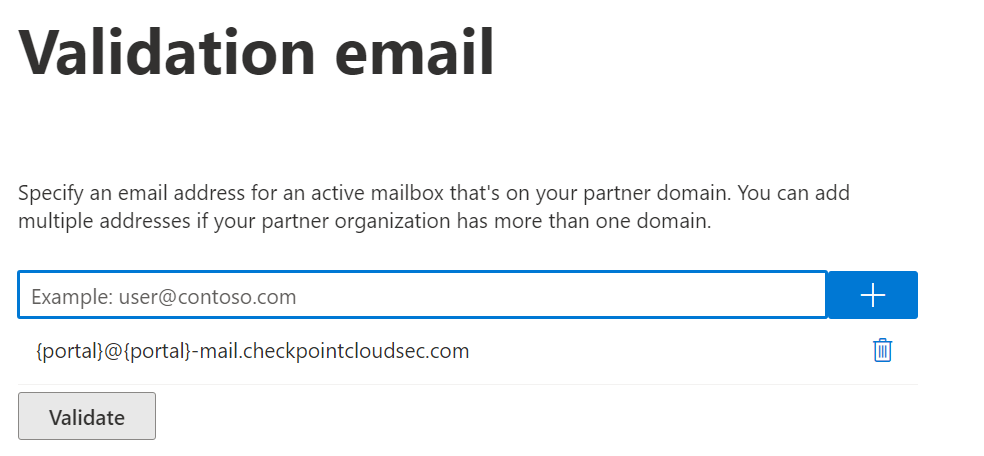
  16. Enter this email address: {portal}@{portal}-host.avanan.net (replace "{portal}" with your portal name) and then click +.
  17. Click Validate.
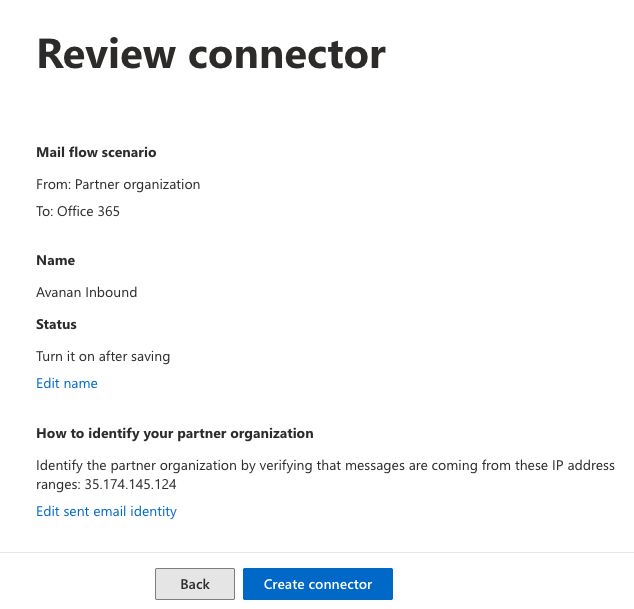
  18. In the Review connector window, verify the settings and click Create connector.
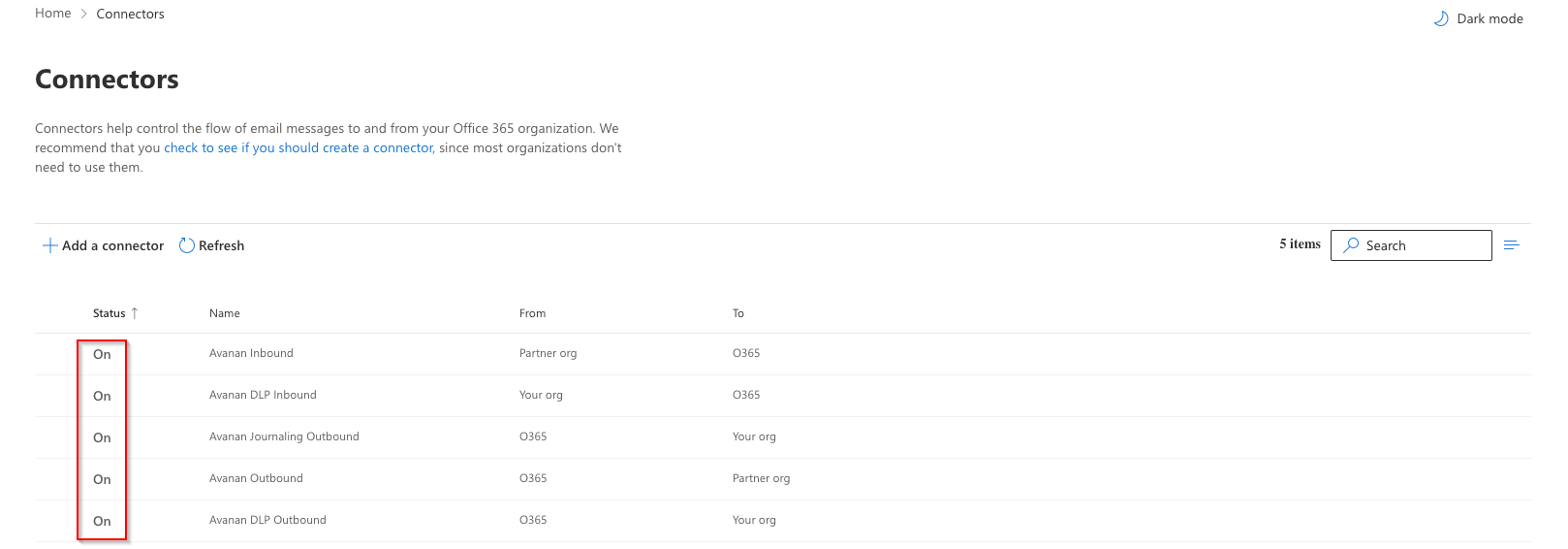
  19. Verify that the Status of the connector is On.
To configure the Avanan Outbound connector

  1. In the Exchange admin center, from the left navigation pane, click Mail flow > Connectors.
  2. To create a new connector, click Add a connector.
  3. For From, enter:

    Office 365

  4. For To, enter the partner organization.
  5. Click Next.
  6. For Name, enter:

    Avanan Outbound

  7. For Description (Optional), enter:

    Avanan Outbound Connector

  8. For What do you want to do after connector is saved?, select Turn it on and click Next.

    To enable Inline protection for Microsoft 365 Mail, you must select the Retain internal Exchange email headers checkbox in the Avanan DLP Outbound Connector.

  9. For Specify when do you want to use this connector?, select Only when I have a transport rule to set up that redirects messages to this connector and then click Next.
  10. For How do you want to route email messages?, select Route email through these smart hosts.
  11. Add a smart host: {portal}-host.avanan.net (replace "{portal}" with your portal name) and then click +.
  12. Click Next.
  13. For How should Office 365 connect to your partner organization's email server?, select Always use Transport Layer Security (TLS) to secure the connection.
  14. For Connect only if the recipient's email server certificate matches this criteria, select Any digital certificate, including self-signed certificates and click Next.
  15. Confirm your settings before validation and click Next.
  16. Enter this email address: {portal}@{portal}-host.avanan.net (replace "{portal}" with your portal name) and then click +.
  17. Click Validate.
  18. In the Review connector window, verify the settings and click Create connector.
  19. Verify that the Status of the connector is On.