
Step 3 - Avanan Contact
This contact is used for the Undeliverable Journal Reports under Journal Rules in Step 4 - Journal Rule.
If you already configured a recipient for undeliverable journal rules, skip this step.
To add a contact:
-
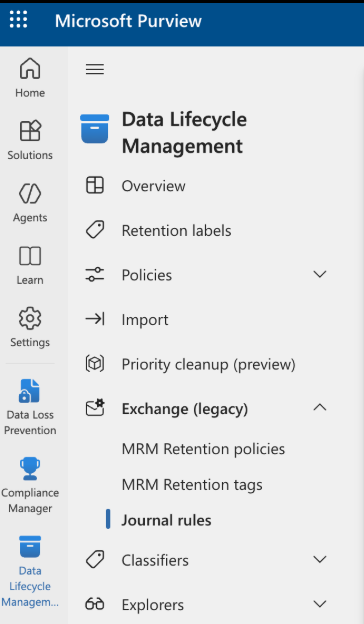
In the Microsoft Purview, from the left navigation pane, go to click .
-
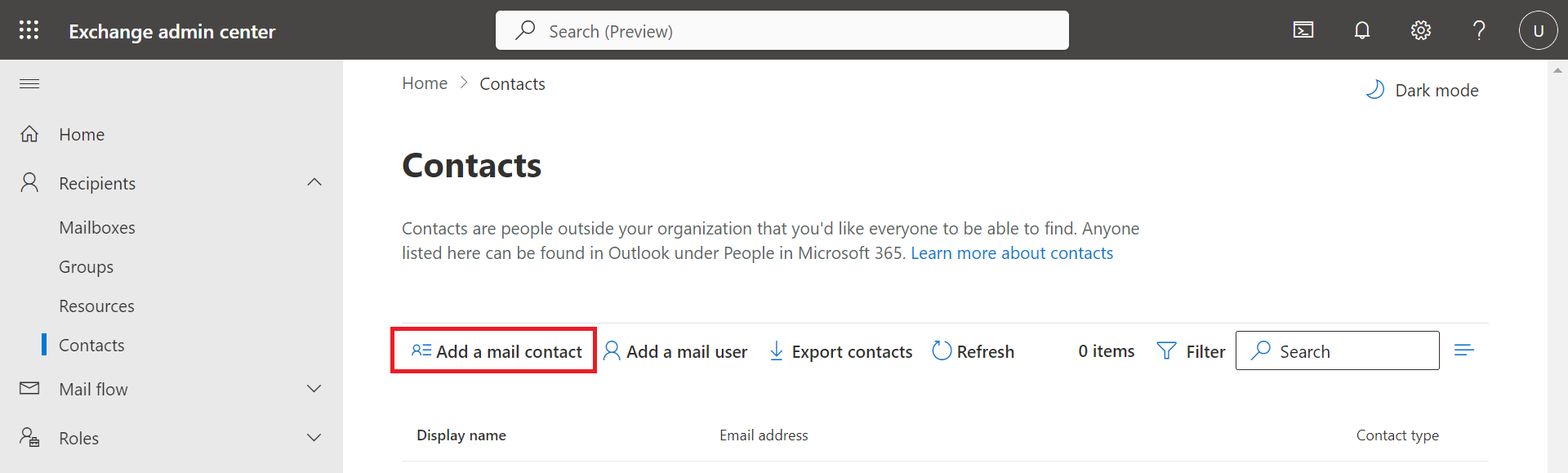
Click Add a mail contact.
-
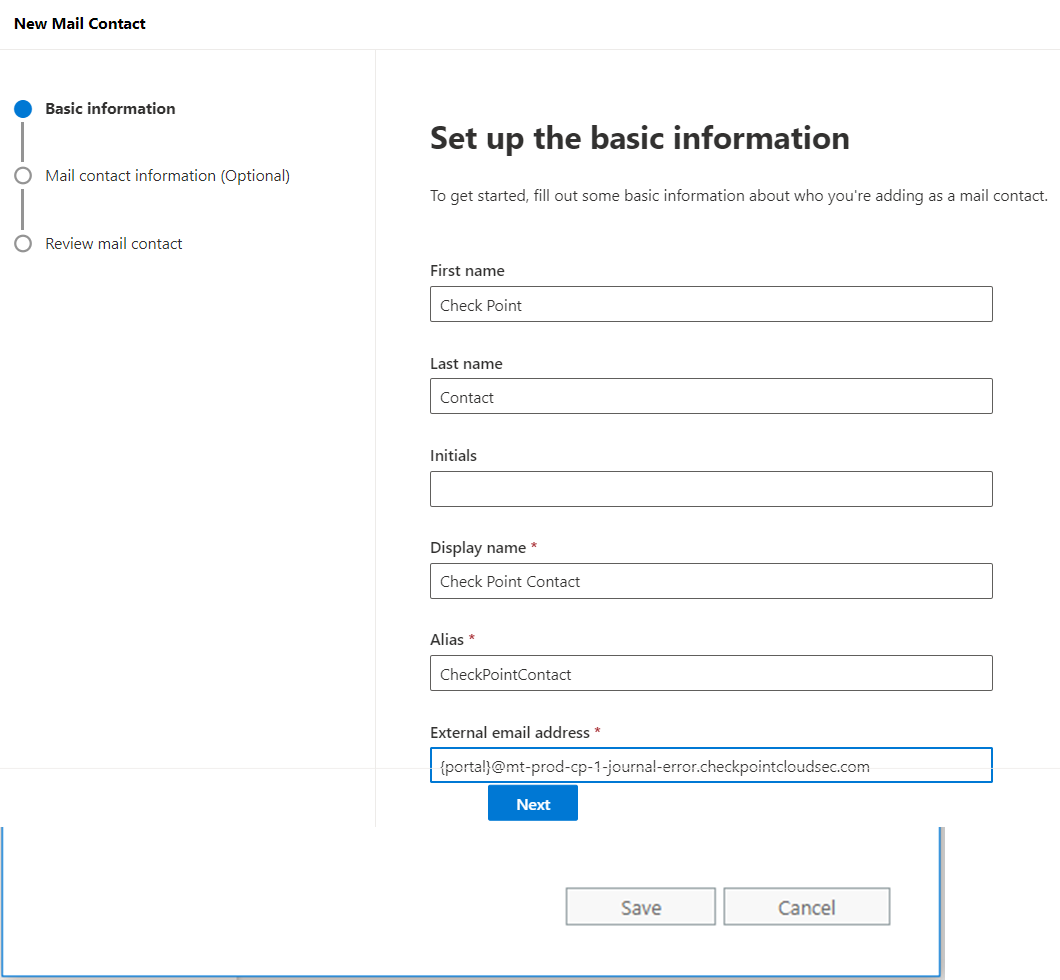
In the New Mail Contact window, enter this information:
-
First name - Avanan (Optional)
-
Initials (Optional)
-
Last name - Contact (Optional)
-
Display name - Avanan Contact
-
Alias - AvananContact
-
External email address:
-
If your data residency is in the United States use (replace "
{portal}" with your portal name):{portal}@mt-prod-cp-1-journal-error.checkpointcloudsec.com -
If your data residency is in Australia use (replace "
{portal}" with your portal name):{portal}@mt-prod-cp-au-4-journal-error.checkpointcloudsec.com -
If your data residency is in Canada use (replace "
{portal}" with your portal name):{portal}@mt-prod-cp-ca-1-journal-error.checkpointcloudsec.com -
If your data residency is in Europe use (replace "
{portal}" with your portal name):{portal}@mt-prod-cp-eu-1-journal-error.checkpointcloudsec.com -
If your data residency is in India use (replace "
{portal}" with your portal name):{portal}@mt-prod-cp-aps1-1-journal-error.checkpointcloudsec.com -
If your data residency is in United Arab Emirates use (replace "
{portal}" with your portal name):{portal}@mt-prod-cp-mec1-1-journal-error.checkpointcloudsec.com -
If your data residency is in United Kingdom use (replace "
{portal}" with your portal name):{portal}@mt-prod-cp-euw2-1-journal-error.checkpointcloudsec.com
-
-