
Step 4 - Journal Rule
The Journal rule configures Office 365 to send a copy of all scoped emails to the journaling mailbox used by Avanan for inspection.
-
Before you create a Journal rule, you must specify a mailbox to receive the Undeliverable journal report. If you already configured a mailbox for this purpose, skip this step and define only the journal rule.
To configure the Journal rule:
-
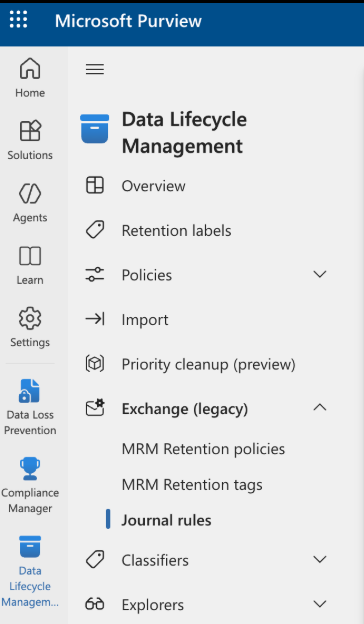
In the Microsoft Purview, from the left navigation pane, go to click .
-
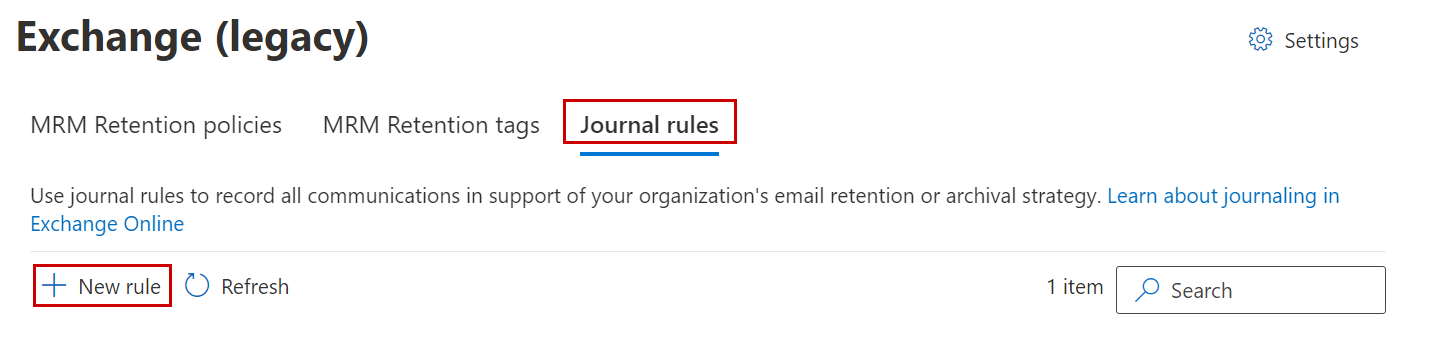
Click the Journal rules tab and click New rule.
-
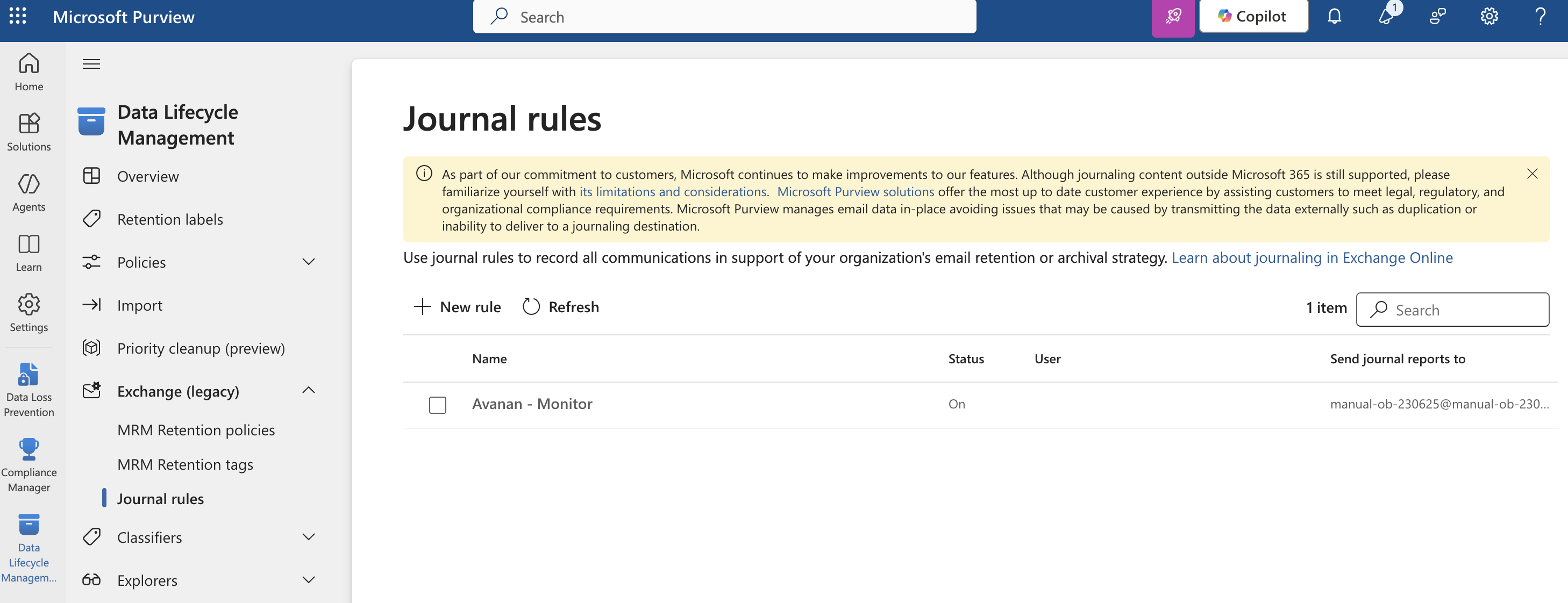
Enter this information in the Define journal rule settings window:
-
For Send journal reports to, enter (replace "
{portal}" with your portal name):{portal}@{portal}-mail.avanan.net -
For Journal rule name, enter:
Avanan - Monitor
-
For Journal messages sent or received from, select Everyone.
Note:If you plan to use group filters in your setup, select the group you want to include in your policy.
-
For Type of message to journal, select All messages.
Note:If you select All messages option, the journal rule name is set to Apply to all messages.
-