Step 7 - Protect (Inline) Protection Mode Policy Configuration on Avanan

Introduction - Protect (Inline) Protection Mode

In manual mode, you must change the policy to Protect (Inline) before moving to Office 365 configurations.

To configure Protect (Inline) protection mode, follow Steps 7-9 below.

Note:

To return to detect modes, disable the transport rules in Step 9 - Transport Rules (Protect (Inline) Mode).

To configure the Protect (Inline) policy:

  1. Log into the Avanan Administrator Portal.
  2. Go to Policy > click Create a New Rule or open a existing rule for Office 365.
  3. Select Protect (Inline) protection mode.
  4. In the Scope section, select the users and/or group of users for whom the policy is applicable:
    • To apply the policy to all users and groups in your organization, enable All Users and Groups checkbox.

    • To apply the policy to specific users or groups, select the users/ groups and click Add to Selected.

    • To exclude specific users or groups from the policy, select the required users/groups and click Add to Excluded.

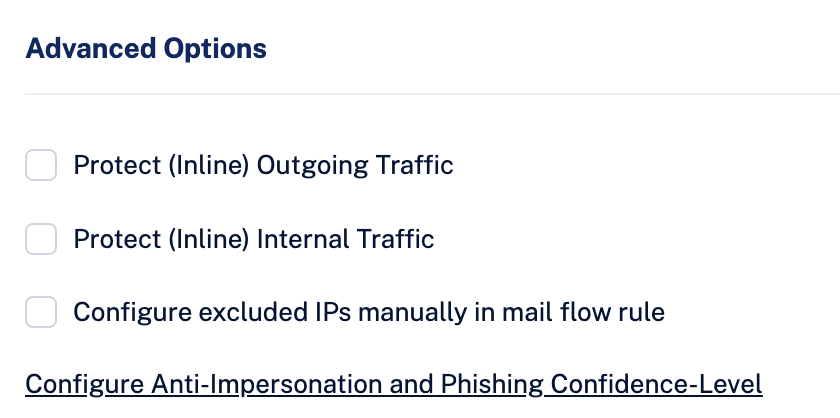
  5. Under Advanced Configuration select Configure excluded IPs manually in mail flow rule checkbox.
  6. Click Save and apply.