
Appendix F - Creating a SentinelOne Service User
This task describes how to create a SentinelOne service user with specific role permissions. It guides you through configuring roles, permissions, and generating an API token.
You must have access to the SentinelOne web portal with permissions to create roles and service users.
-
Click Settings.
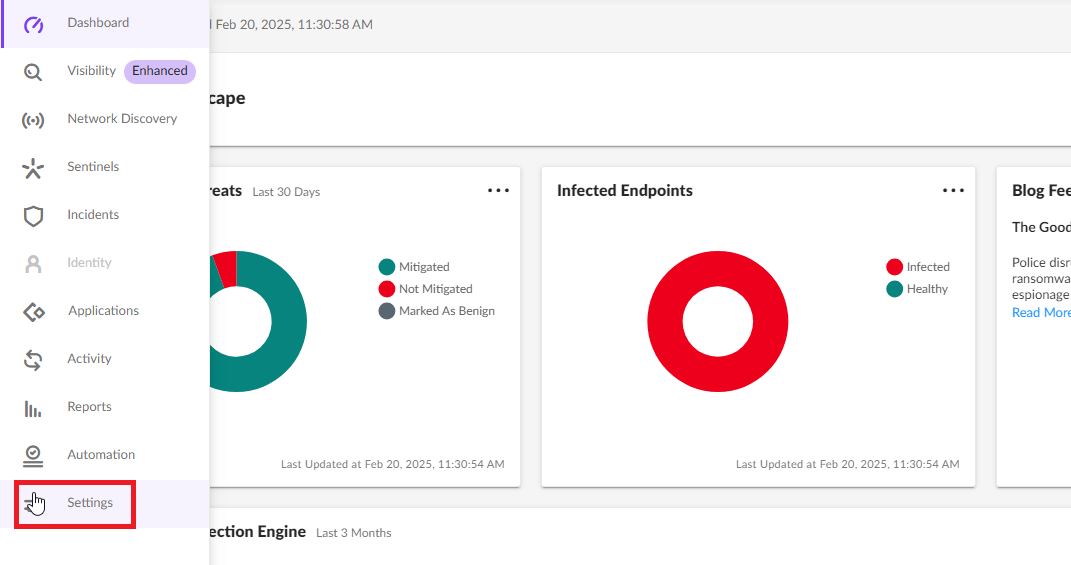
-
Go to the Users tab and click Roles.

-
From the Actions list, select New Role.
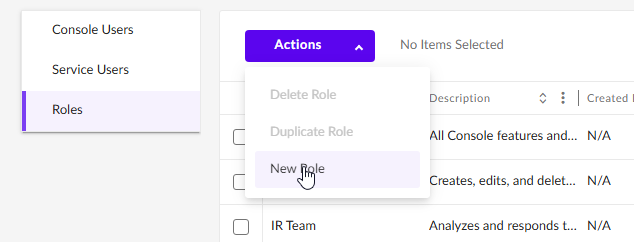
The New Role window appears.
-
In the search field, search and select these permissions and click Save.
Permissions:
Page
Permission
Endpoints Reconnect To Network Endpoints Disconnect From Network Endpoint Threat View Threat Intelligence Manage Service Users Create For example:
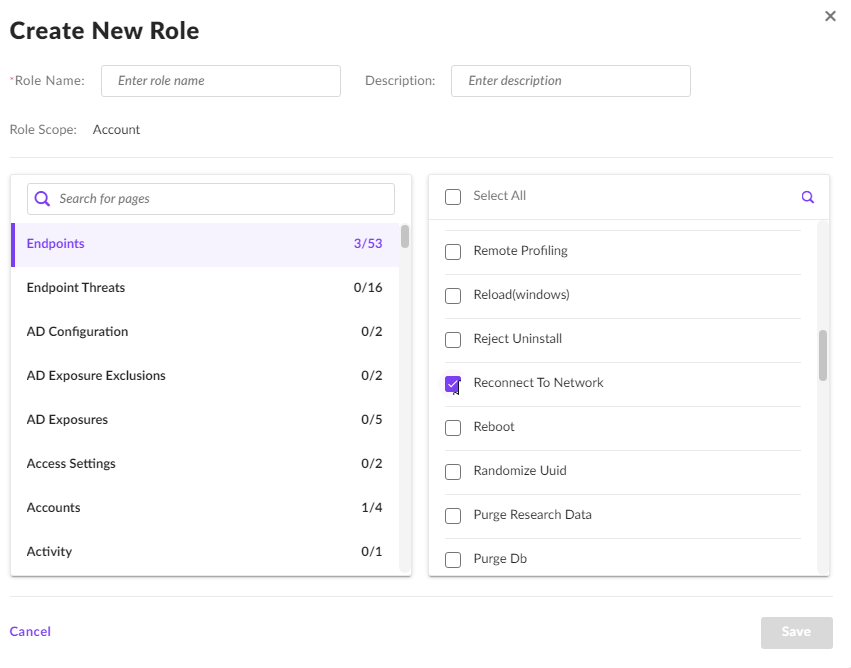
-
Click Service Users.

-
From the Actions list, select Create New Service User.
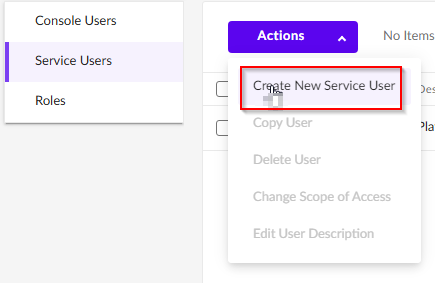
-
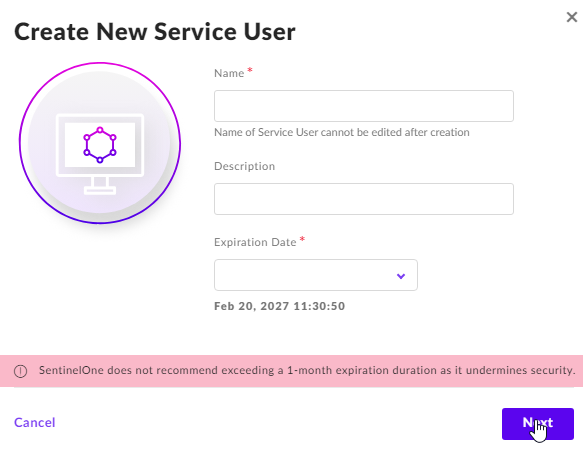
Specify these:
Name
Description
Expiration Date
-
Click Next.
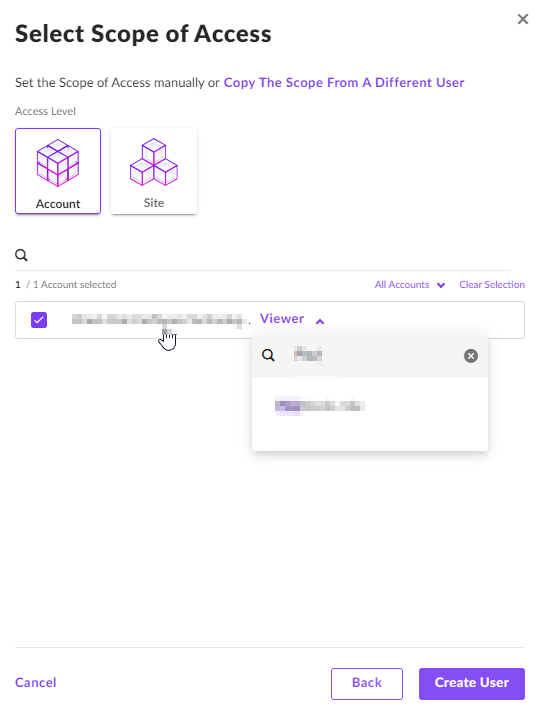
The Select Scope of Access window appears.
-
Click Create User.
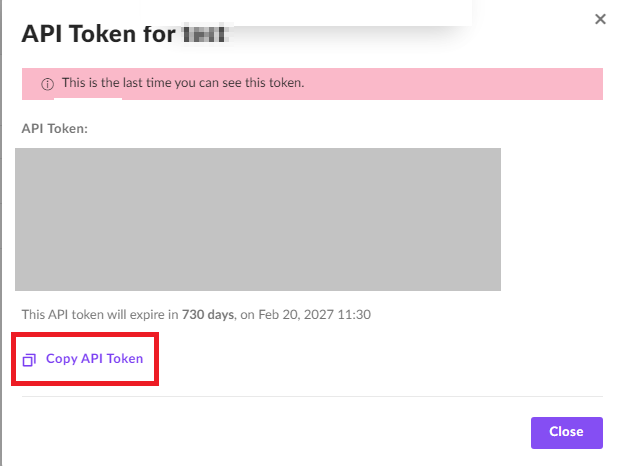
The API Token window appears.
-
To copy the API Token, click Copy API Token.

Notes:
After this step, you cannot retrieve the token.
This API Token is required to Configure the SentinelOne connector.