DKIM ensures that emails sent through the relay are cryptographically signed, validating authenticity and preventing tampering.
Configure the DKIM record in your domain's DNS to allow Avanan to send emails on behalf of your domain.
-
Go to Security Settings > Relay > Domains.
-
Click the
 icon for the required domain.
-
Click Configure DKIM.
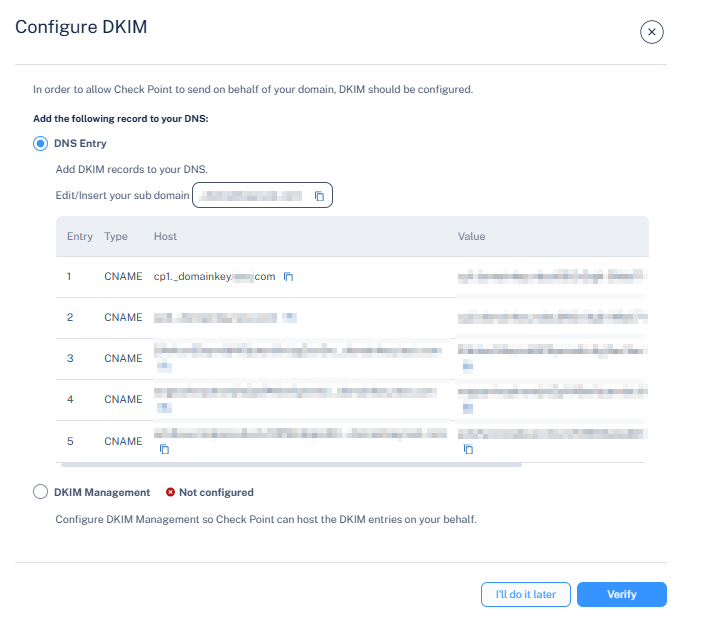
The Configure DKIM pop-up appears.
-
In the DNS Entry section, add or update the DKIM record for your domain as shown below.
Note: Ensure that you enter all five DKIM records into your domain's DNS.
DKIM Record Example:
-
After the DNS record is created, click Verify to validate and activate the configuration.
After the DNS changes are verified, the corresponding domain status changes to Verified. The relay becomes active and ready for outbound email traffic.
