Active Sessions
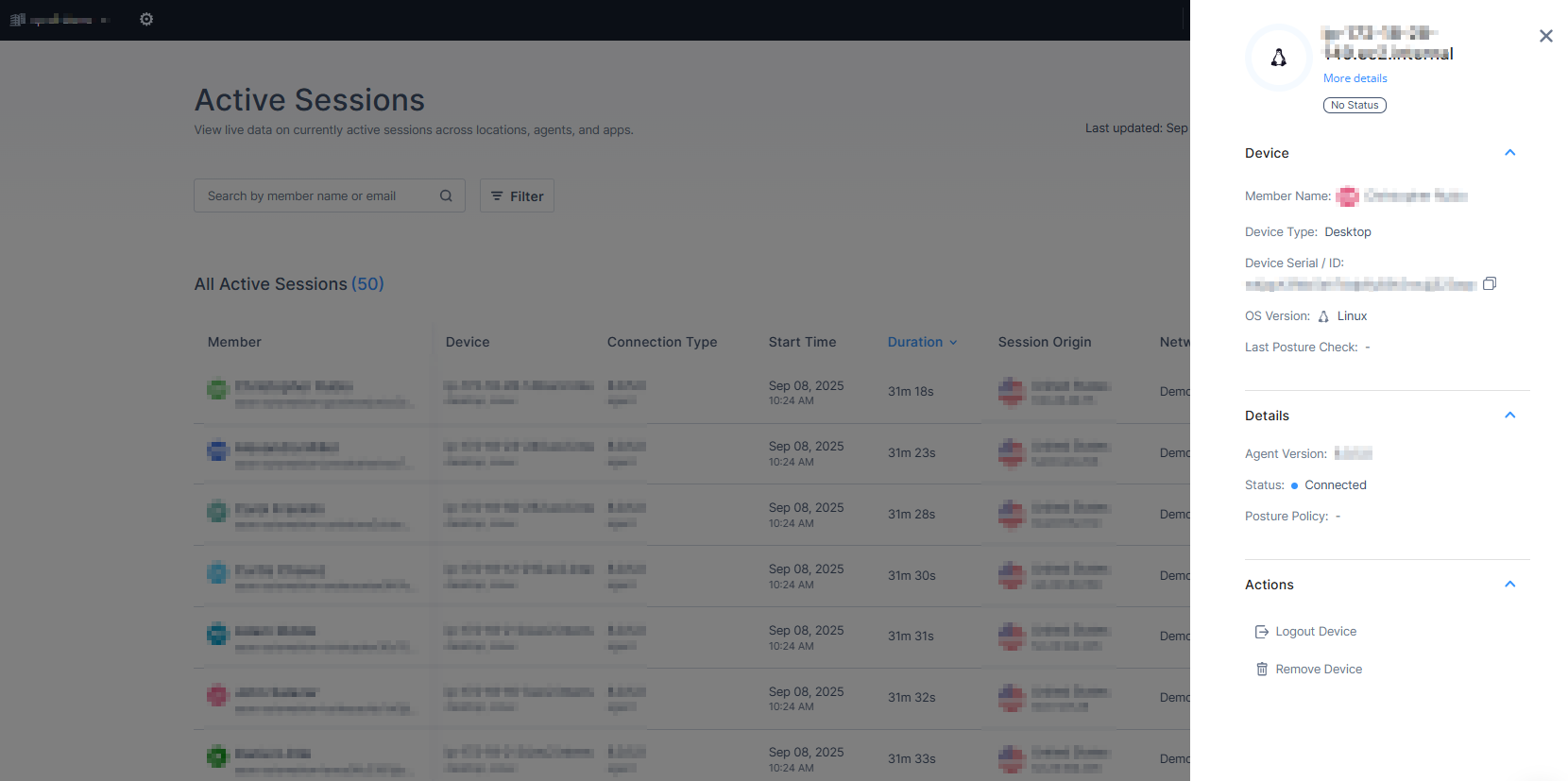
The Active Sessions page allows you to view detailed device information and perform actions such as logging out or removing devices.
To view the Active Sessions page, do either of these:
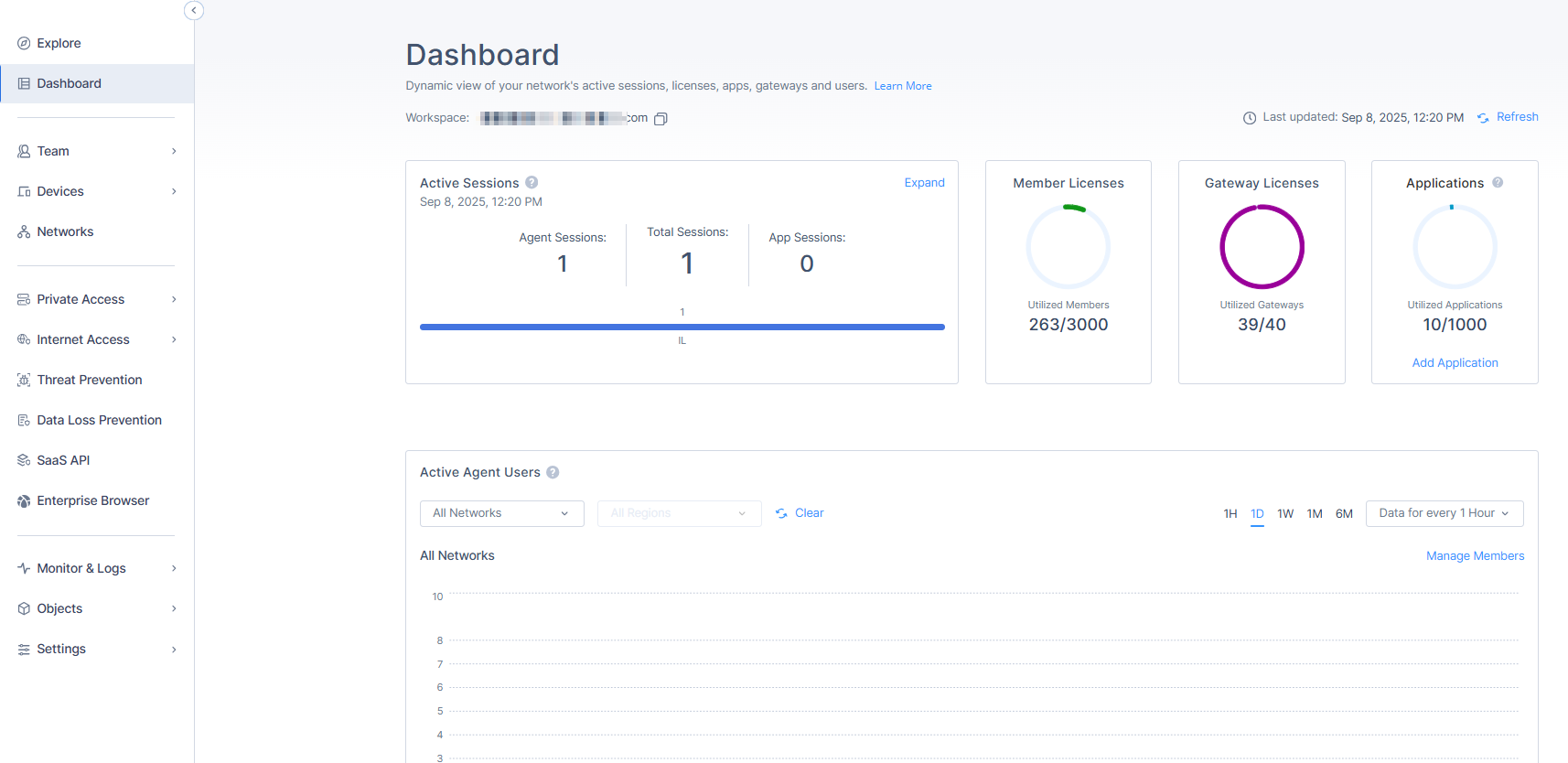
- Access the Check Point SASE
Administrator Portal and click Dashboard, in the Active Sessions widget, click Expand.
- Access the Check Point SASE
Administrator Portal and click Monitor & Logs >
Active Sessions.
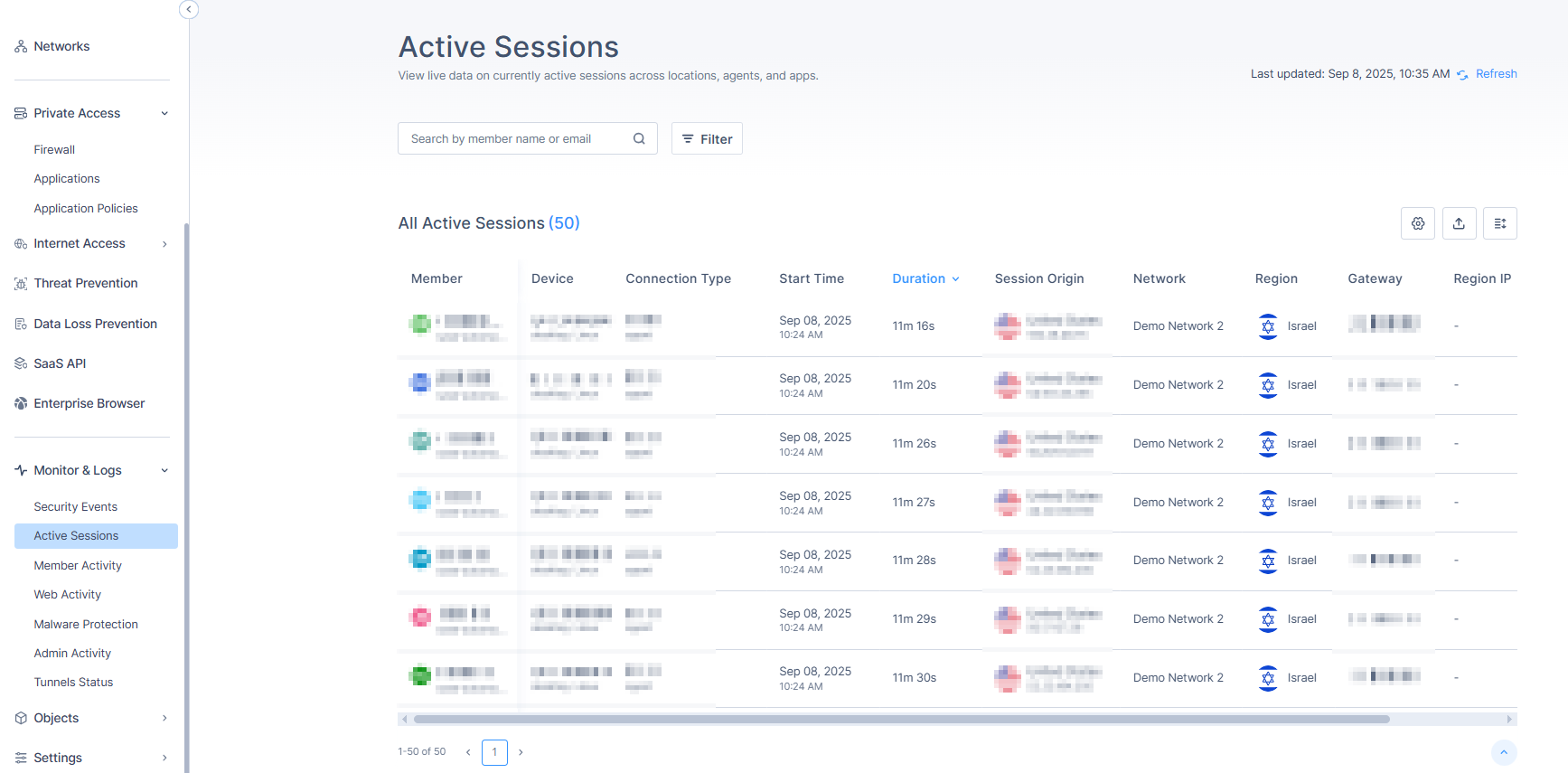
| Column | Description |
|---|---|
| Member | Member name |
| Device | Name of device(s) logged in from. |
|
Connection Type |
Type of connection:
|
| Start Time | Start date and time of the connection. |
| Duration | Duration of the connection. |
|
Session Origin |
Location of the connected network gateway. For the SASE Agent, it shows the IP address. |
| Network | Connected network name. |
| Region | Connected network region. |
| Gateway | SASE gateway IP address. |
Action Items
- To select the columns required in the table, click the
 icon and select the columns.
 - To export the data, click the
 icon. The system downloads an archive file with the data in JSON and CSV file format.
Note:
icon. The system downloads an archive file with the data in JSON and CSV file format.
Note:You can export only the latest 1000 active sessions at a time.
- To view Member Activity Events, hover over a member row in the table, and when a view activity icon appears at the end of the row, click
 .
. - To view more details about the device and perform actions, click the Device column in the table.