
More Actions to Manage Devices
Go to Devices and click More actions.

Editing a Device
-
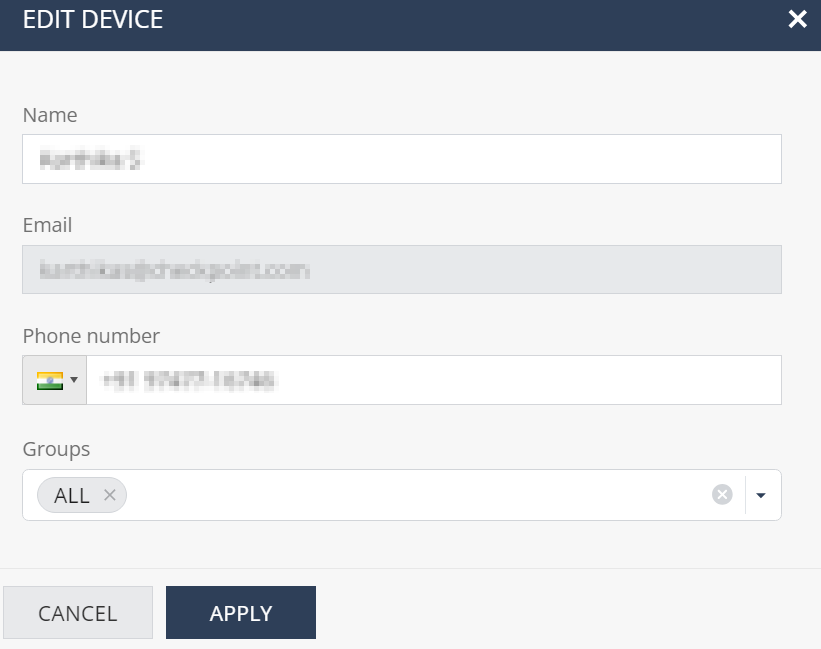
Select the device and click More actions > Edit.
The Edit Device window appears.
-
Enter the required details and click Apply.
Generating a Registration Code to Enroll a New Device
-
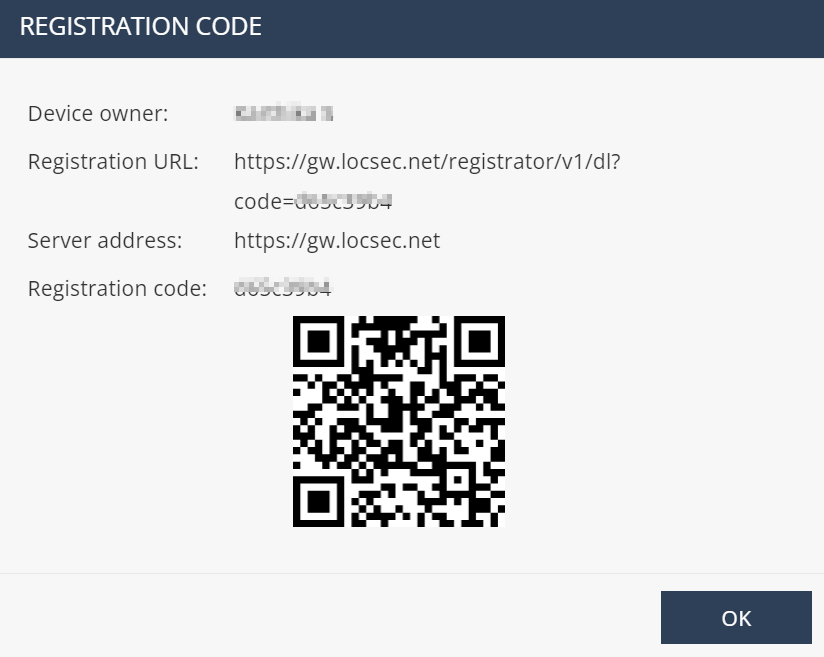
Select the device and click More actions > Registration code.
The Registration Code window appears.
-
Access the Registration URL or scan the QR code on your mobile device.
-
Click OK.
Renewing an Existing Device
The Renew option allows you to renew a device. It deletes a device, automatically adds the same device and send the registration information to the user, all in one click.
To renew a device:
-
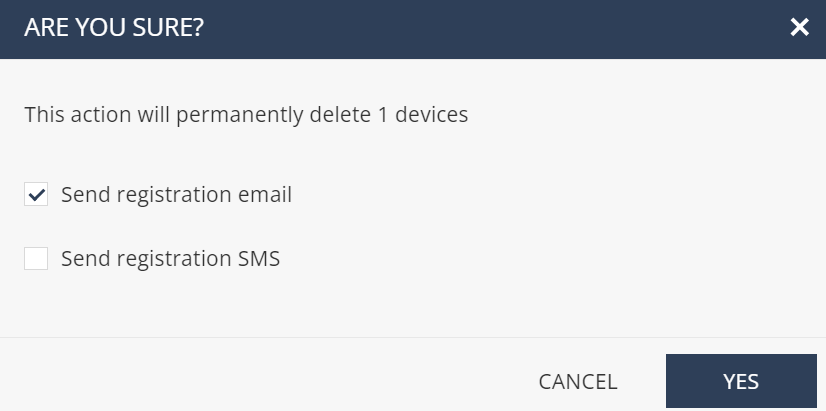
Select the device and click More actions > Renew.
The confirmation window appears.
-
Select the method to send registration information to the user and then click Yes.
The system deletes the device, automatically adds the device in the Mobile Security Administrator Portal with Status as User Notified and sends the registration information to the user.
Resending Activation Information to Provisioned Devices
-
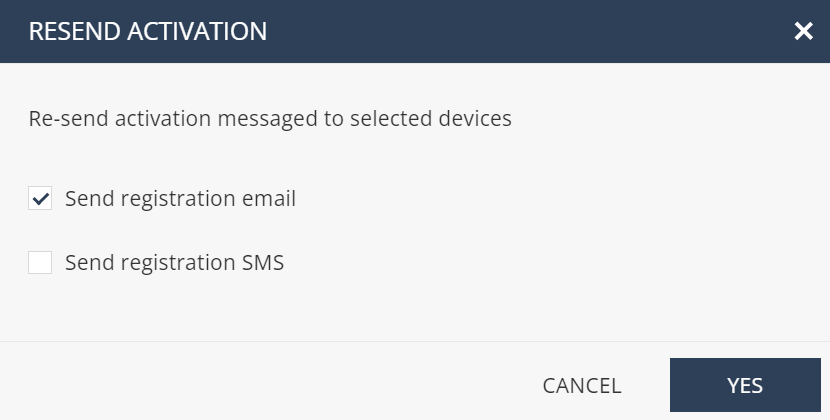
Select the device and click More actions > Resend Activation.
The Resend Activation window appears.
-
Select the method to send registration information to the user and then click Yes.
The system sends the registration information to the user.
Adding/Removing Devices in a Device Group
This procedure applies only to groups and devices added locally in the Mobile Security Administrator Portal.
-
In the Devices table, select the devices you want to add or remove.
-
Click More actions > Assign or remove devices from group.
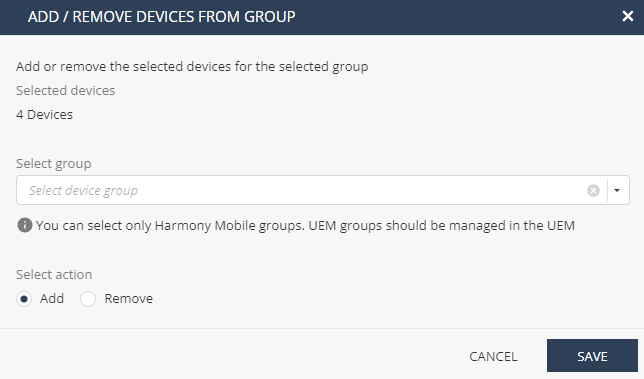
The Add / Remove Devices From Group window appears.
-
Select the device group and the required action.
-
Click Save.
Exporting Devices Information
-
In the Devices table, select the devices you want to export.
-
Click More actions > Export.
The Export Devices window appears.

-
Click Export.
The system generates and downloads a CSV file with the device information.
If the number of devices exceeds 10,000, processing the data may take time. So the export is performed offline and an email is sent to the registered address with the link to download the CSV file. The link is valid for 7 days. For privacy reasons, PII data is obfuscated in the CSV file.
-
Click Done.
Deleting a Device
-
In the Devices table, select the devices you want to delete.
-
Click More actions > Delete.
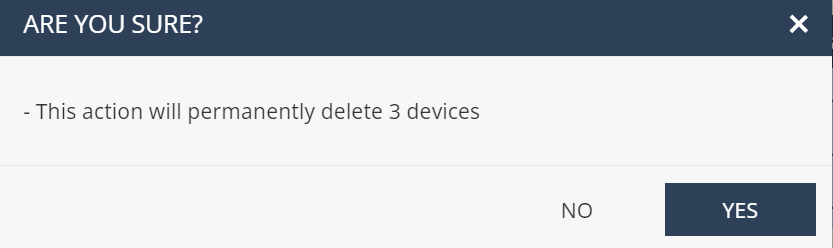
The confirmation window appears.
-
Click Yes.
The system deletes the devices from the Mobile Security Administrator Portal.
Sending Notification to Devices
You can send notifications only to devices with Status as Active.
-
Select the devices from the Devices table.
Click More actions > Send notification to devices.
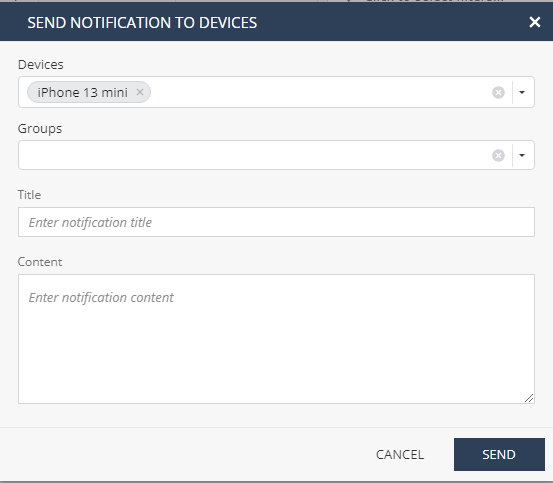
The Send Notification to Devices window appears.
-
To send the notification to specific devices, from the Devices list, select the devices.
-
To send the notification to devices in a device group, from the Groups list, select the device group(s).
-
In the Title field, enter a title for the notification.
-
In the Content field, enter the message you want to notify the user.
Click Send.
The system sends the notification to the selected device/device groups.
 Note:
Note:Due to limitations with Android and iOS, Check Point cannot guarantee that notifications will be received or read on mobile devices.