
Adding a New Device Group
You can assign devices to appropriate device group when you add them to the system. You can also assign a group to the existing device.
To add a device group:
-
Go to Devices > Groups.

-
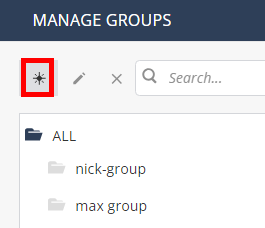
In the Manage Groups window, click
 .
. 
-
Enter the Name of the group and select the Parent group.

-
Click Save.
Devices and device groups are imported from the Device Management platform during the integration.
Procedure
-
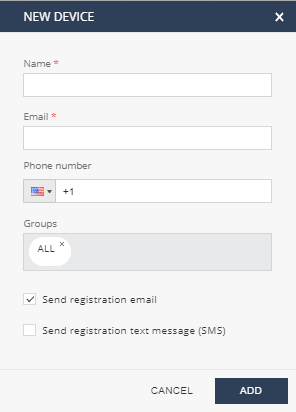
Go to Devices > New and click Add new device.
The New Device window appears.
-
The system sends an email with the registration details and instructions to install the Mobile Security Protect app.

When the device is added to the dashboard, an entry appears in the Devices table with a unique device ID. The device status is displayed as User Notified until the Mobile Security Protect app is installed and the device has communicated with the dashboard.

When the App is successfully installed and run from the device, the registration screen appears.
If the registration is successful, the app performs a full device scan automatically. If no malware or malicious configurations are found, the app status appears in green. If the communication with the dashboard is successful, the device entry changes from User Notified to Active, and the device details gets updated.
