
Creating a VPN Profile
Make sure you have completed these procedures:
A VPN profile is required to link the SCEP certificate profile to the Mobile Security Protect app on iOS devices. This section describes the procedure to create a
VPN profile for iOS devices.
Note:
Use this procedure only if you do
not already have a Mobile Security VPN integration configured. If a VPN
configuration already exists, do not create a new VPN profile. Instead, follow the
procedure in Zero Touch Deployment for iOS devices and modify
it to set the Authentication method to the SCEP certificate you
specified.
-
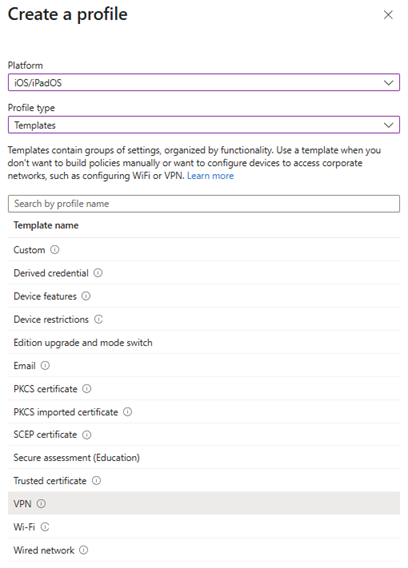
From the Profile type list, select
Templates and then select VPN.
-
In the Configuration settings tab:
-
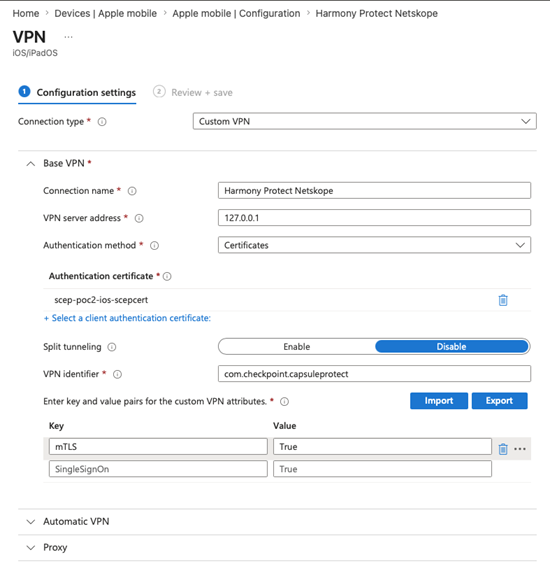
Under Base VPN, enter:
-
Connection name
-
VPN server address
-
Select Authentication method as Certificates.
-
In Authentication certificate, select the SCEP certificate profile you created.
-
Enter VPN identifier as com.checkpoint.capsuleprotect.
-
Enter the required key value pairs for custom VPN attributes.
-
-
Under Base VPN, enter: