
Configuring Cloud Explicit Proxy HTTPS
Make sure you have formatted the PEM file as described in Formatting the PEM File.
Use the Netskope REST API to enable and configure the Cloud Explicit Proxy HTTPS setting.
-
Upload the formatted root CA public certificate in PEM
format.
You must format the POST body as follows:
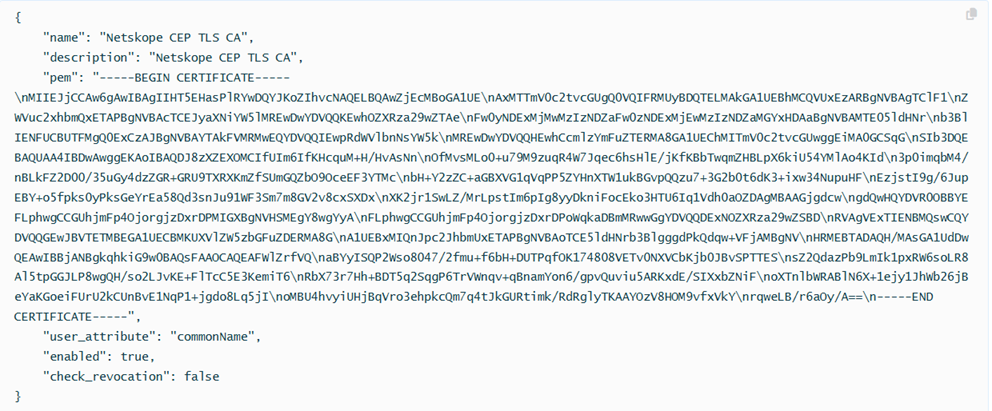
-
Name - Enter a name for the CA.
-
Description - Enter a description for the CA.
-
pem - Enter contents of the reformatted single-line PEM file.
-
user_attribute - The Certificate Subject parameter that contains the user's email address (user@example.com). Netskope recommends using commonName, although emailAddress is also supported.
-
enabled: Enter true.
-
check_revocation - Enter false because certificate revocation checks are currently not supported.
API Call POST /api/v2/services/authentication/mtlsDescription Upload a CA certificateResponse body {"id": "4", "name": "Netskope CEP TLS CA", "description": "Netskope CEP TLS CA", "user_attribute": "commonName", "enabled": true, "check_revocation": false, "create_by": "Postman", "create_time": "2024-11-28T04:42:35.573383872Z", "modify_by": "Postman", "modify_time": "2024-11-28T04:42:35.573383872Z", "pem": "-----BEGIN CERTIFICATE-----PEM Content-----END CERTIFICATE-----","cert_info": { "subject": { "common_name": "Netskope CEP TLS CA", "organization": [ "Netskope" ], "organizational_unit": null, "country": [ "AU" ], "locality": [ "Brisbane" ], "province": [ "Queensland" ], "street_address": null, "postal_code": null, "serial_number": "" }, "issuer": { "common_name": "Netskope CEP TLS CA", "organization": [ "Netskope" ], "organizational_unit": null, "country": [ "AU" ], "locality": [ "Brisbane" ], "province": [ "Queensland" ], "street_address": null, "postal_code": null, "serial_number": "" }, "public_key": { "algorithm": "RSA", "fingerprint": "378d7fee5fd886a720b63088304380c1e373fc690ff253715965563fc849d1a0" }, "expire_time": "2034-11-21T03:23:46Z", "extensions": { "crl": "", "ocsp": "" } } }For more information, see Netskope documentation.
-
Continue with Configuring Microsoft Intune UEM.