
Creating an App Configuration Policy
Make sure you have completed these procedures:
An App Configuration policy is required to link the SCEP certificate profile to the Mobile Security Protect app on Android devices. This section describes the procedure to create an App Configuration policy for Android devices in Microsoft Intune Admin Center.
Note:
Use this procedure only if you do not already have an App
Configuration policy configured in Microsoft Intune. If an App
Configuration policy already exists, do not create a new policy profile. Instead,
modify the existing policy by following the procedure in Configuring the Application Configuration Settings
and add the Certificate Alias property to the existing policy.
-
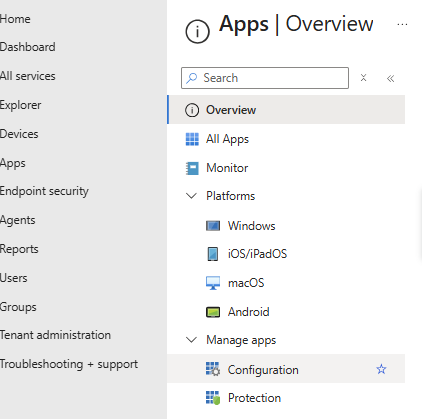
Go to Apps > Manage Apps and click
Configuration.
-
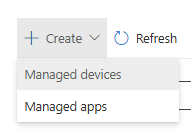
Click Create > Managed devices.
-
In the Basic tab:
-
Click Next.

-
Click Next.
-
In the Settings tab:
-
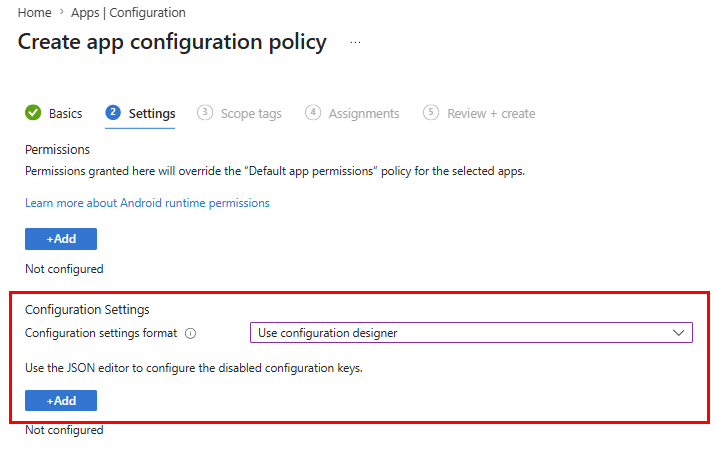
Under Configuration Settings, select
Configuration settings format as Use Configuration
Designer.
-
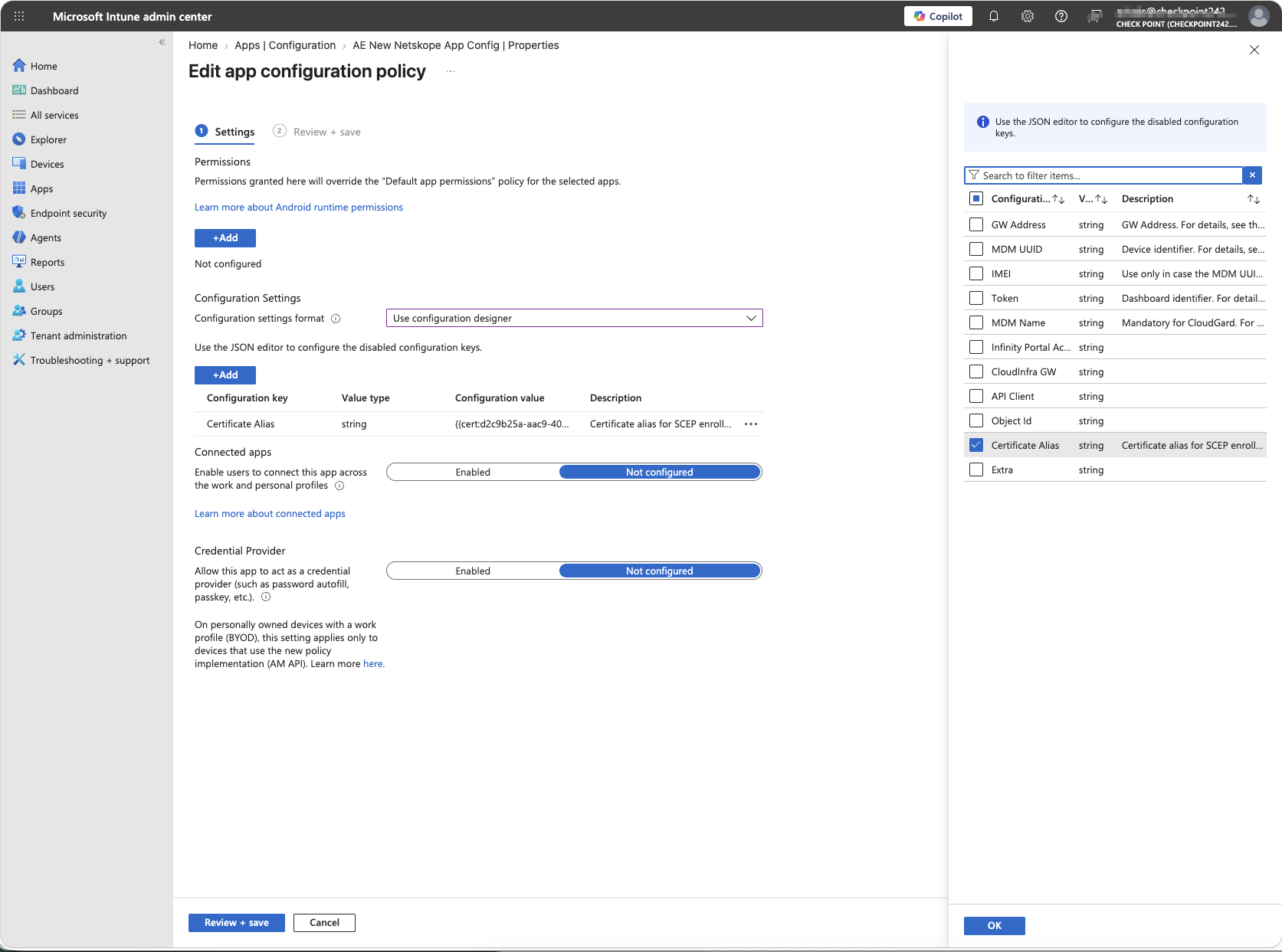
On the right-side window, select the Certificate Alias key
and click OK.
-
For the certificate alias key:
- Select Value type as Certificate.
- In Configuration value, select your SCEP certificate
profile.

-
Under Configuration Settings, select
Configuration settings format as Use Configuration
Designer.