Saving a Query as a Bookmark

You can add filters to a query and save it as a bookmark. You can also send email notifications to users if Threat Hunting activity matches the query.
  1. Create a add-filters-to-custom-query.dita.
  2. Click from the top right corner of the page.

    The Create Shared/Private Bookmark pop-up appears.
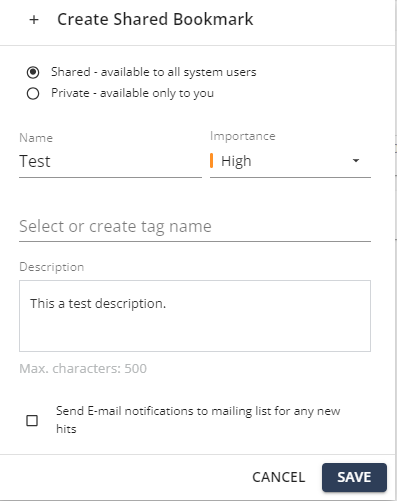
  3. To make the bookmark public, select Shared - available to all system users.
  4. To make the bookmark private, select Private - available only to you.
  5. In the Name field, enter a query name.
  6. From the Importance list, select an importance level for the query detection.
  7. In the Select or create tag name field, enter the tag name or select the tag name if available.

    Tags create folders to store bookmarked queries.

  8. In the Description field, enter a description for the bookmark.
  9. To send email notifications if new activity matches the bookmarked query, select Send E-mail notifications to mailing list for any new hits checkbox.

    Endpoint Security sends email notifications to the recipients added to the Threat Hunting Notifications page.

  10. Click Save.