Step 4 - Threat Emulation Configuration in Check Point Portal
-
Navigate to Policy Capabilities > Threat Prevention > Web & Files Protection > Advanced Settings> Files Protection > General.
-
Change the Cloud option to Appliance.
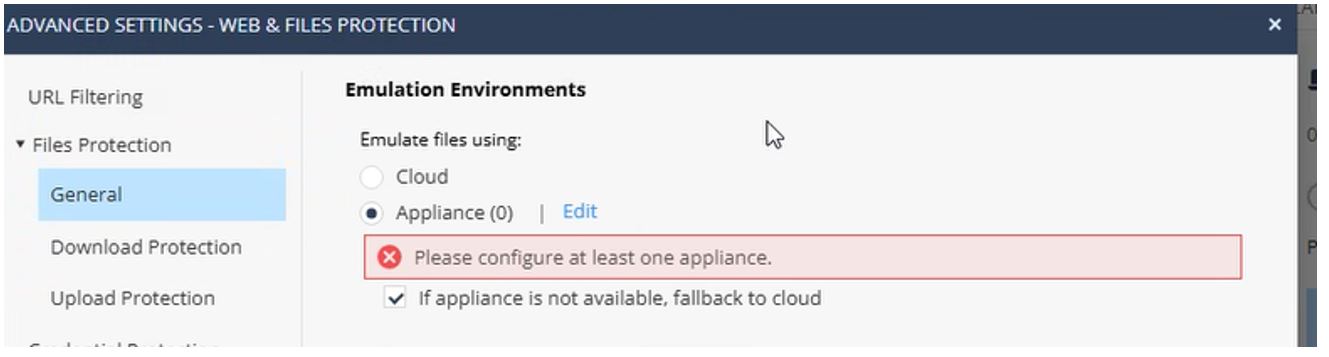
- Enable the If Appliance is not available, fallback to cloud checkbox.
-
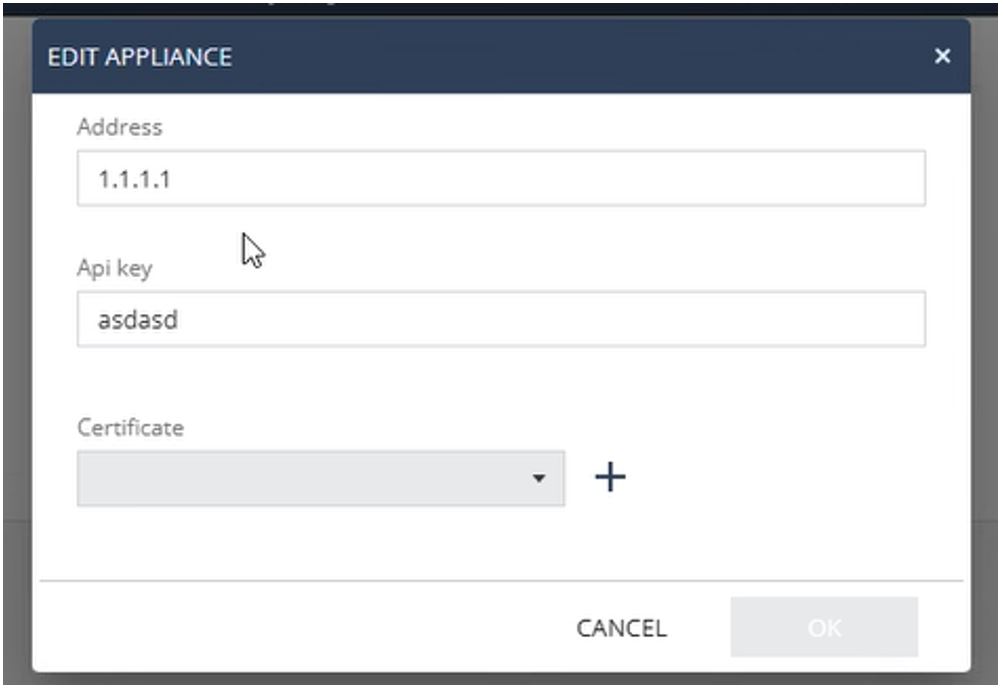
Click Edit.
- In the Address field, enter the FQDN or IP address of the Appliance.
-
Enter the API key.
Note:
For instructions on generating and handling API key, see Check Point Portal Administration Guide.
-
You can use the default SSL certificate from the Check Point Portal or add your own SSL certificate.
Note:
If you use your own SSL certificate, ensure that you install and distribute the SSL certificate to all the endpoint clients (Windows and macOS).
- Click OK.
- Click Save and then Install Policy.