Creating a DLP Rule and Associating with an Event
- Go to Policy > Data Loss Prevention.
-
Add a rule.
- Select a rule.
-
Click Clone and click Clone Above or Clone Below.
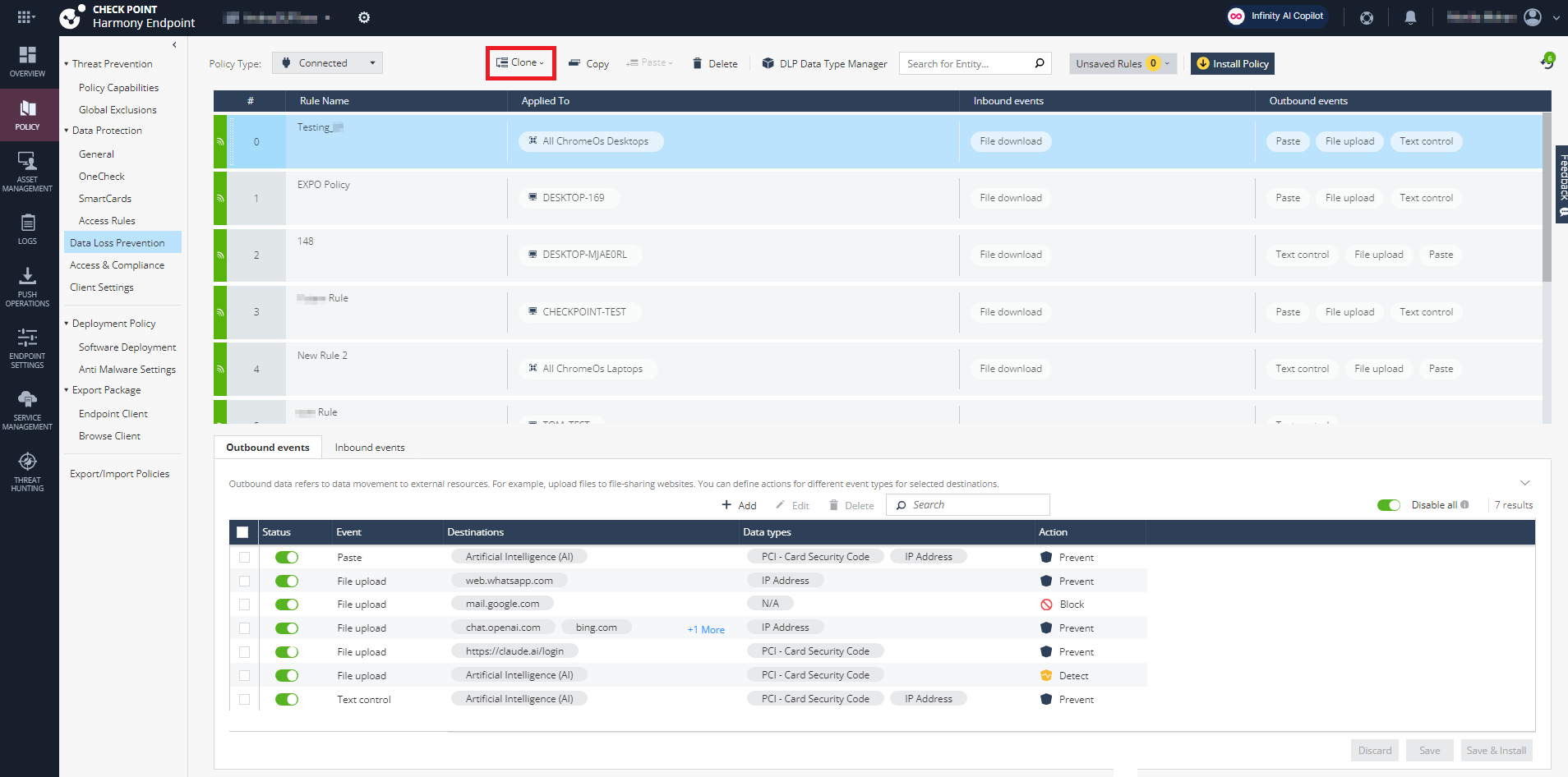
../../Images/Images-for-HEP-AG/DLP_Clone.png
Note:If you have selected the default rule, select Clone Above.
The Clone Rule window appears.
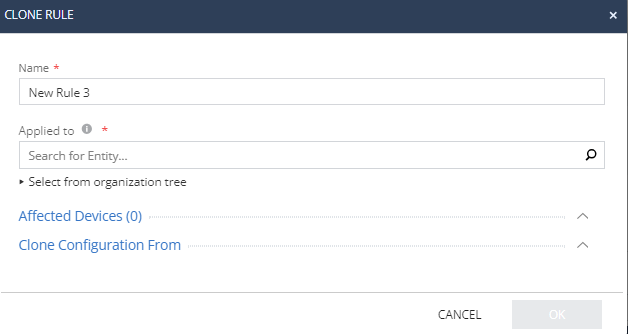
../../Images/Images-for-HEP-AG/Clone_DLPRule.png
- In the Name field, enter a rule name.
- From the Applied to list, select a device(s) to which you want to apply the rule.
- Click OK.
- Select a rule.
-
Click Clone and click Clone Above or Clone Below.
../../Images/Images-for-HEP-AG/DLP_Clone.png
Note:If you have selected the default rule, select Clone Above.
The Clone Rule window appears.
../../Images/Images-for-HEP-AG/Clone_DLPRule.png
- In the Name field, enter a rule name.
- From the Applied to list, select a device(s) to which you want to apply the rule.
- Click OK.
- To enable the Gen AI protection, see Enabling GenAI Protect.
-
Click one of these tabs.
Outbound events - Outbound data refers to transferring content to external resources.
Examples:
Uploading file to a file sharing website.
Entering text in a text box of an external resource, such as ChatGPT.
Pasting text in a text box of an external resource, such as ChatGPT.
Note:Enforcement of DLP for Paste and Text Control events is only supported for Generative AI sites.
Inbound events - Inbound data refers to downloading data and sharing content within internal corporate resources.
Example - Downloading file from a file sharing website.
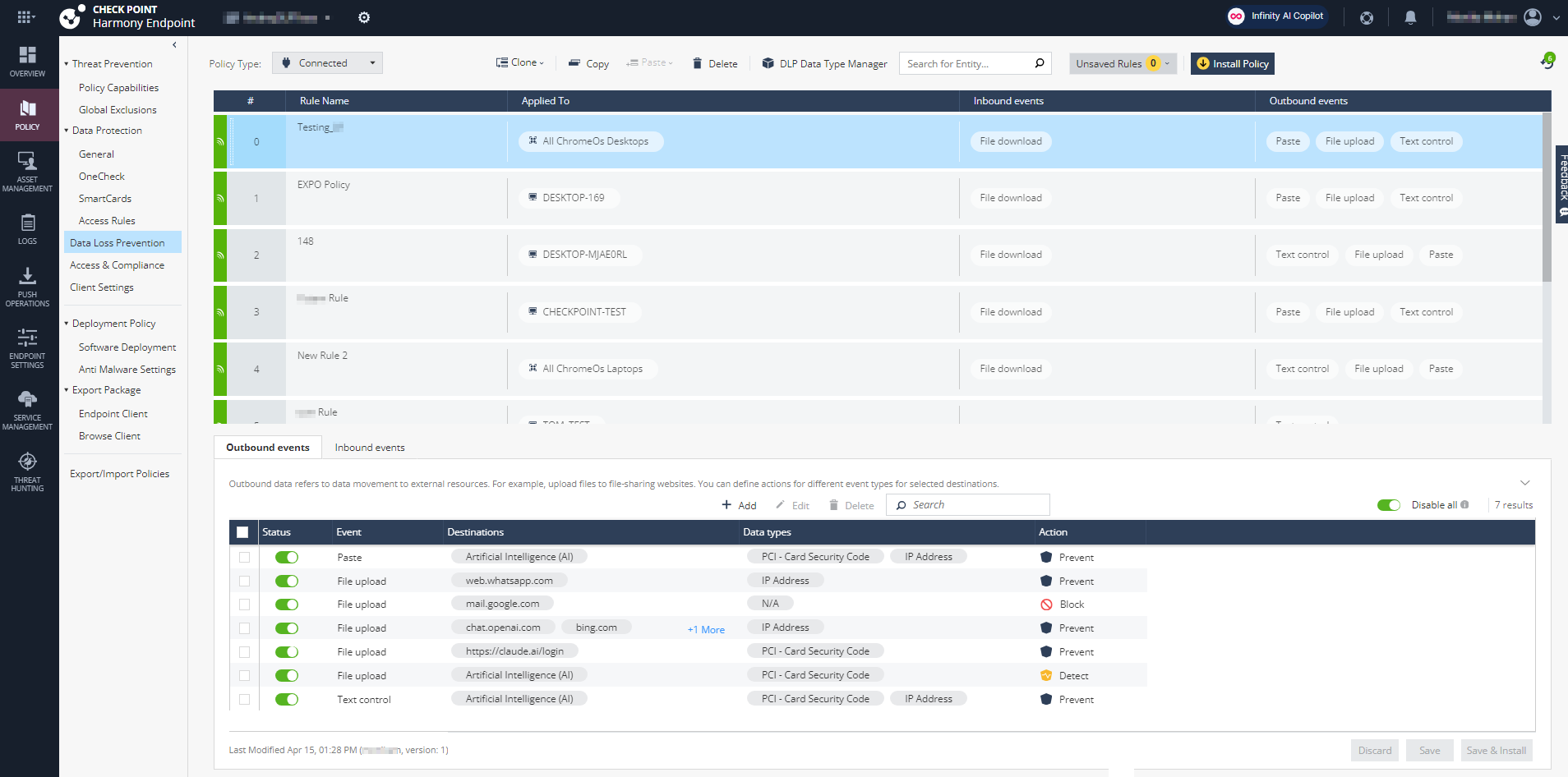
../../Images/Images-for-HEP-AG/DLPEvents.png
-
Outbound events - Outbound data refers to transferring content to external resources.
Examples:
Uploading file to a file sharing website.
Entering text in a text box of an external resource, such as ChatGPT.
Pasting text in a text box of an external resource, such as ChatGPT.
Note:Enforcement of DLP for Paste and Text Control events is only supported for Generative AI sites.
- Uploading file to a file sharing website.
- Entering text in a text box of an external resource, such as ChatGPT.
- Pasting text in a text box of an external resource, such as ChatGPT.
-
Inbound events - Inbound data refers to downloading data and sharing content within internal corporate resources.
Example - Downloading file from a file sharing website.
-
Click Add.
The Data Protection - New Event window appears.
DataProtection-ewEvent.png
- By default, the event is enabled. To disable, turn off the Status toggle button.
-
From the Event type list, select one of these.
Event Type Applies to Description File upload Outbound events To apply the DLP rule when you upload a file to an external resource. Text control Outbound events To apply the DLP rule when you type text in an external resource text box. Paste Outbound events To apply the DLP rule when you paste content into an external resource. File download Inbound events To apply the DLP rule when you download a file from an internal resource. Copy Inbound events To apply the DLP rule when you copy content from an internal resource. Note:Enforcement of DLP for Paste and Text Control events is only supported for Generative AI sites.
- File upload - To apply the DLP rule when you upload a file to an external resource.
-
From the Destination type list, select one of these.
Destination type Applies to Description All File upload N/A Url File upload
File download
Copy
In the URL field, enter the web addresses. Application Text control
Paste
In the Applications field, select the application(s). Domain File upload
File download
Copy
In the Domain field, enter the domain. Category File upload
Text control
Paste
From the Categories & sub categories list, select categories. Note:In Inbound events, you can only choose a URL or Domain.
In Inbound events, if a source is added for DLP scanning, files downloaded from that source are not scanned by Threat Emulation.
-
From the Action list, select one of these.
Detect - Performs the DLP scan but does not block the data.
Prevent - Performs the scan and prevents data transfer.
Allow - Allows data transfer.
Block - Blocks data without scanning.
Ask - Asks user for justification.
Redact - Removes sensitive data.
Force redact - Automatically replaces sensitive data with asterisk.
- Detect - Performs the scan but does not block the data.
- Prevent - Performs the scan and prevents data transfer.
- Allow - Allows data transfer in certain events.
- Block - Blocks the data.
- Ask - Asks the user for justification before allowing data transfer.
-
Redact - Performs a scan and removes sensitive data.
Force redact - Automatically replaces sensitive data with asterisk.
- Force redact - Automatically replaces sensitive data with asterisk.
-
To associate data types with an event, click the add icon and select the data type or group.
Note:
This step applies only if the Action is Ask, Detect, or Prevent.
-
Click Save.
The events are displayed in the Outbound events and Inbound events columns.
OutboundInboundColumn.png
- To delete an event, select it and click Delete.
- To edit an event, select it, click Edit, make changes, and click OK.
-
To disable all events, turn off the Disable all toggle button.
InboundDisable.png
-
Click Save & Install.
The Install Policy window appears.
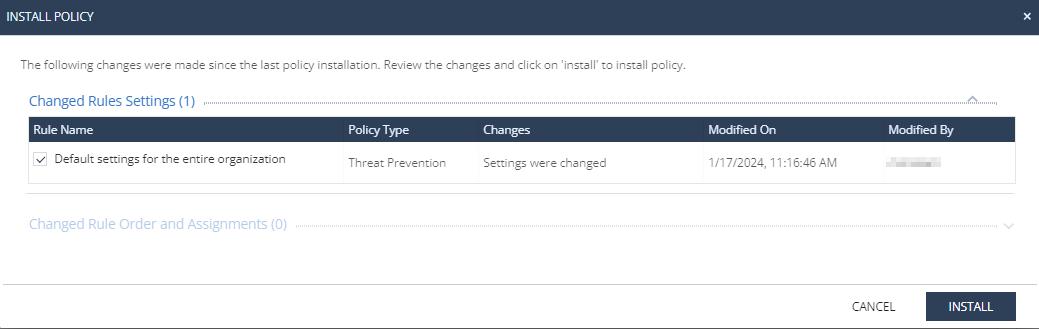
../../Images/Images-for-HEB-AG/Harmony%20Browse_InstallPolicy.png
- Click Install.