
Configuring Misdirected Email Prevention
The Outlook Add-In performs real-time checks during user actions such as Send, Reply, Reply All, and Forward. When a potential risk is detected, the system displays an on-screen warning to the user before the email is sent.
To view the supported devices for the Outlook Add-In, see Outlook Add-In - Supported Outlook Types and Platform.
Misdirected Email Prevention requires a DLP license (either the DLP add-on or the Complete Package).
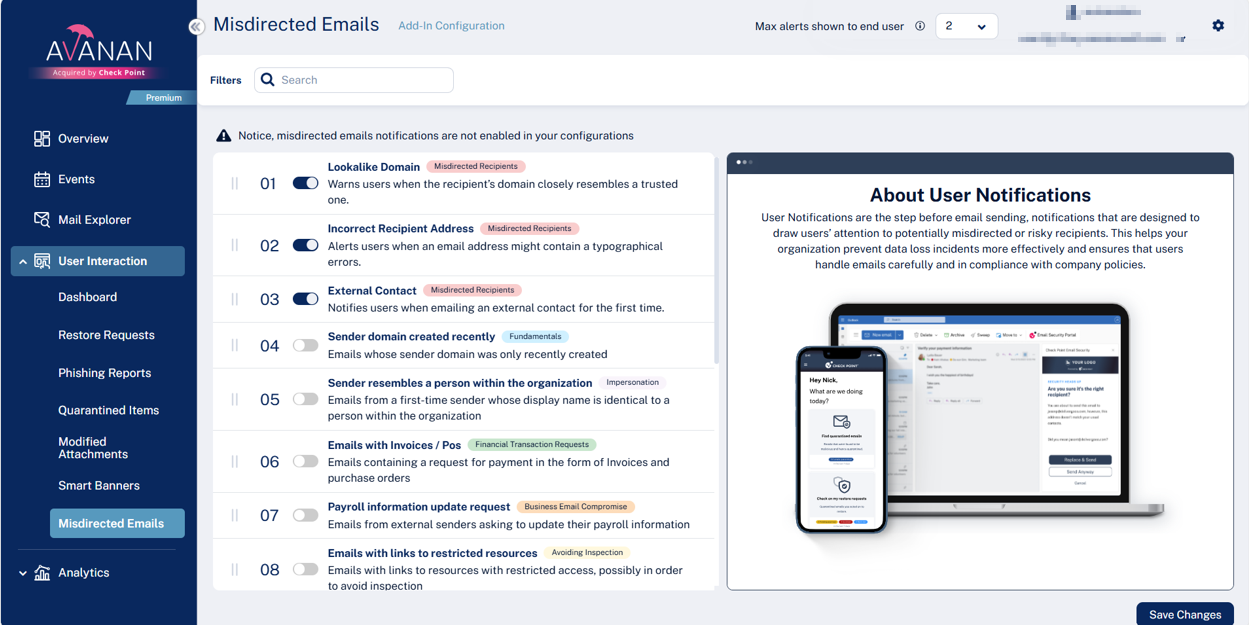
To configure misdirected email notifications:
-
Enable the required categories toggle buttons and click Save Changes. See Misdirected Emails Categories.
Responding to Misdirected Email Warnings in Outlook - End-User Experience
If an administrator has configured the misdirected email notifications in the Outlook Add-In, it performs real-time checks during actions such as Send, Reply, Reply All, and Forward.
When a potential risk is detected, an on-screen warning banner appears in Outlook before any action, allowing a user to review the details.
For more information about the permissions requested during Outlook Add-In sign-in, see Outlook Add-In Permissions.
To respond to a misdirected email:
When the warning banner appears, review the email details shown in the alert.
-
If the information entered is correct, select Send Anyway to proceed.
-
If the suggested correction is correct, select Replace & Send to apply the change and send the email.

This ensures emails are sent to the intended recipients while reducing the risk of accidental data exposure.
Outlook Add-In Processing Message During Email Send
In some cases, when the user clicks Send, Outlook may display the following message:
One or more add-ins couldn't complete processing your email.
This issue occurs when the user performs another action that moves them away from the message being sent before the Outlook Add-In finishes processing the email.
Examples include:
Clicking another email
Switching to a different Outlook folder
Navigating away from the compose window
Changing focus before the add-in completes its processing
When this occurs, Outlook interrupts the send process and prompts the user to select an action, such as Wait or Save as Draft.
Recommended User Action:
The user should click Wait and allow the Avanan Outlook Add-In to complete processing the email before continuing to work in Outlook.