Jump to main content
Avanan Administration Guide

Add a regular expression condition to a DLP policy
-
Go to Policy.
-
To add the regular expression to an existing DLP policy, click the policy and continue from step 6.
-
To create a new DLP policy, click Create New Policy Rule.
-
From the Choose SaaS drop-down, select the desired SaaS application.
-
From the Choose Security drop-down, select DLP and click Next.
-
In the Protection mode section, select Prevent (Inline).
-
Select the Scope of the policy.
-
Select email direction as Outbound.
-
Under Senders, select the Specific Users and Groups the policy applies to.
-
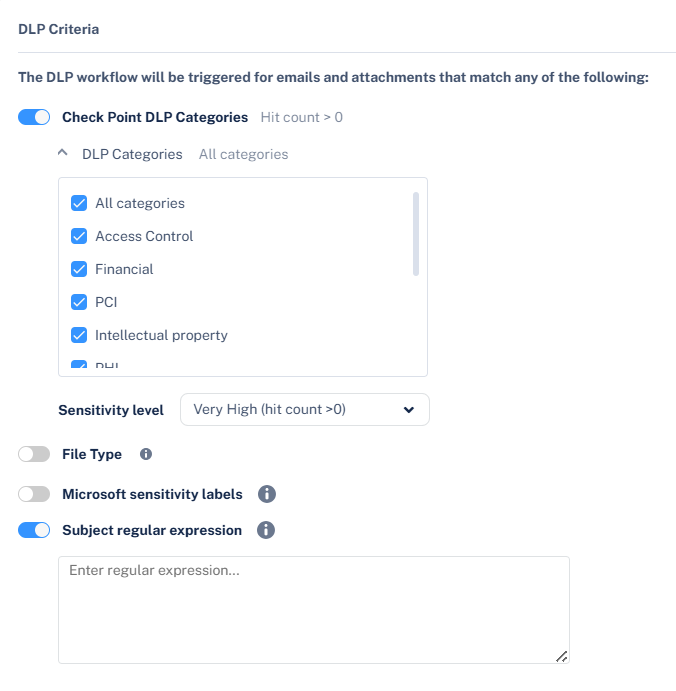
In the DLP Criteria section, do these.
-
Enable Avanan
DLP Categories toggle button and select the required DLP Categories.
-
Select the required Sensitivity Level. See DLP Policy Sensitivity Level.
-
Enable Subject regular expression toggle button and enter the regular expression. See Subject Regular Expressions Syntax.
-
Click Save and Apply.