
DLP Policy for Incoming Emails
-
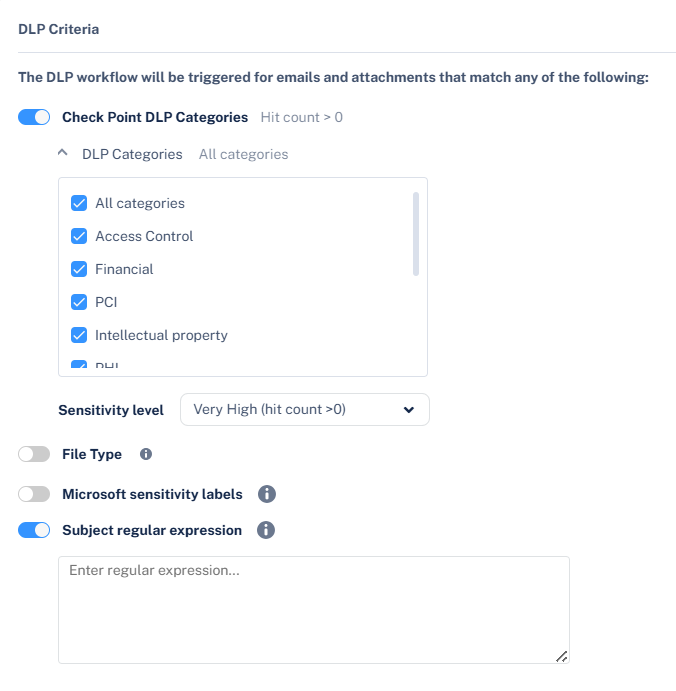
In the DLP Criteria section, do these.
-
If you need to add a subject regular expression as the matching criteria to the DLP policy, under Advanced, enable the Enable matching based on subject regular expression checkbox and enter the regular expression. See DLP Subject Regular Expression (Regex).
-
If you need to add a subject regular expression as the matching criteria to the DLP policy, under Advanced, enable the Enable matching based on subject regular expression checkbox and enter the regular expression. See DLP Subject Regular Expression (Regex).
For more details about configuring the DLP engine, see Data Loss Prevention (SmartDLP).