Easy Unlock
Easy Unlock allows administrators to Accept or Reject a One-Time Logon request or a Password Change request from a user.
Easy Unlock is enabled automatically when Smart Pre-boot is enabled.
This feature is supported:
-
Only with Endpoint Security client for Windows version 86.50 and later.
-
Only if the Check Point encryption is used for Full Disk Encryption.
When a end-user requests for unlock, the  icon appears for the device in Computers page under Asset Management.
To respond to the request:
-
Click Computers.
You can view the
icon in the Status column.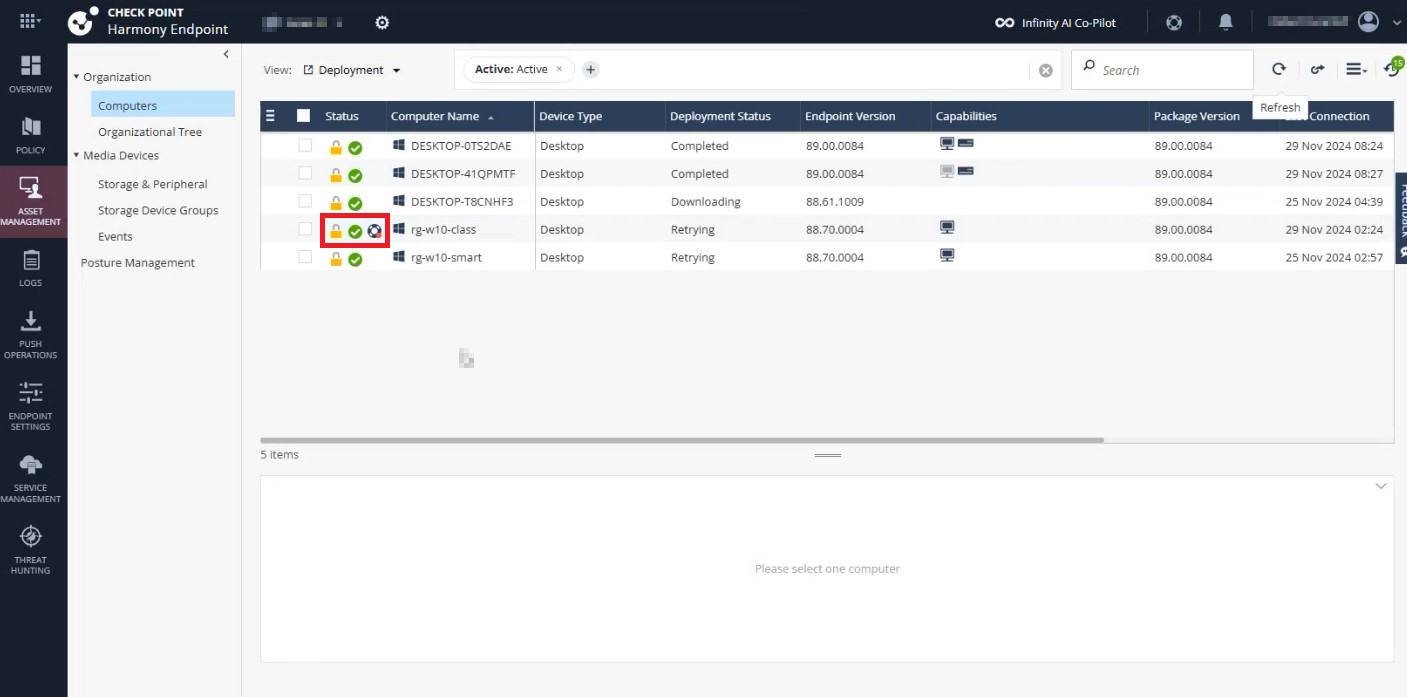
-
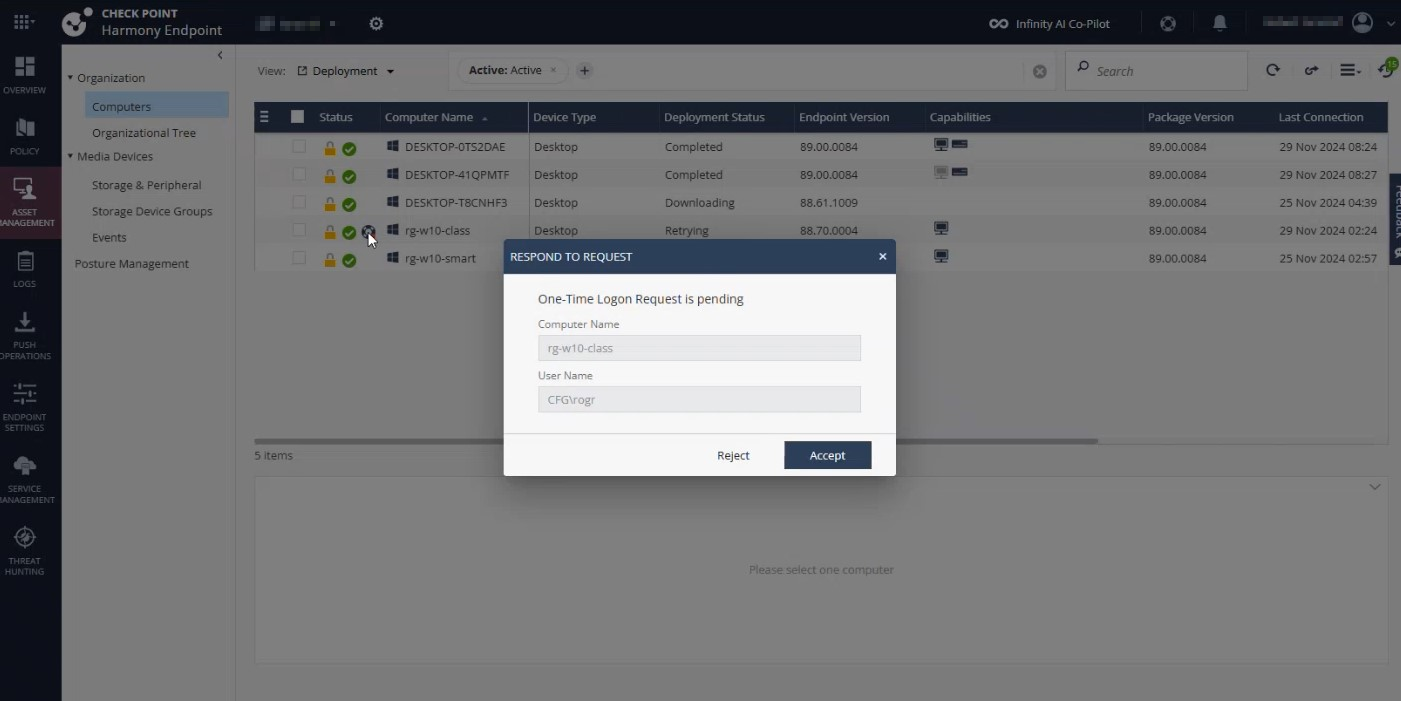
Click the icon.
The Respond to Request dialog box appears.