
Policy Mode
Policy mode allows you to:
-
Quickly configure a Threat Prevention policy by selecting a predefined policy mode (Detect only, Tuning, or Optimized). The system automatically sets the appropriate operation mode (Detect, Prevent, Off) and Advanced Settings for each capability.
-
Manually configure the operation mode and Advanced Settings for each capability (Custom mode).
Detect only mode
The Detect only mode provides basic protection. We recommend using this mode for the first few days to gather, monitor, and analyze data.
Based on your analysis, switch to Tuning, Optimized, or Custom for enhanced protection.
Default policy banner

If you click Dismiss, the notification is hidden only for you.
Policy mode flow
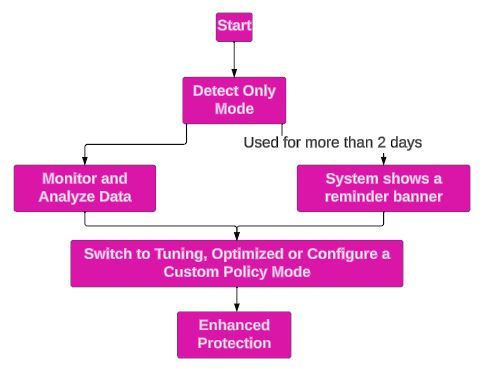
If you modify a predefined policy mode, it automatically changes to Custom.
Select a Policy Mode
-
Go to Policy > Threat Prevention > Policy Capabilities.
-
Select the required policy.
-
In the Capabilities and Exclusion pane, select a value from the Policy Mode list.
-
Select a predefined mode:
- Detect only
- Tuning
- Optimized
The table shows the operation mode applied to each capability.
Table 1. Web and File Protection Capability Tuning Detect only Optimized URL Filtering Detect Detect Prevent Download Protection Detect Detect Prevent Zero Phishing Prevent Detect Prevent Password Reuse Detect Detect Prevent Search Reputation Off Off On Force Safe Search Off Off On Anti-Malware Prevent Detect Prevent -
Select Custom to configure the operation mode manually.
-
-
Click Save.
-
Click Save & Install.
Update a Predefined Policy Mode
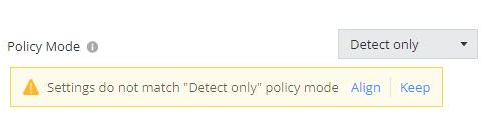
The system can update predefined policy modes based on internal analysis and research. When updates are available, a notification appears.
Policy update notification
-
Click Align to apply the updated configuration.
-
Click Keep to retain the existing configuration. The policy mode changes to Custom.