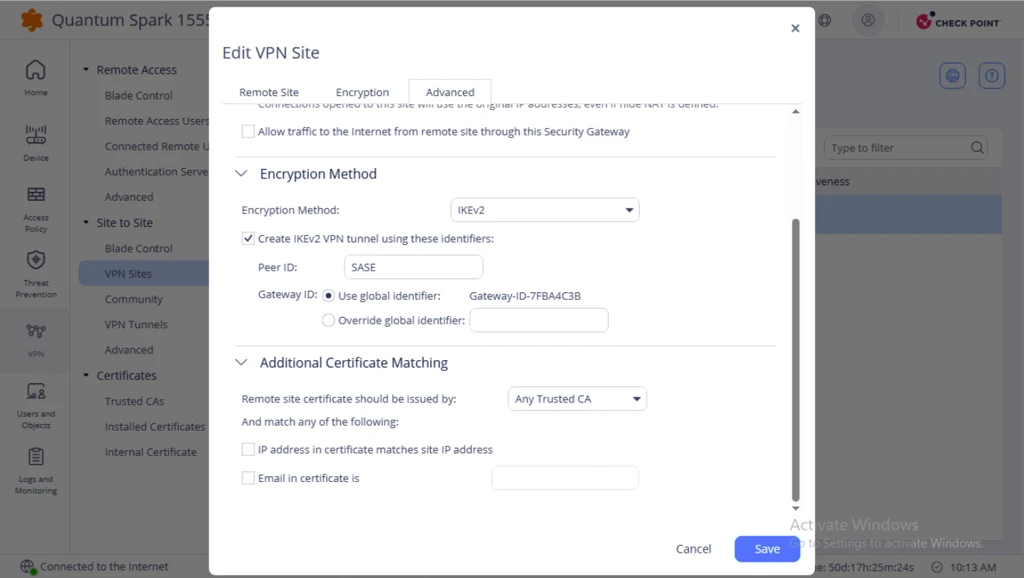
Creating a VPN Site
Configure and create a VPN site by defining remote site settings, encryption parameters, and advanced VPN options.
Creating a VPN Site
-
Select VPN Sites.
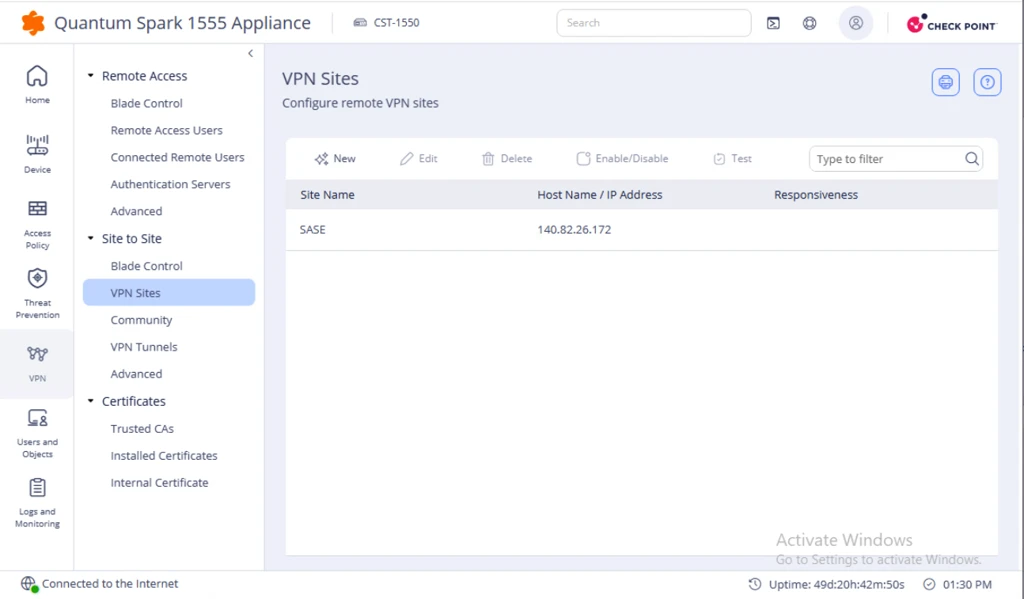
-
On the Remote Site tab:
-
In the Site name field, enter a name for the VPN site. For example, SASE.
-
From the Connection type list, select Host name or IP address.
-
In the IP address field, enter the IP address of the SASE site.
-
In the Authentication section, select Pre-shared secret and enter the same secret Password as in SASE.
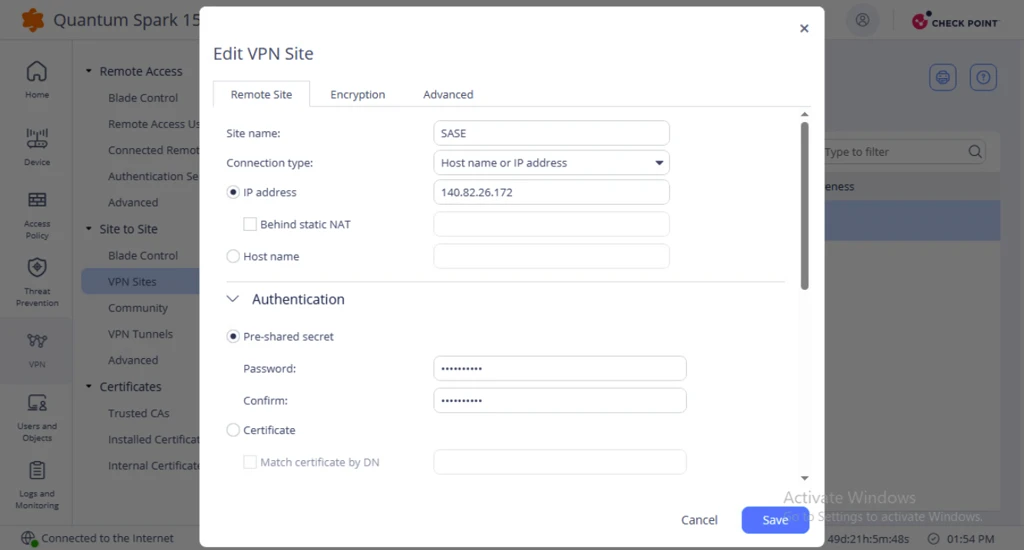
-
-
In the Remote Site Encryption Domain section, select Encrypt according to routing table.
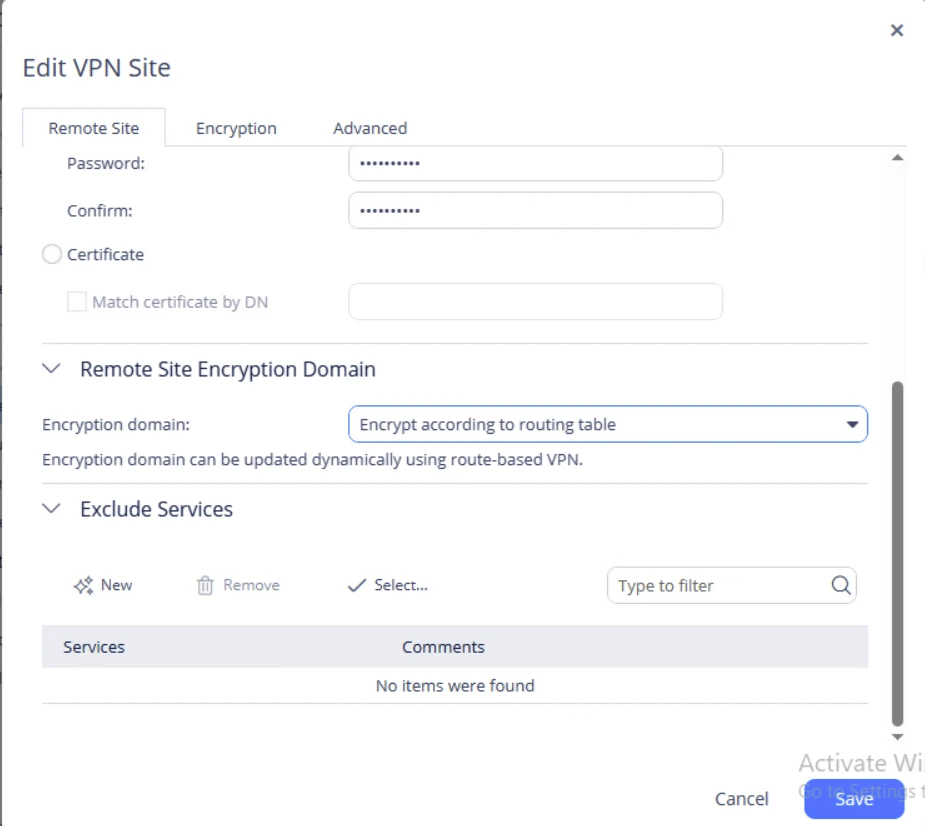
-
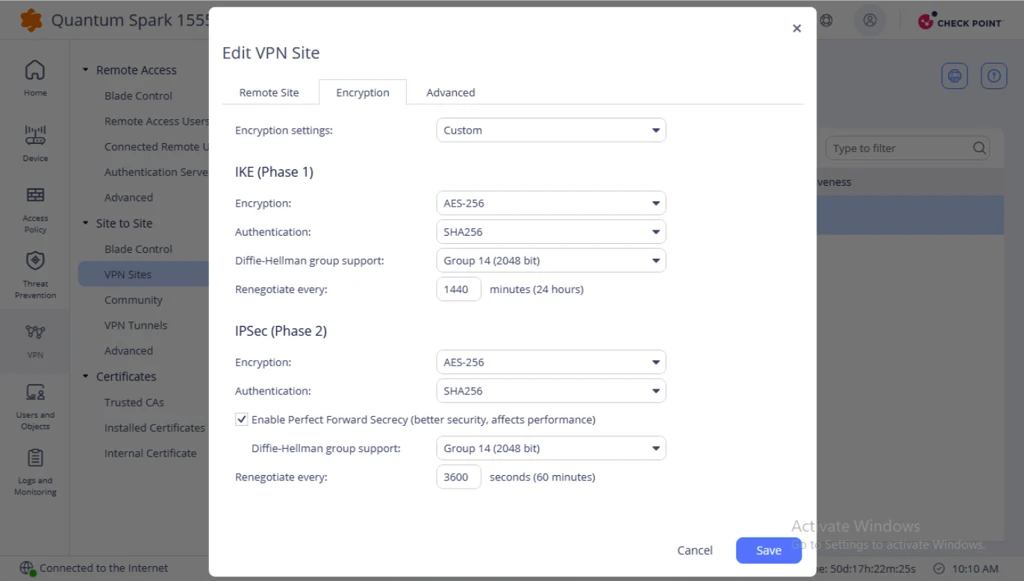
Go to the Encryption tab and configure parameters according to the SASE encryption parameters.
-
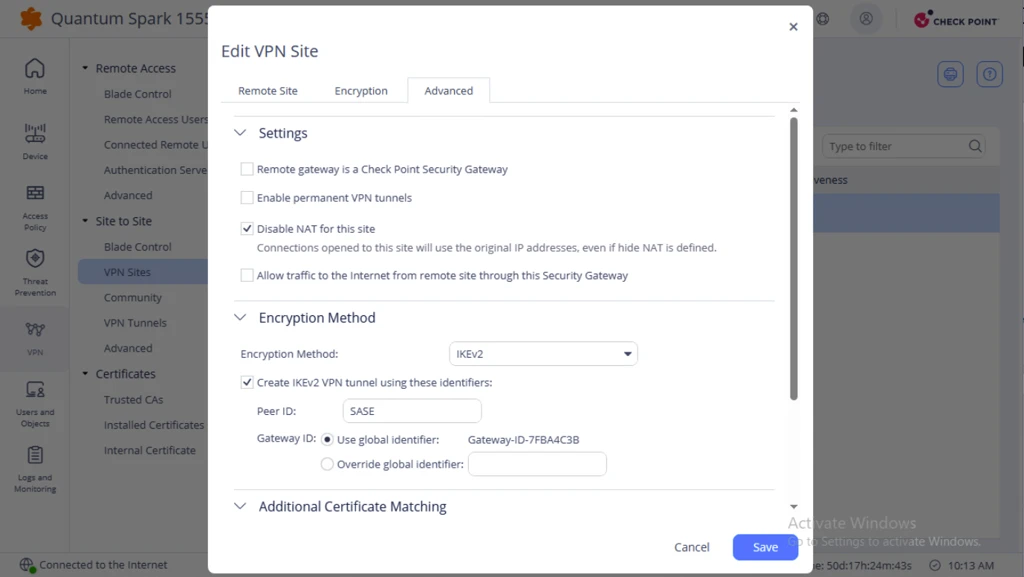
Go to the Advanced tab and configure these parameters:
-
Clear the Enable Permanent VPN tunnels checkbox.
-
Clear the Remote getaway is a Check Point Security Gateway checkbox.
-
-
In the Gateway ID field, keep the global identifier generated when you create the VPN site on the Spark appliance.